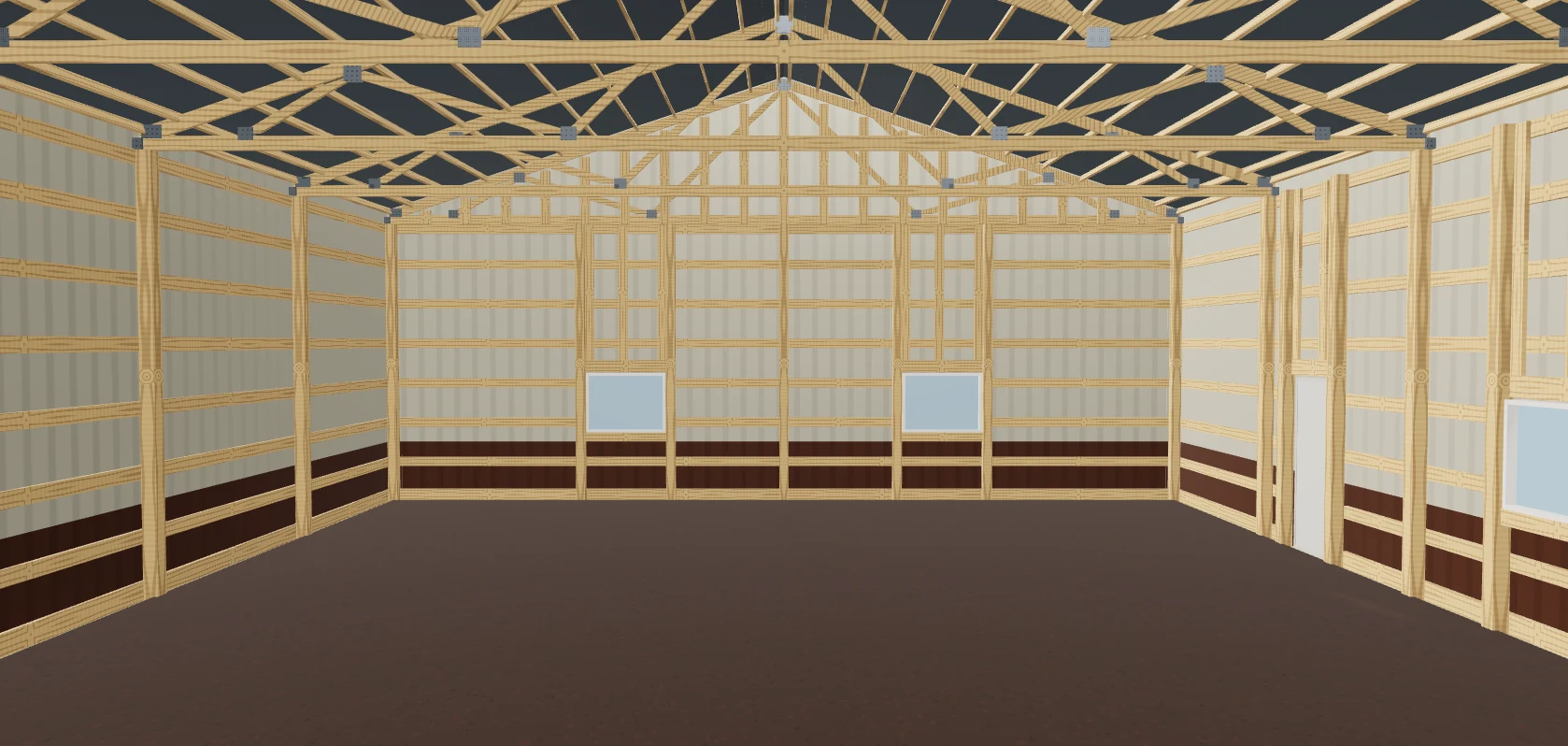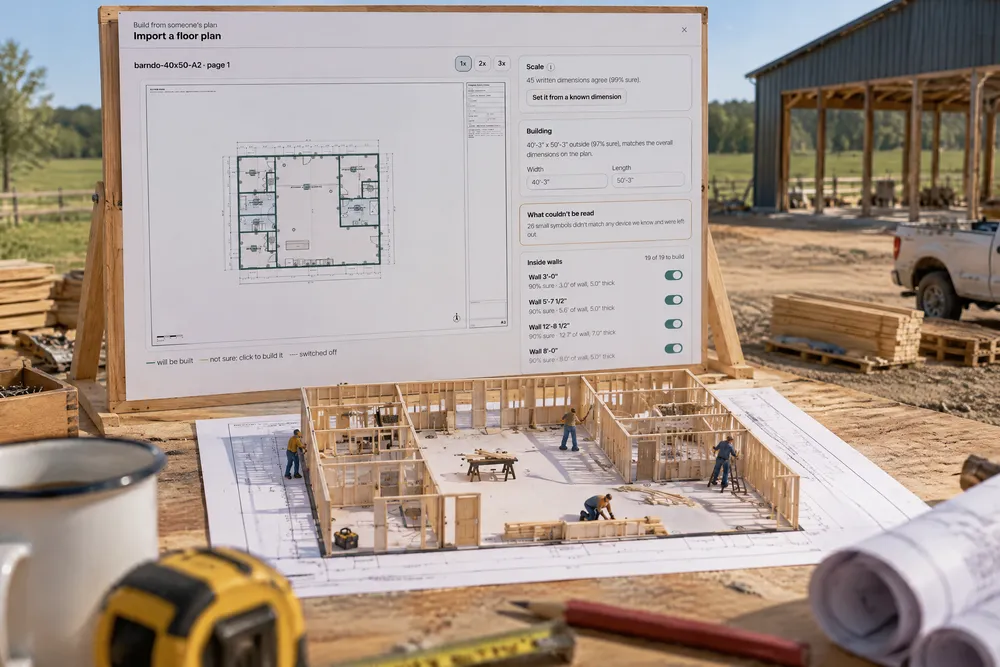
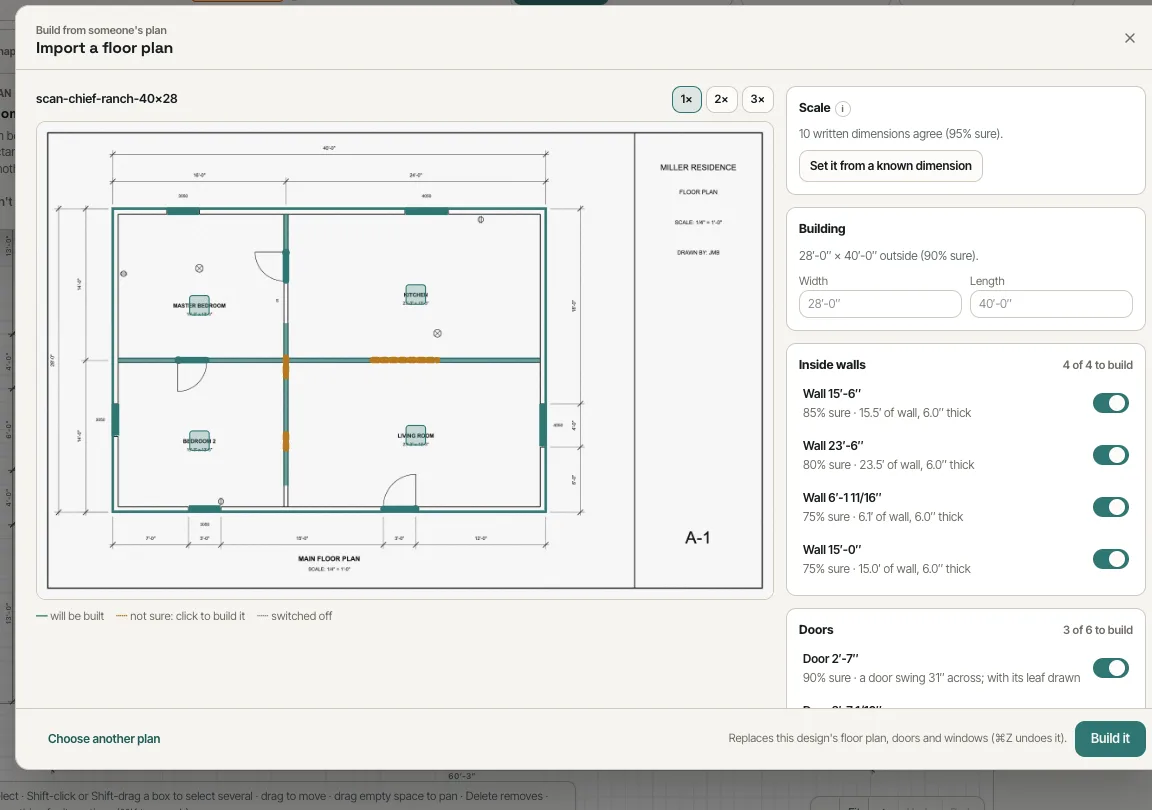
Import a floor plan sits beside Preset building and Start from a 2D floor plan when a new design starts, and in the floor plan's own menu. Drop in a PDF or a picture. From a drawn PDF it reads walls (and their thickness), doors and their swing, windows, overhead doors, rooms, size tags like 3050, and standard electrical symbols; from a scan or a phone photo it also reads the words — room names, window tags and dimensions — with text reading that runs on our own site. The review screen draws what it read over the plan, sets the scale from the written dimensions (or Set it from a known dimension), proposes the building size, and lists every wall, door and window with how sure it is, each one a switch. Build it makes the floor plan, with the original faded underneath to check against, and the code check runs on it straight away.
Also called: upload a floor plan · PDF floor plan to 3D · scan a floor plan · trace a floor plan · import house plans · Chief Architect plan import · customer's floor plan · plan from a photo · floor plan OCR
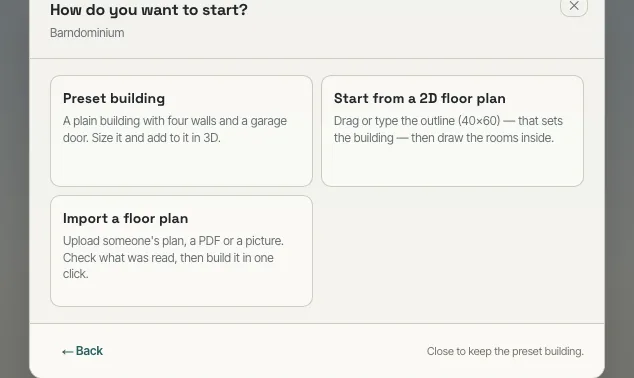
A third way to start
How do you want to start? now offers Import a floor plan beside Preset building and Start from a 2D floor plan: upload someone's plan, check what was read, then build it in one click.
The customer's plan had to be redrawn before anything could be priced.
When the customer arrives with a plan, the quote starts from it.
See what was read, and how sure it is
The review draws everything it read over the plan. Scale says how many written dimensions agree (and Set it from a known dimension fixes it); Building proposes the outside size; every wall, door and window is listed with how sure the read is, each a switch, and What couldn't be read says what was left out and why.
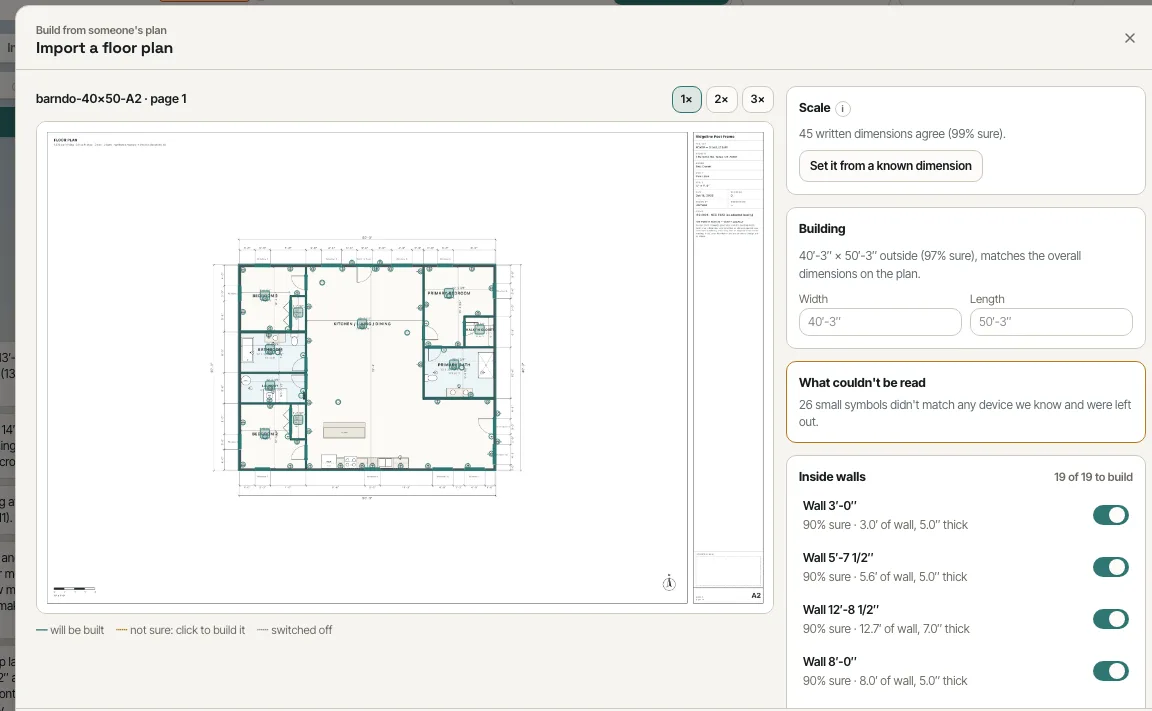
Plan importers that guess silently leave wrong walls in the plan for the builder to find later.
An import that shows its guesses can be trusted; one that hides them can't.
Built, with the original underneath
Build it draws the walls, doors, windows and rooms, keeps the original faded underneath to check against, and the code check starts on the result — a bedroom without a qualifying escape window is flagged straight away — like any plan you drew.
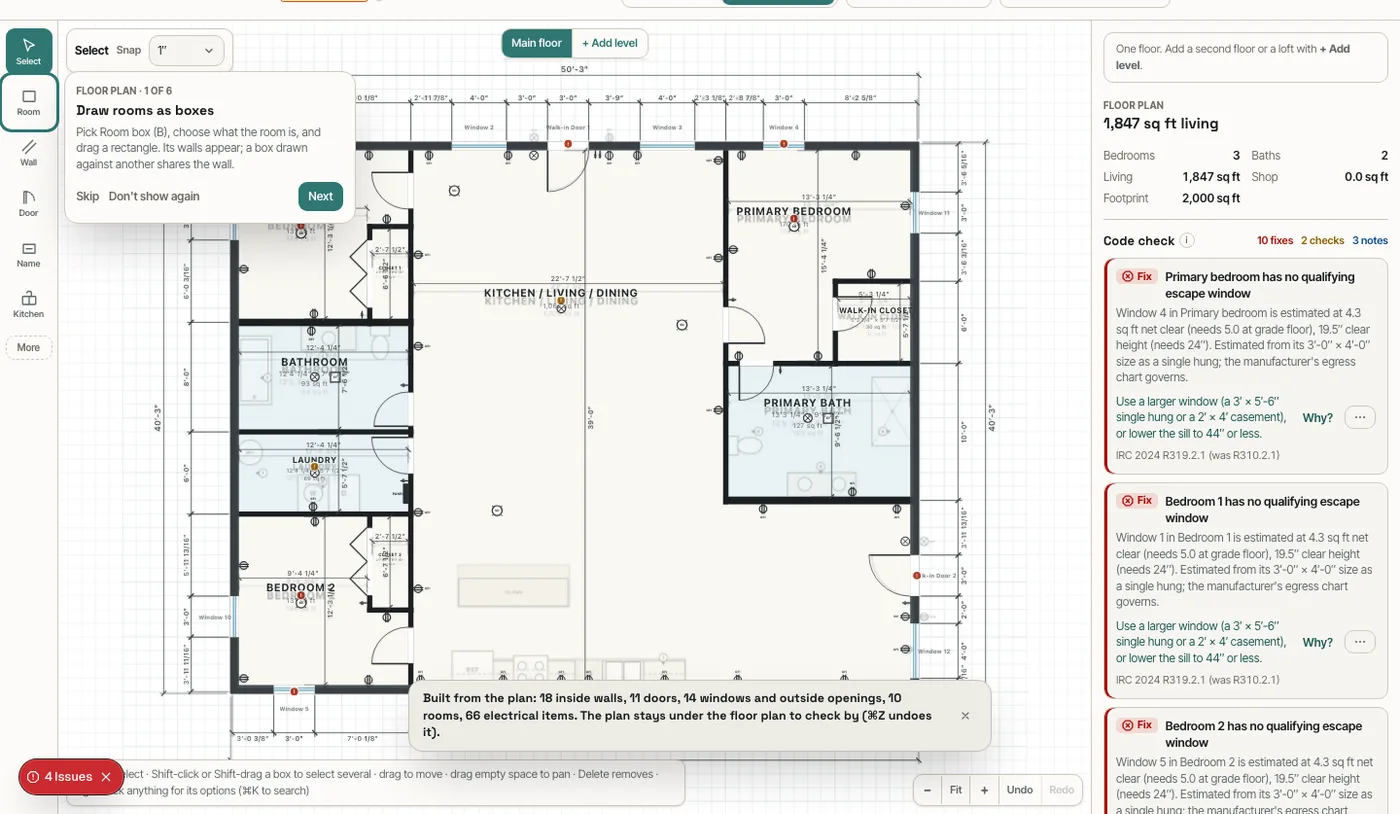
A traced picture is a picture; it can't be priced or checked.
The imported plan is a real plan — priced, checked and editable.
Scans and photos too
A scanned plan or a phone photo has no lines to read, so the import also reads the words: room names, window tags and dimensions, which also set the scale. The text reading runs on our own site — the plan isn't sent anywhere else.
Importers that only read clean PDFs don't help with the plans customers actually bring.
Most customer plans are scans or photos, not drawings.
- 1Turn on Import a floor plan in Settings → Beta features.
- 2Start a new design and pick Import a floor plan, or use the floor plan's import.
- 3Upload the PDF or picture; choose the page if it has several.
- 4Check the scale and the building size, and switch off anything that was read wrong.
- 5Press Build it: the floor plan is drawn, the original faded underneath; ⌘Z undoes it.
Barndominium customers often arrive with a plan — from a plan website, a designer, a relative, or sketched over a printout. Redrawing it wall by wall before the first price can be given is an hour of a builder's evening, and every hour between "here's our plan" and "here's your number" is an hour for another builder to answer first. Reading the plan, showing what was read and how sure it is, and letting the builder correct it before building turns that hour into a few minutes without hiding the guesswork.
- Redrawing a customer's plan by hand before quoting
- A traced plan whose scale is wrong
- Imports that guess silently and leave errors in the plan