The Team Room

The people side of every stage: chat tied to the exact record, everybody able to report everybody, a role for every person, and training that runs on your own screens.

The operating system for post-frame and barndominium builders.

Instead of: A group text that links to nothing, problems with people raised only when somebody finally snaps, and new hires trained by following someone around for a week.

Roles & Access — Permission presets
Permission presetsLead visibility

Permission Presets

Customize what each built-in role can do, or create your own named presets for specialty roles. Saved presets are scoped to your tenant only.

Create custom preset
Built-in roles
Admin
Based on Admin·40/40 permissions
Sales Manager
Based on Sales Manager·23/40 permissions
Sales Rep
Based on Sales Rep·14/40 permissions
Project Manager
Based on Project Manager·31/40 permissions
Crew Leader
Based on Crew Leader·15/40 permissions
Enable allDisable all15 of 40 enabled
Navigation
Home (Dashboard, My tasks and Assigned tabs — on for every role)View DashboardView AnalyticsView LeaderboardView Sales PipelineView Project PipelineView EstimatesView Project ManagementView ContactsView TeamMy Work (field log)
Actions
Edit ProjectsEdit PipelineEdit EstimatesTake PhotosMark StagesSubmit Daily LogsApprove Labor (inbox)Send Messages
Customer Documents
View ContractsView Change OrdersView Invoices
Stage Controls
Change Stage StatusEdit Start/Completed DatesEdit Stage Details & LandmarksAdd Tasks & NotesUpload/Take PhotosReport Issues & Delays
Admin
Delete ItemsManage UsersInvite and manage sales reps — their details and accounts, nobody else’sManage Building PlansInvite MembersView All Crews
Duplicate as customSave changes
Worker
Based on Worker·4/40 permissions
Custom presets
Lead Estimator
Based on Sales Rep·18/40 permissions·Custom
The real screen, drawn from the product’s own design system. Sample data — no customer information appears here.
Scroll — 6 steps
Where it starts

Talk about the job on the job, not in a group text

Every project gets its own chat, with the people on the job in it — six on the Hostetler 40×60 shop. Dale Yoder asks whether to frame now for a second overhead door on the east wall. The answer is one line: yes, it's written up — and a slash links the change order itself, CO-3, extra overhead door, $4,460, awaiting the customer, which anyone reading opens in one click. Yesterday's note about the truss delivery links the trusses-set stage the same way. One system for the whole post-frame business means the office, the sales team and the crews finally talk in the same room, and nobody feels left out of the loop.

A group text links to nothing, so every message about a change order is followed by somebody asking which one.

Job chat — link a record with /
Hostetler 40×60 shop6 people
Yesterday
Truss delivery is confirmed for Thursday morning — Hostetler 40×60 shop · Trusses set
4:12 PM
Today
Dale Yoder
Mark stopped by — he wants a second overhead door on the east wall. Do we frame for it now or wait?
7:42 AM
/projectLink a project
/estimateLink a estimate
/contactLink a contact
/fileLink a file
/marketingLink a marketing
Yes — it’s written up: /
🙂
A job's own chat with the "/" linker open over the message box — area, record, what about it, which one — and the sent message carrying the link that opens the change order it names. Real screen · sample data.
Beat one

Everybody can report everybody — and praise counts too

Every crew member and crew leader has Report someone on the crew app. Pick who, grouped the way people work — your crew, the office and managers, the other crews, each with a role beside the name. Pick why from nine reasons: late, unsafe, had to redo, poor attitude… and good work. Say what happened — Wes Miller, late, the fourth time this month he's rolled in after 7:30 — and send it to the office. The office reports from Home with the same reasons. Only admins and project managers read reports, and nobody ever sees one about themselves. People who feel heard stay, and good work that gets noticed gets repeated.

When only managers can report, the problem a crew member sees every day reaches the office when somebody quits.

Report someone — the crew's field link
Report someone
Close
Who
Your crew
Office & managers
Other crews
Why
What happened
This goes to the office only. They are never shown it.
The Report someone sheet on the crew's field link — Who, grouped Your crew / Office & managers / Other crews; Why, nine thumb-sized reasons each with an ⓘ; What happened; Send to the office. Real screen · sample data.
Beat two

Set somebody up the day you hire them

Add the new hire before they ever log in — name, work email, mobile, address and role — and they can have a phone number, a territory or a crew on day one. Their first sign-in greets them in the words of their job, and Getting set up on Home walks them through their role's steps, the most important first. The Academy teaches on your own screens. A new hire who's useful in the first week feels it, and stays.

A new hire who exists nowhere until he clicks an email link spends his first week waiting.

Set somebody up the day you hire them
DY
Dale Yoder INVITED
Sales Rep · dale@examplebuilders.com · (573) 555-0148
Close
Contact
NameDale Yoder
Work emaildale@examplebuilders.com
Mobile(573) 555-0148
Personal emailthem@gmail.com
Address
Street1204 W Mill St
CityGallatin
State / ProvinceMO
Role
Sales RepSales ManagerProject ManagerCrew Leader
Save & closeCancel2 unsaved changes
The real screen, drawn from the product’s own design system. Sample data — no customer information appears here.
Beat three

A role decides what each person sees — a worker's app is three things

Admin, sales rep, project manager, crew leader, worker — each role carries its own abilities: which screens they see, what they can change, whether they see money documents, what they can do in the field. A worker gets the dashboard, the schedule and his own work: the jobs he could be on and the stage each is at — the Wenger shop in framing, the Stoltzfus storage at site prep. No contacts, no estimates, no invoices, no other crew's week. Everyone gets the tools for his job and nothing in the way of it, and a simple screen is one a man actually uses.

One login for everybody means everybody sees everything, including what the job sold for.

Crew portal — Which job are you on?
Marlin Zook
Which job are you on?
Wenger 40×60 Shop
Stage 3 of 7 · Framing
Stoltzfus Equipment Storage
Stage 2 of 6 · Site prep
Beiler Barndominium
Stage 5 of 9 · Roof steel
Cancel
The real screen, drawn from the product’s own design system. Sample data — no customer information appears here.
Beat four

In the field, you decide who ticks the checklist

Let only crew leaders mark work complete, and everyone else still logs hours, adds photos and reports a hold-up — but sees no checklist. Or let anyone on the crew tick off checkpoints on the job they're clocked into. One switch, set the way you run your crews. Leaders keep the responsibility that makes them leaders, or the whole crew shares the credit.

A rule about who signs off a stage that lives only in your head gets broken on the first busy day.

Marking work complete

Who can tick checkpoints off from a crew’s field link. Finishing a stage tells the office and shows the customer that stage complete on their page, so this starts with crew leaders only.

The real screen, drawn from the product’s own design system. Sample data — no customer information appears here.
Beat five

Each person hears what's his to hear

Alerts follow the roles: sales hears about new leads and estimates, the project manager hears that a stage is done, the crew lead and the worker hear neither. Anyone put on a job hears about that job whether his role box is ticked or not. A man can quiet his own phone, but he can't switch on what his role was never given. Nobody drowns in alerts that aren't theirs, so they read the ones that are.

When every alert goes to everybody, everybody learns to ignore them — including the one that mattered.

Settings — Notifications
Notifications
Pick which roles get notified for each event. Project-level assignees (set on each project’s detail page) always receive project notifications regardless of the role toggles here.
Account controls · two switches, applied in order
1 · Account notifications — ONsince 3/14/2026

The master power switch for this company. While it is on, everything below decides what actually goes out. Switch it off and nothing is sent on any channel to anyone — your team or your customers — and every setting is kept exactly as it is.

2 · The 36 events in the table below — ON
36 events · 21 sending email · 36 showing in the bell.
Only want to quiet your own alerts? Everything on this page applies to the whole company. Your personal notifications are under Settings → My Profile → My Notifications, and turning yours off there leaves everyone else’s exactly as they are.
Alerts sent by your build-stage automations are configured separately under Settings → Stage Automations and are not affected by either switch.
EventsEveryone (by role)
ShowAllInternalTo customersCategoriesSingleMultiple
EventAdminSalesProject ManagerCrew LeadWorkerChannels
Sales Pipeline· 10
Estimates & Orders· 4
Invoicing & Payments· 4
Contracts & Legal· 6
Project Management· 7
Project started
Someone clicked Start Project on an estimate.
In-appEmailSMS
Project stage completed
A build stage was marked complete.
In-appEmailSMS
Project completed
Final stage was marked done.
In-appEmailSMS
Weather advisory (day before)
Tomorrow's forecast may change the plan — heat, cold, wind, storms, rain or mud.
In-appEmailSMS
Crew ran past its figured days
A crew on hourly + shared surplus has worked more days than the job was figured for.
In-appEmailSMS
Shortfall needs a decision
A job finished over budget — decide whether the crew carries it or the company absorbs it.
In-appEmailSMS
Conduct report filed
Someone filed a performance, conduct, safety or attendance report about a team member.
In-appEmailSMS
Teams & Crew· 2
System & Integrations· 3
The real screen, drawn from the product’s own design system. Sample data — no customer information appears here.
Every part of it, in detail
Team chat that links the exact job, stage or change order
Your crews, office and project managers in one chat — and when you type / you link the exact project, stage, invoice or change order, so whoever clicks lands right on it.
Employee reporting — anyone can file, only managers read
Anyone on the team can report anyone — from the crew's field link or from Home — with a reason, a required note and praise as an option. Only managers read it; the person reported never sees it.
Roles and permissions
Six roles named for the jobs in a post-frame company — Admin, Sales Manager, Sales Rep, Project Manager, Crew Leader, Worker — each carrying about forty specific abilities, and crews who never see the office side at all.
Team Members
One list of everyone who works here — office, sales and every crew — whether or not they have a login. Built for how a post-frame outfit is actually staffed: an office, a few reps, and crews paid by the job who mostly never sign in.
The Academy — training built into the software
Lessons that run on your own screens with your own buttons, a first-login checklist for every role, and tours that work on a phone — so a new hire learns the job by doing it.
Invite someone to the app
Invite someone by name, phone and role — sent by text, email, both, or a link you hand over yourself — made for post-frame crews, where the framer has a phone and no work email.
The crew app
Your crew's whole day on their own phone — clock, swipe camera, checklist, Blocked, the job chat — and a record that shows every man his own growth. One link each, no password, built only for post-frame and barndominium builders.
Stage checkpoints
Every stage carries a checklist of the actual work inside it, and ticking the last one finishes the stage.
Notifications
An event-by-role grid deciding who on your team hears about what — in-app, email or text — with customer messages held apart, a warning before anything switches off the whole company, and a pause switch that is only yours.
THE SYSTEM, END TO END

Put your whole team
in one room.

The people side of every stage: chat tied to the exact record, everybody able to report everybody, a role for every person, and training that runs on your own screens. Twenty minutes, on one of your real structures — and the link we build is yours to keep whether or not you go any further.
leads2build.com
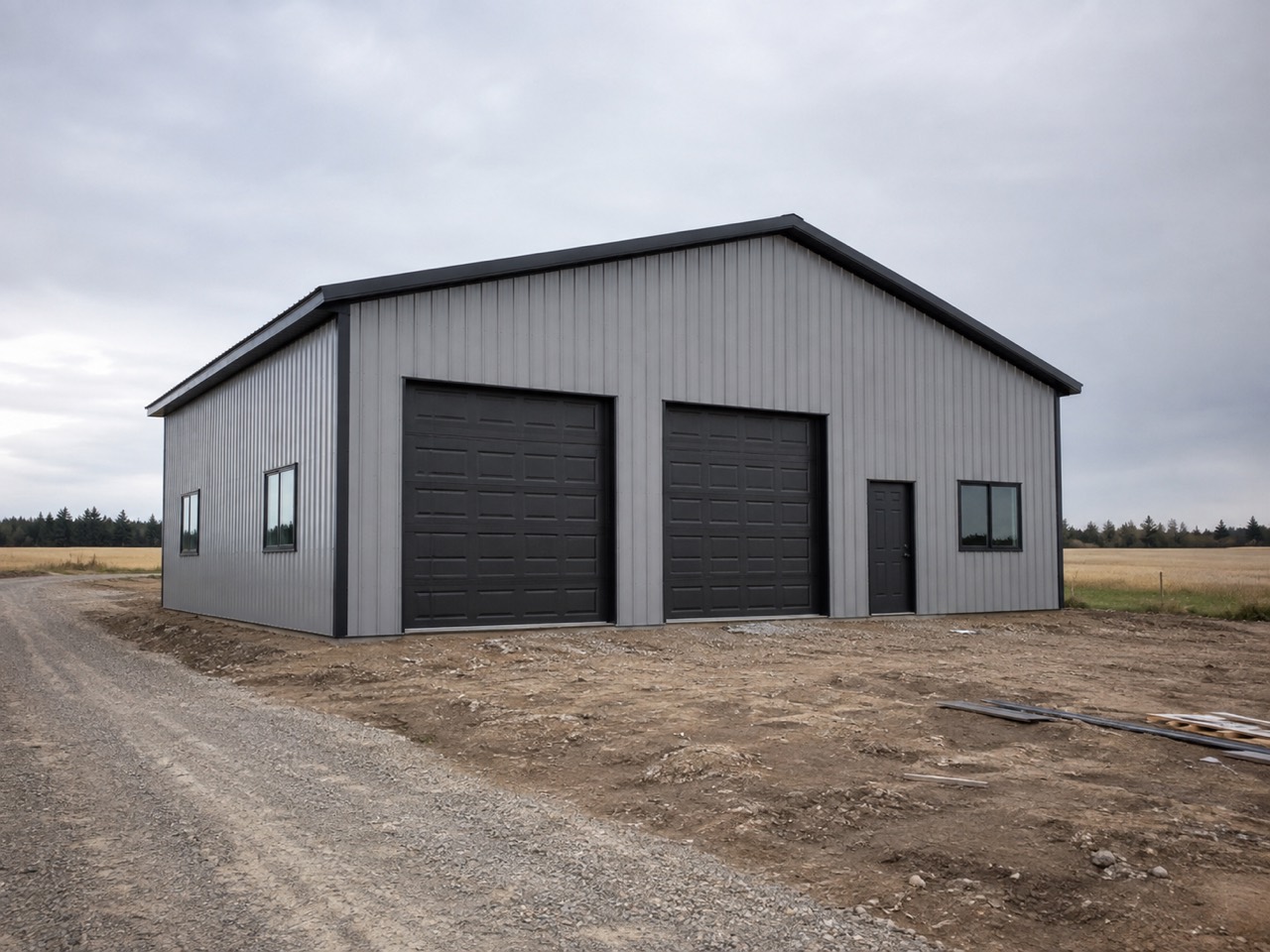
Overhead doors on a finished building
Roles & Access — Permission presets
Permission presetsLead visibility

Permission Presets

Customize what each built-in role can do, or create your own named presets for specialty roles. Saved presets are scoped to your tenant only.

Create custom preset
Built-in roles
Admin
Based on Admin·40/40 permissions
Sales Manager
Based on Sales Manager·23/40 permissions
Sales Rep
Based on Sales Rep·14/40 permissions
Project Manager
Based on Project Manager·31/40 permissions
Crew Leader
Based on Crew Leader·15/40 permissions
Enable allDisable all15 of 40 enabled
Navigation
Home (Dashboard, My tasks and Assigned tabs — on for every role)View DashboardView AnalyticsView LeaderboardView Sales PipelineView Project PipelineView EstimatesView Project ManagementView ContactsView TeamMy Work (field log)
Actions
Edit ProjectsEdit PipelineEdit EstimatesTake PhotosMark StagesSubmit Daily LogsApprove Labor (inbox)Send Messages
Customer Documents
View ContractsView Change OrdersView Invoices
Stage Controls
Change Stage StatusEdit Start/Completed DatesEdit Stage Details & LandmarksAdd Tasks & NotesUpload/Take PhotosReport Issues & Delays
Admin
Delete ItemsManage UsersInvite and manage sales reps — their details and accounts, nobody else’sManage Building PlansInvite MembersView All Crews
Duplicate as customSave changes
Worker
Based on Worker·4/40 permissions
Custom presets
Lead Estimator
Based on Sales Rep·18/40 permissions·Custom
The Team Room — Leads2Build