Photos that file themselves
A crew photo opens on the stage he’s working, with the next checkpoint already picked. Most of the time it’s two taps: open, shoot.
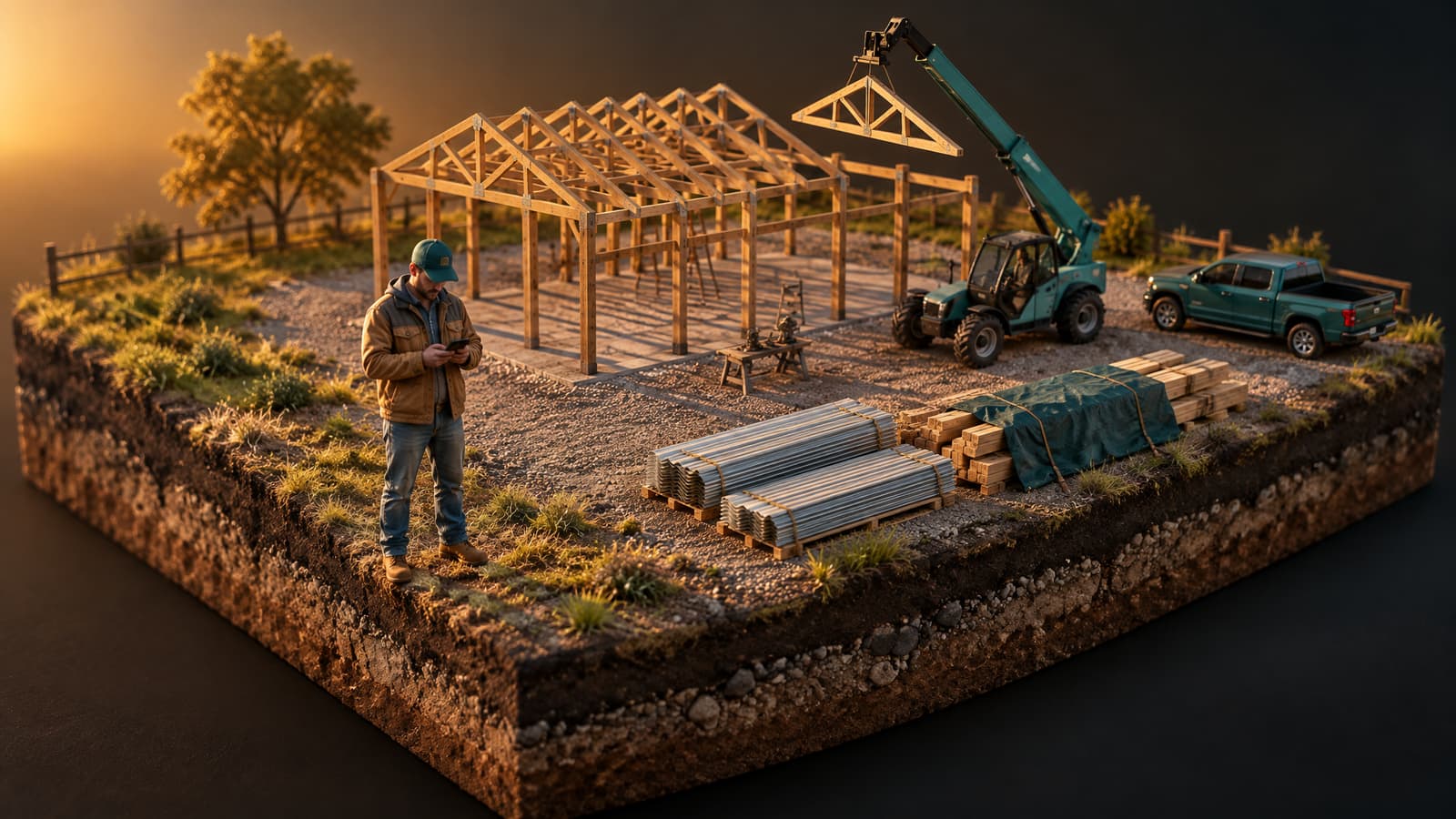
Jobsite photosA post-frame builder’s day happens on the pad, on the road and in the cab in between. Leads 2 Build is the construction mobile app built around that day: the leads you call from the card, the deal you work between stops, the crew’s day, and the building itself in 3D.
On your phone today
Not a roadmap. Everything below works in Leads 2 Build now, in your phone’s browser, and it’s what the app opens to.
Sales pipeline
Nine stages of deals don’t fit in one hand, so on a phone the pipeline shows one stage at full width. Swipe sideways to move through the stages, and the name and dots at the top follow your thumb. Tap the stage name and the whole list opens in the middle of the screen, where a thumb can reach it.
Try it: swipe the stages, or tap the stage name.
The deal
Open a deal and the thread with your customer fills the screen, texts and emails in one line. Swipe right for Details: the contact, the calls and the steps for this stage. Swipe left for Follow-up: the deal, tasks, notes and activity. The word on each edge says which side you’re on, so you never lose your place.
Calling from the cardTap Details or Follow-up, or flick sideways.
The crew
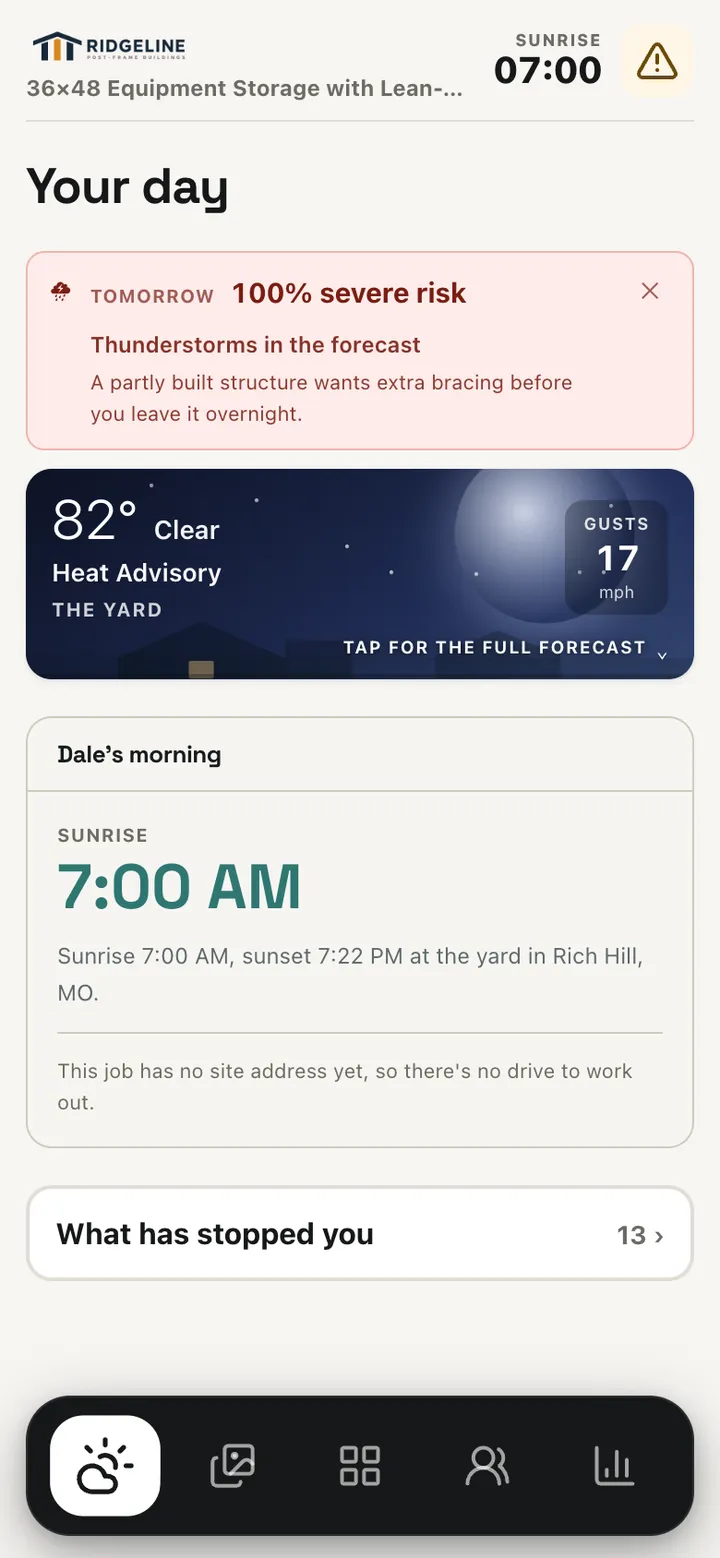
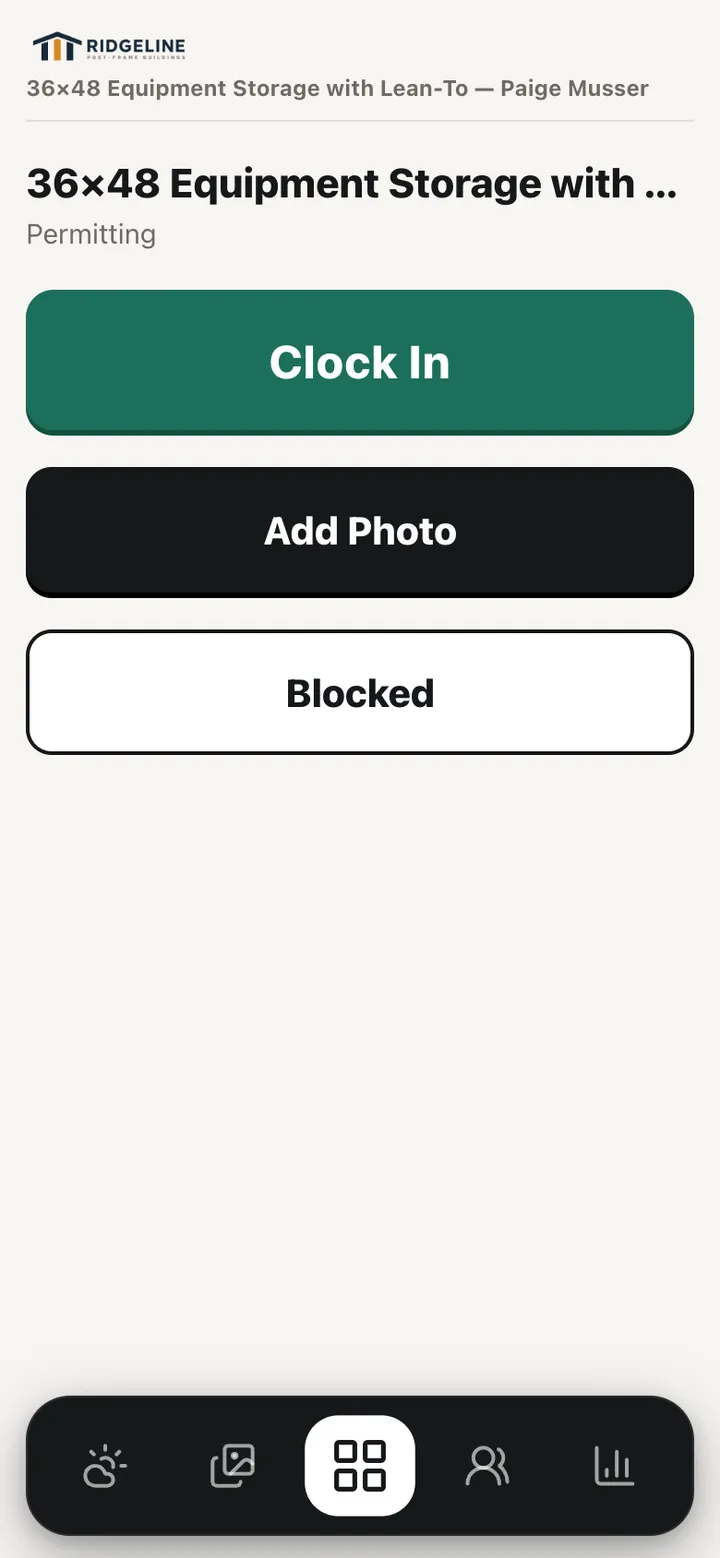
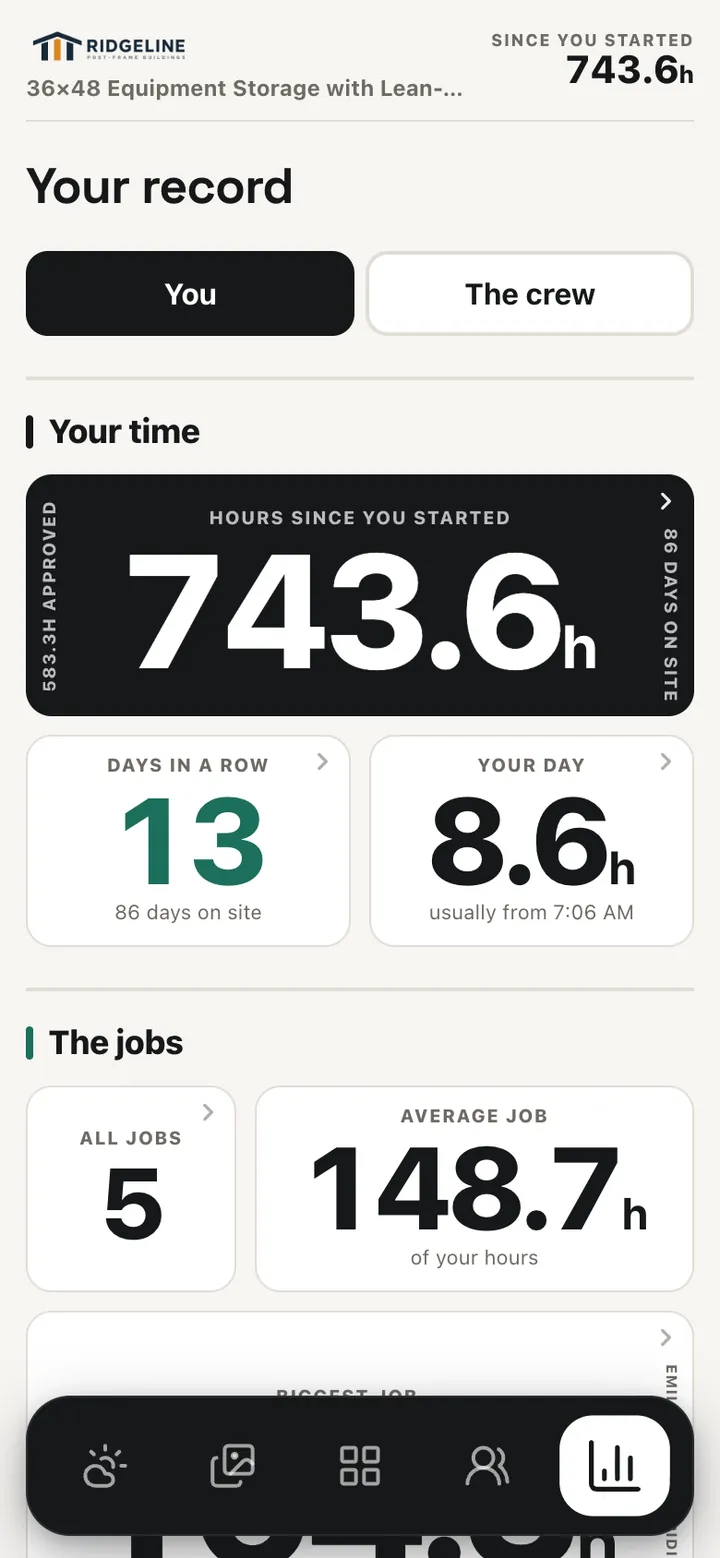
Each man gets his own link. It opens on today’s job with Clock In, Add Photo and Blocked as big as buttons get. His weather and sunrise, his photos, his crew and his own record of hours and days on site are one tap along the bar. Saved to the home screen, it opens like an app. Crew leaders and workers who have a login land in the same field app when they sign in.
A crew photo opens on the stage he’s working, with the next checkpoint already picked. Most of the time it’s two taps: open, shoot.
Jobsite photosAdvisories arrive the evening before and carry the figure that set them off, like a 97°F high or the wind gusts, beside sunrise and when to leave for the job.
Site weatherThe 3D designer has real touch controls on a phone: orbit, fly and inspect with your thumbs, measure, and change a door from a sheet that lifts the building above it so it stays in view.
The 3D building designerCall, Text and Email are 40 pixels tall. Every tap visibly presses in, so you know it landed in bright sun. The stage list opens in the middle of the screen, not jammed against the bottom edge.
Where the app is
Straight answers, because you’d be running your business on it.
In beta through TestFlight, Apple's app for trying apps before they go public. The first release is for iPhones, not iPads.
In a closed test on Google Play. Google lets a new app go public once enough testers have used it for two straight weeks, which is one reason we want builders in the beta.
Both go public on the App Store and Google Play soon. You don't have to wait: everything on this page works today at leads2build.com in your phone's browser, with the same login.
Beta
We’re adding builders to the iPhone and Android tests by hand while the apps finish review. Tell us which phone you carry and we’ll email you the way in.
It's the email under your name at the top of your iPhone's Settings.
Do you run on Leads 2 Build now?We only use these details to give you access to the app. See our privacy policy.
Install
While we test, Apple and Google only let people we've added install the app. Pick your phone and follow the steps. You only do this once, and the app updates itself after that.
You’ll get a confirmation email straight away. The install email comes once we’ve added you to the test, and it has everything you need. There’s nothing to do in between.
The one your phone’s app store is signed in to. On an iPhone it’s the email under your name at the top of Settings. On Android, open the Play Store and tap your picture. If that isn’t the email you use for work, that’s fine: tell us both.
Almost always the phone is signed in to a different Apple ID or Google account than the one you gave us. Check it, and if it’s different, reply to the email with the right one. Still stuck? Write to support@leads2build.com.
Questions
Yes. The iPhone app is in beta on TestFlight, Apple's testing app, and the Android app is in a closed test on Google Play, and both are on their way to public release. It's the same Leads 2 Build you use on a computer, with the same login.
Both. The first release is for iPhones (not iPads yet) and Android phones. Until the store versions are public, everything it does also works in your phone's browser at leads2build.com.
No. Each crew member can have their own link that opens their day with no login, no password and no app store: clock in, photos, blocked reports, the stage checklist, their weather and their hours. Crew leaders and workers who do have a login land in the same field app when they sign in.
Anywhere your phone has data. It's the live system, not a copy that syncs later, so a clock-in, a photo or a blocked report lands on the job the office is looking at. Working with no signal at all is one of the things the beta is testing, so we don't promise it yet.
Nothing to install. The app comes with your company's Leads 2 Build account and isn't billed on its own. What the account costs depends on your company, and a demo is where we walk through it.
No. Sign in with the same email and password you use on leads2build.com. Each person sees what their role allows, the same as on a computer.
Join the beta, or see the whole system in a short demo.