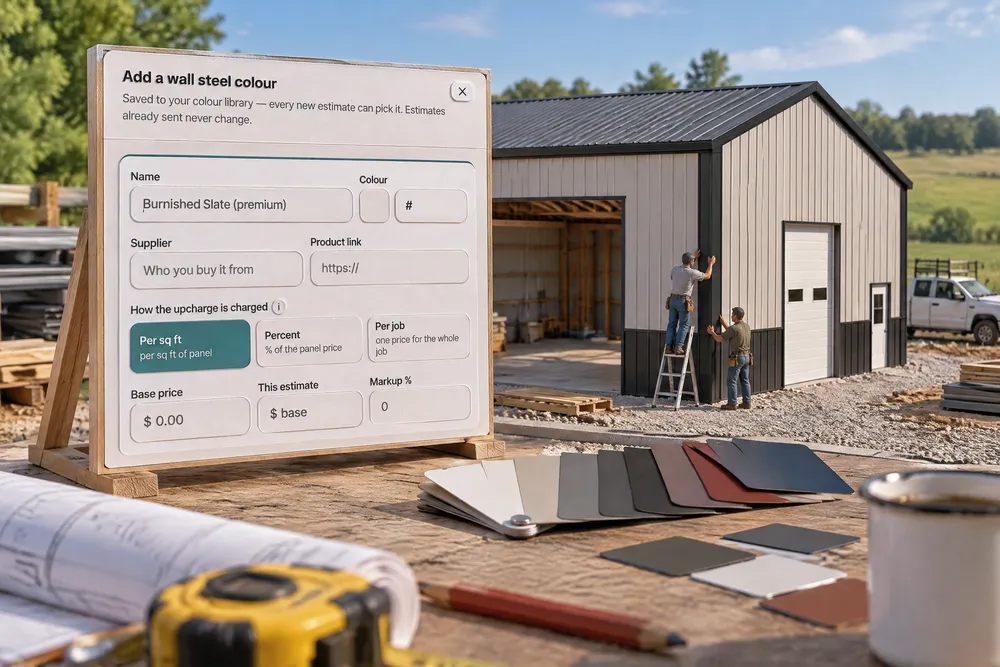
Trim starts as All one colour; By group is one click away and gives the roof trim (eave, rake, soffit, ridge), wall trim (corners, base), walk doors, windows and overhead doors each a colour of their own, and any single door or window can have its own trim colour. The building's trim never repaints a door or window that has its own colour. Base trim along the bottom of every wall is drawn and priced by the foot when you want it. Every colour picker has a +: add your supplier's colour with its name, swatch, supplier and product link, how the upcharge is charged (per sq ft, a percent, or per job), its base price, this estimate's price and its markup. A colour that costs more adds its upcharge to the estimate. Each design keeps its own copy, so editing the library never re-prices a saved or sent estimate.
Also called: trim colour · two-tone trim · black trim white doors · door trim colour · custom steel colour · premium colour upcharge · colour library · base trim · window colour · metal colour chart
One colour by default, groups one click away
All one colour keeps it simple; By group splits the trim into roof, walls, walk doors, windows and overhead doors. Base trim along the bottom of every wall is its own switch, drawn and priced by the foot.
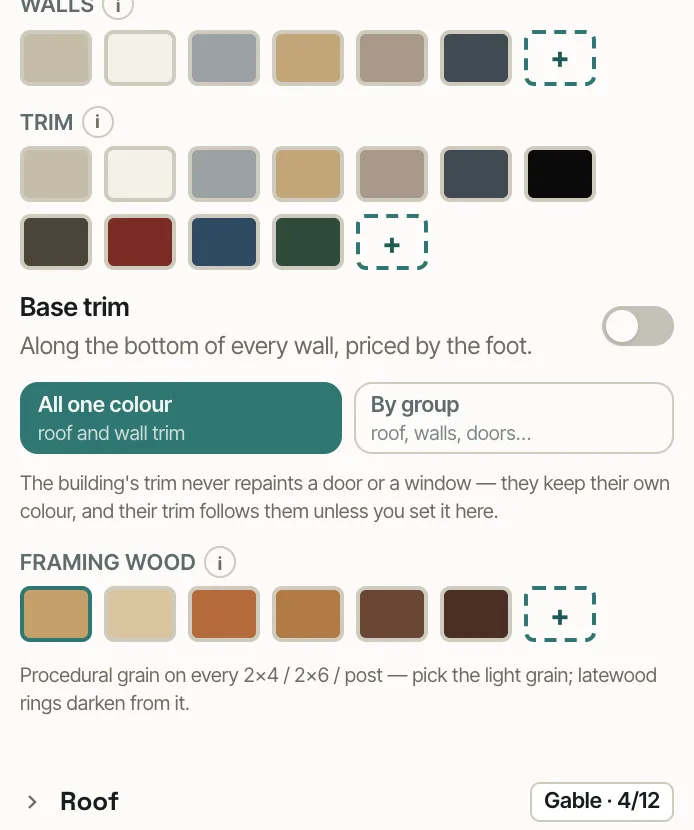
Either one trim colour for everything, or a wall of colour fields nobody wanted.
Simple stays simple; the two-tone building is one click away.
Each group its own colour
By group: roof trim (eave and fascia, rake, soffit, ridge cap and flashing), wall trim, walk doors, windows and overhead doors, each with its own picker — and each opening can override its group.
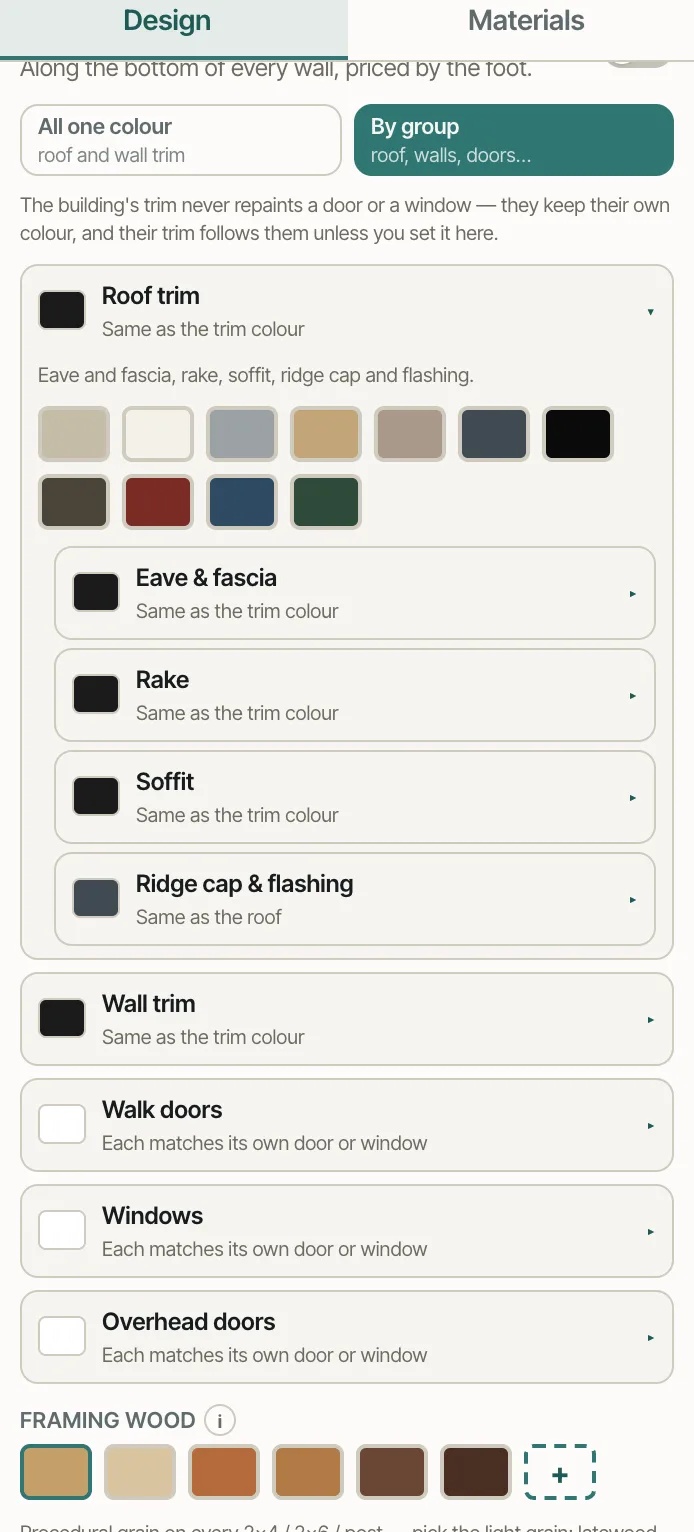
Two-tone trim was a note on the order, not a line.
The trim combinations customers ask for can be drawn and ordered exactly.
The trim never repaints a door
A door or window with its own colour keeps it, and its surround trim follows the opening's own trim colour, then its group, then the opening colour. Black trim, white doors — drawn, and ordered, as chosen.
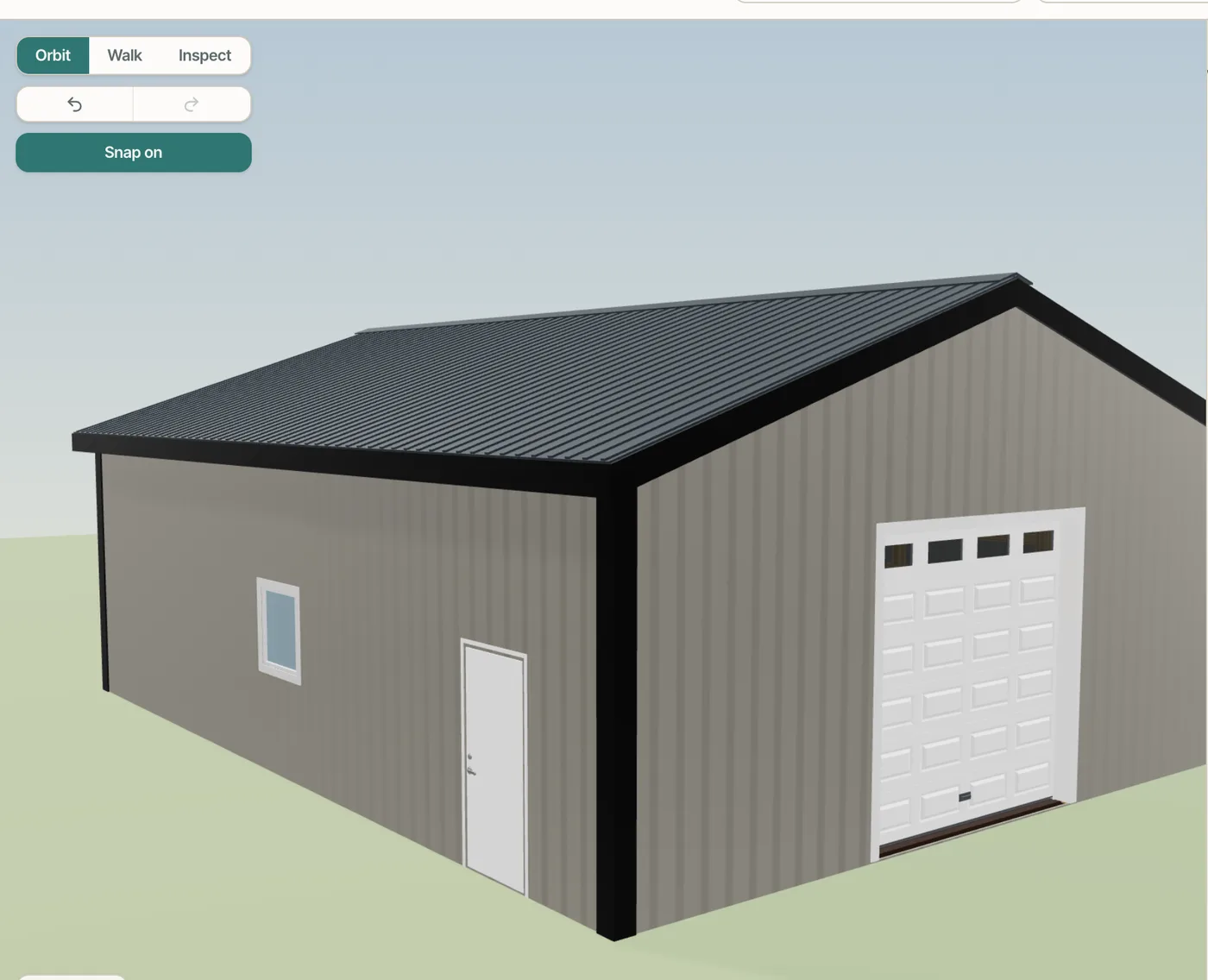
Setting the trim to black turned every door black on the drawing.
What the customer approves on screen is what the crew installs.
Your supplier's colours, with their price
The + on any colour picker adds a colour: name, swatch, supplier, product link, how the upcharge is charged — per sq ft of panel, a percent of the panel price, or per job — the base price, this estimate's price and the markup. Every new estimate can pick it; estimates already sent never change.
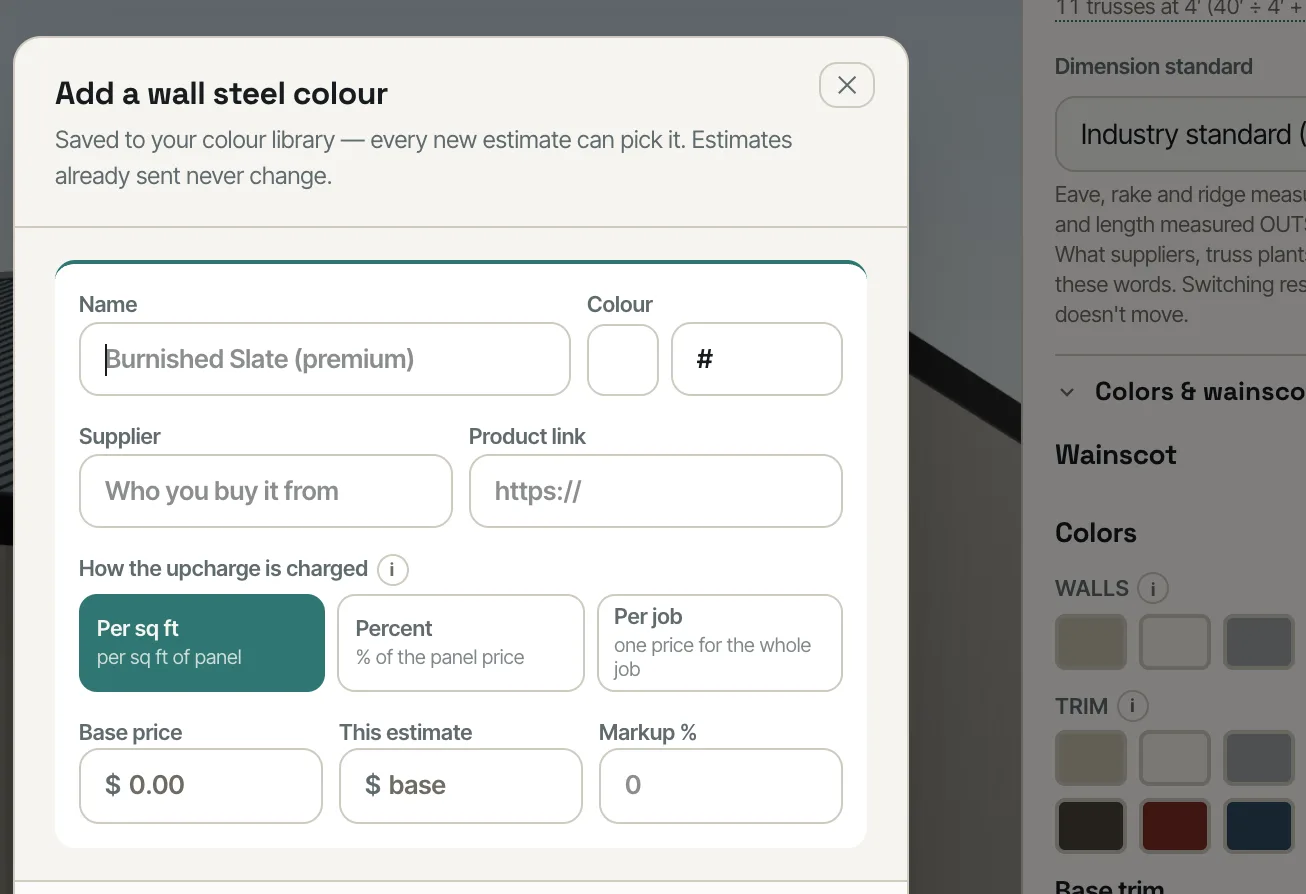
Premium colours were picked on the drawing and never charged on the estimate.
A premium colour carries its price, so the upcharge is never forgotten.
A square of the colour in every right-click menu
Every colour choice on the right-click menu — roof, walls, wainscot, trim, rake and trim, eave trim and corner trim — shows a small square of the colour beside its name, and the row above it shows the square of the colour on the building now. With your own colours on, they are listed under Your colors with their own squares; pick one and its upcharge and markup land on the estimate exactly as they do from the panel. Pick a standard colour over a priced one and the upcharge comes off with it.
The right-click colour menu was a list of names, so choosing a colour meant opening the panel to see it.
The customer picks Burnished Slate by looking at it, not by guessing what the name means.
- 1Turn on Trim colour by group, Base trim on new designs and Your own colours, with prices in Settings → Beta features.
- 2In Colors & wainscot, keep All one colour or switch to By group and colour each group.
- 3Select a door or window to give it its own trim colour.
- 4Press + on any colour picker to add a colour with its supplier, price, upcharge and markup.
- 5Pick it like any other colour; the upcharge lands on the estimate.
- 6Right-click the roof, a wall, an eave, a rake or a corner and every colour row shows a small square of the colour; your own colours are listed under Your colors with their squares, and picking one there adds its upcharge the same way the panel does.
- 7With the opening catalogue on, a window's Window colour section folds to a header showing the colour chosen, like the window's other sections.
Black trim with white doors, or a contrasting wainscot with matching door trim, is what customers ask for — and when changing the building's trim colour also repaints every door, the drawing stops matching the order. Premium colours are the other half: the supplier's charcoal costs more than the standard grey, and when the software can't hold that colour and its price, the upcharge is forgotten. So trim is one control with depth one click away, an opening's own colour always wins, and the colour library carries the price with the colour.
- Trim colour changes that repaint doors and windows
- One trim colour forced on the whole building
- Supplier colours the software has no place for
- Premium-colour upcharges left off the estimate