Client choices on the estimate decides what a client may change: switch on each kind — garage doors, walk doors, windows, colours — tick the styles, glass and colours they may pick from, and keep any one door off-limits. On the estimate page the client sees View & customize your building: their 3D building with a blue + on every door, window and colour you opened. Tapping one opens a picker — a tab per choice, search, Grid or List, All / Included / Upgrades — where every tile says what it does to their price, with all your markup in it. The model redraws with the pick and a tray keeps the count: 2 changes, +$606.25. The price they were sent never moves; the picks arrive on your estimate under Their picks with Accept and Decline, and accepting moves the estimate's total by exactly what the client was shown. Accepted picks become the project's selections when you start the project.
Also called: living estimate · customer configurator · client customizer · try different doors · change the colours myself · build and price for customers · interactive quote · customer picks options · upgrade picker · 3D quote customizer
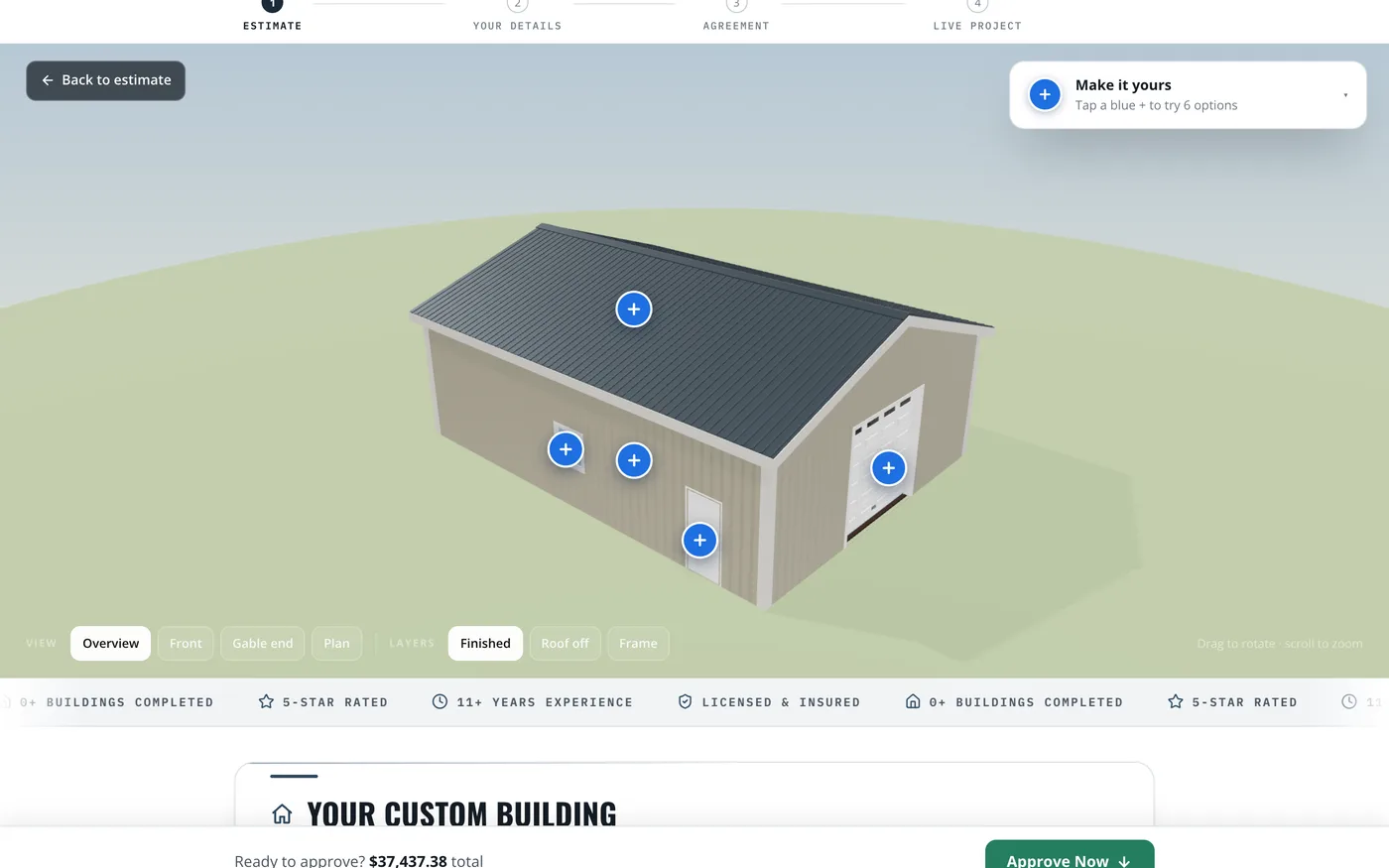
A blue + on everything they may change
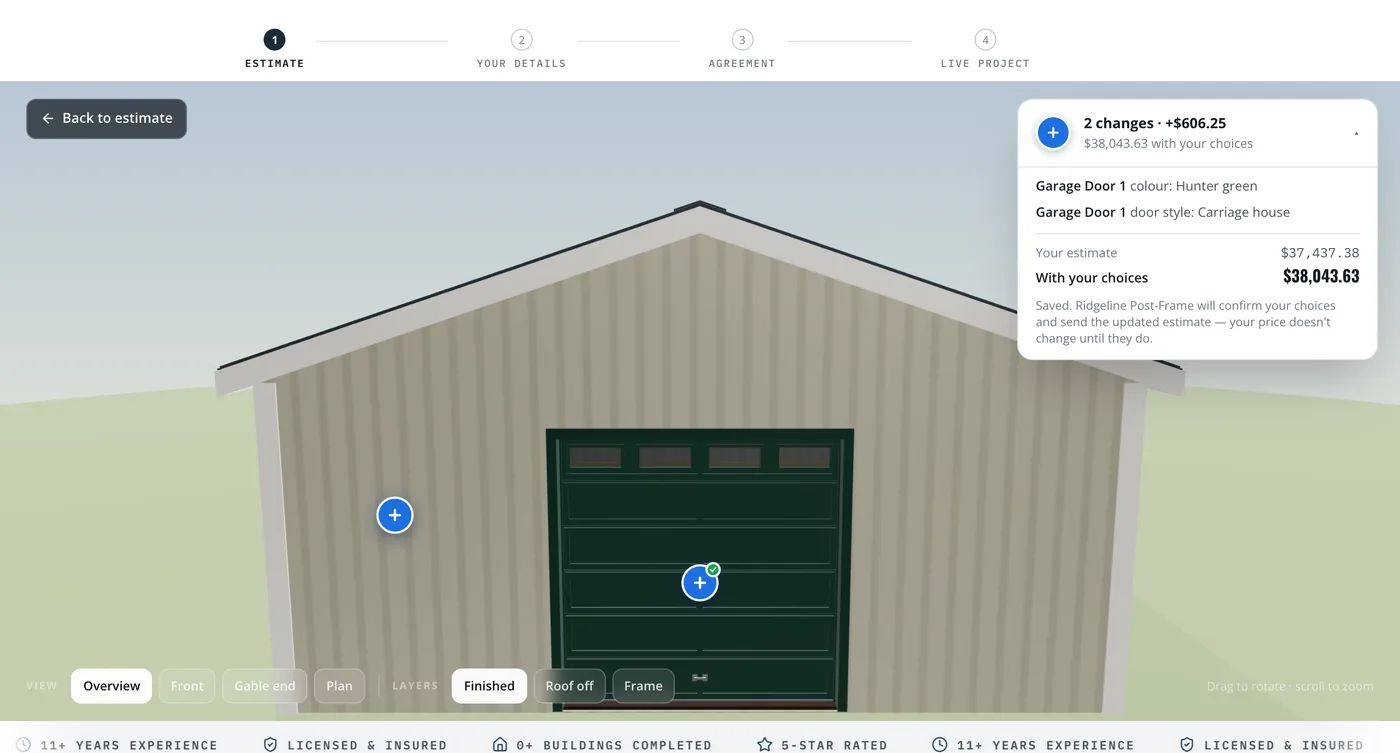
The 3D viewer on the estimate shows a blue + on every door, window and building colour you opened — Make it yours: tap a blue + to try 6 options. Tap one and the camera flies to it.
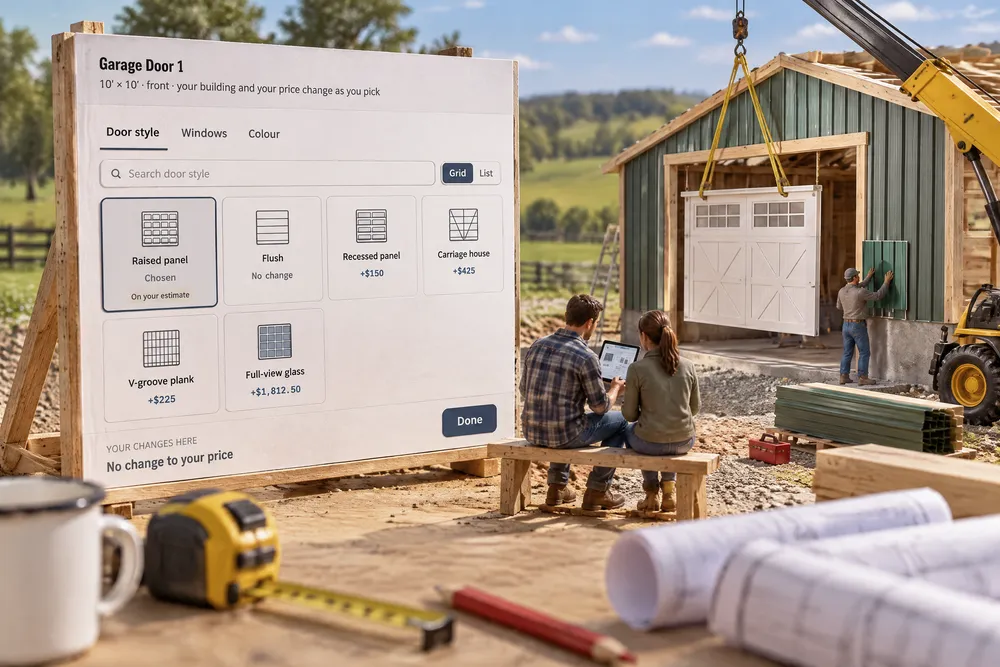
Customers couldn't picture the options, so they asked — and waited.
The client finds the options on the building, not in a list of part numbers.
Every tile says what it does to their price
The picker has a tab per choice — Door style, Windows, Colour — with search, Grid or List, and All / Included / Upgrades. Each tile says No change, Chosen, or what it adds — +$425 — priced the way the estimate prices it, with your markup in it.
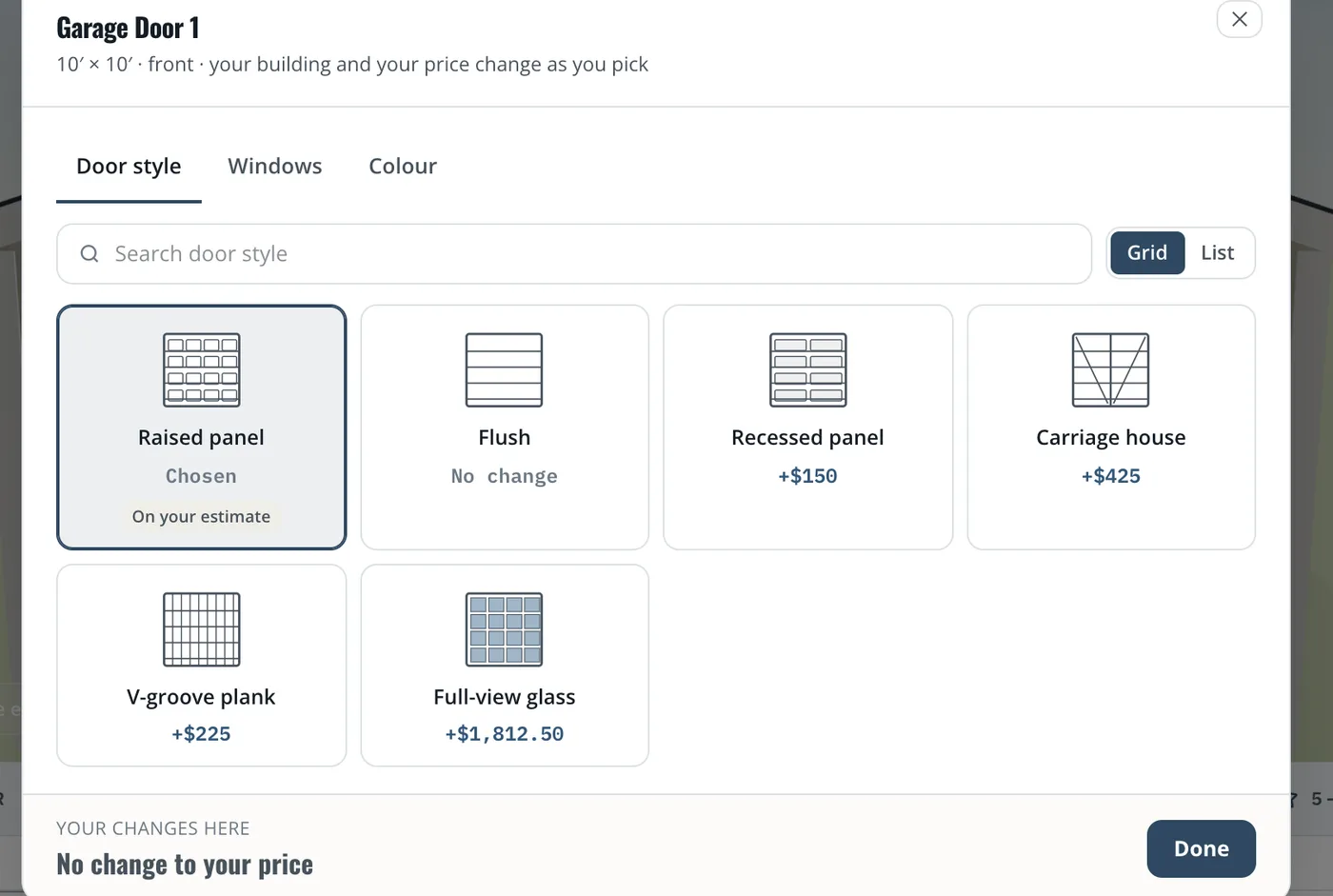
Upgrade prices arrived later, in a revised quote, after the excitement had passed.
An upgrade with its price beside it gets decided on the spot.
The model redraws; the sent price doesn't move
Pick a carriage-house door in Hunter green and the model redraws with it. A tray counts the changes and the new total — 2 changes, +$606.25, with your choices — saved as a proposal. The estimate they were sent stays exactly what it was.
A customer-editable quote would let a buyer rewrite the price.
The client can play freely because nothing they do changes the contract.
You choose what they can change
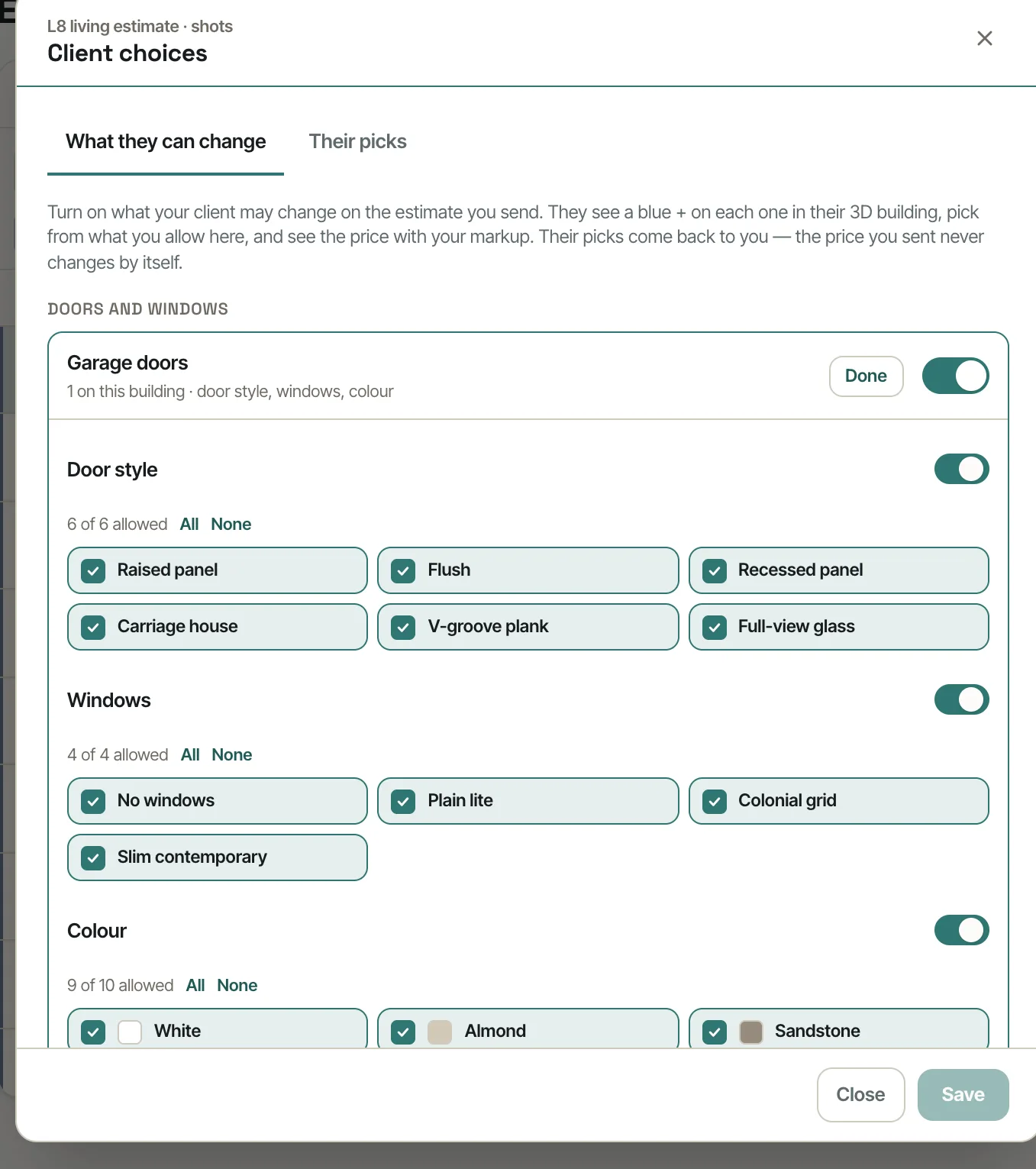
Client choices → What they can change: switch on garage doors, walk doors, windows or colours — nothing is on until you tick it — tick the door styles, window options and colours on offer, and keep any one door off-limits.
Configurators offer options the builder can't get, and the builder has to say no after the customer fell in love.
Clients only pick from what you can build and have priced.
Accept or decline each pick
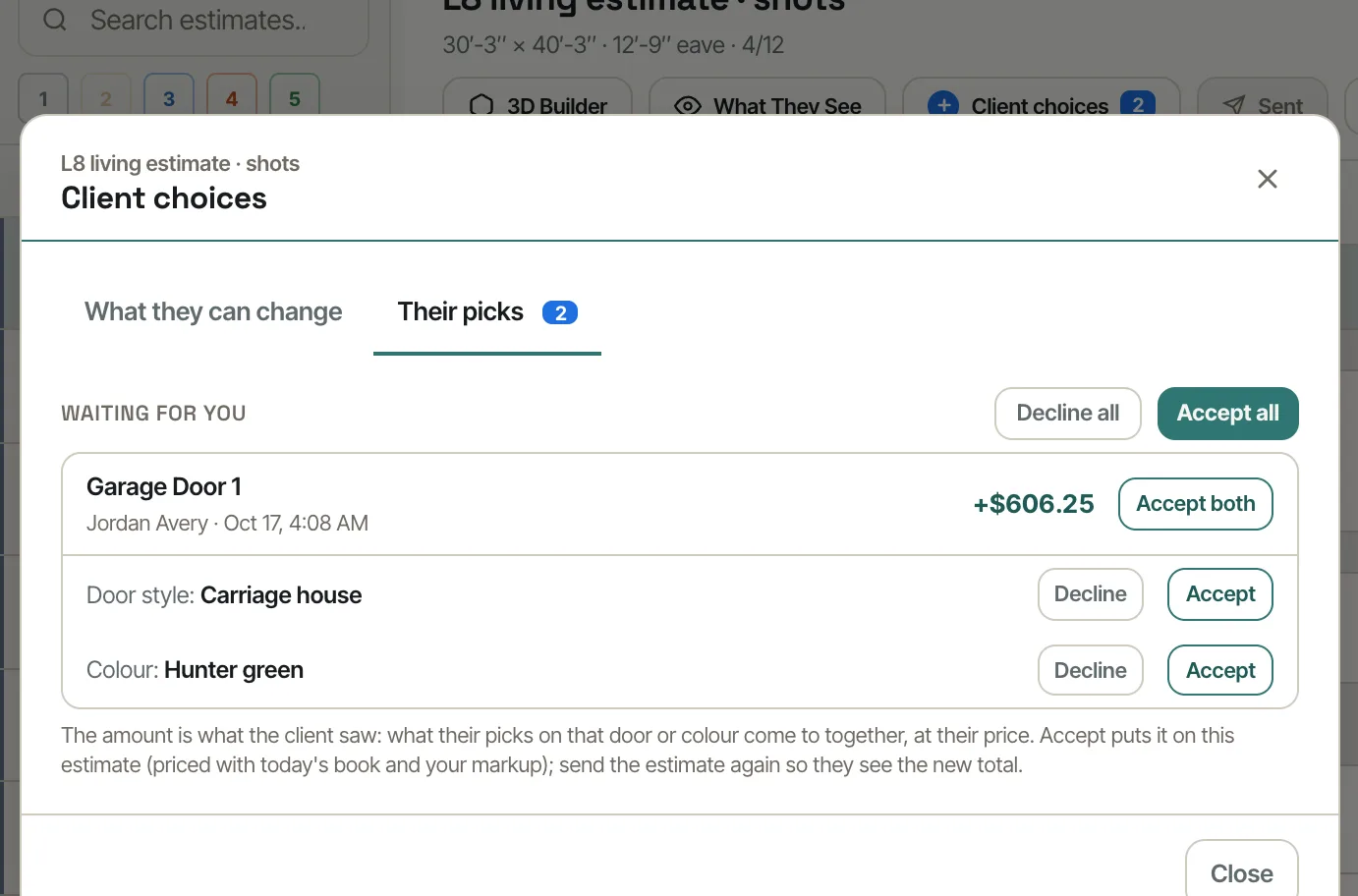
Their picks lists what the client chose on each door or colour, with the amount they were shown. Accept puts the pick on the design and moves the estimate's total by exactly that amount; Decline leaves it. Accepted picks become the project's selections at Start Project.
Picks made in a portal changed what the builder had to build without anyone confirming it.
The builder stays in charge of the contract, and the client's price is the price that was shown.
- 1Turn on Living estimate: client choices in Settings → Beta features.
- 2On the estimate, open Client choices → What they can change: switch on a kind, tick the options, keep a door off-limits.
- 3Send the estimate. The options are frozen into it at the client's prices.
- 4The client taps a blue + on their building, picks from the tiles, and sees the model and their price change.
- 5Their picks come back under Their picks — Accept, Decline, or Accept all.
- 6Accepted picks go on the design and, at Start Project, into the project's selections.
- 7The Academy's Let your client try options on their 3D building lesson walks the builder's side: Client choices, what the client sees, and Their picks.
A buyer looking at a 3D picture of their building wants to know what it looks like with the carriage-house door, and what that costs — and the only way to find out was to call the builder and wait for a revised quote. Each round trip cools the deal. Letting the client try the options the builder already prices, at the price the builder would charge, turns those calls into a few taps; keeping the sent price fixed and the builder's accept or decline in charge means nothing changes on the contract without the builder saying so.
- Revised quotes for every door, window or colour question
- Customers picturing options they can't see
- Upgrades the customer would buy but never asked about
- Customer picks that change the contract without the builder's say