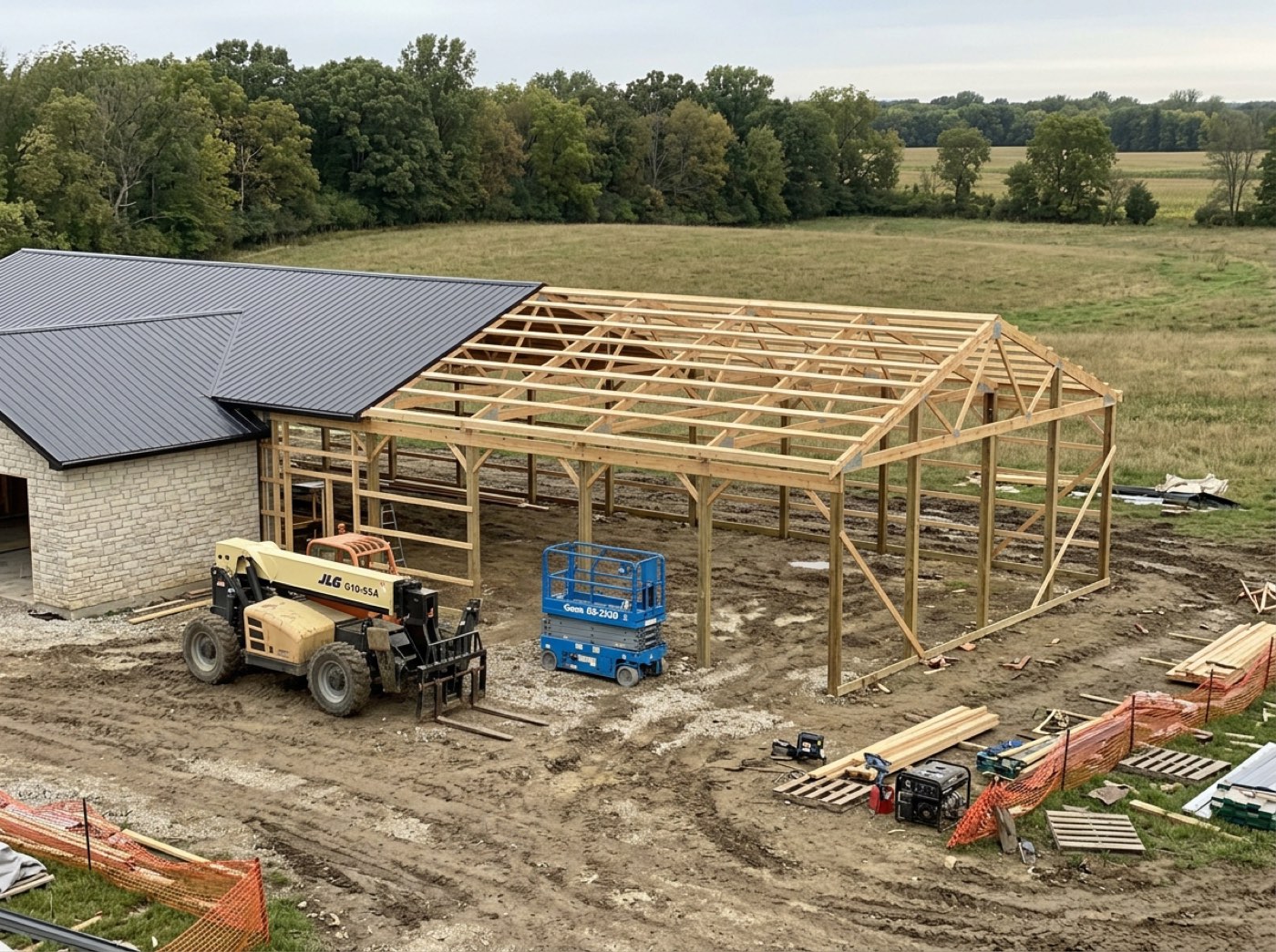
Photos taken on the stage the crew is standing in, filed against that job and that checkpoint automatically. Two streams, not one: the office record, and the customer's gallery. Which stream a photo lands in is one deliberate tap, and the two buttons are made to look nothing alike — because the mistake this prevents is a one-way one. Because Leads 2 Build serves post-frame and barndominium builders exclusively, those stages and checkpoints are the trade's own — posts set, trusses up, steel on. Because Leads 2 Build serves post-frame and barndominium builders exclusively, those stages and checkpoints are the trade's own — posts set, trusses up, steel on. Because Leads 2 Build serves post-frame and barndominium builders exclusively, those stages and checkpoints are the trade's own — posts set, trusses up, steel on. Because Leads 2 Build serves post-frame and barndominium builders exclusively, those stages and checkpoints are the trade's own — posts set, trusses up, steel on. Because Leads 2 Build serves post-frame and barndominium builders exclusively, those stages and checkpoints are the trade's own — posts set, trusses up, steel on.
Also called: progress photos · site photos · customer photos · document the build
Two streams, not one pile
Every photo goes to the office record, the customer's gallery, or both — and it is decided as it is taken, not sorted out later by somebody who was not there.
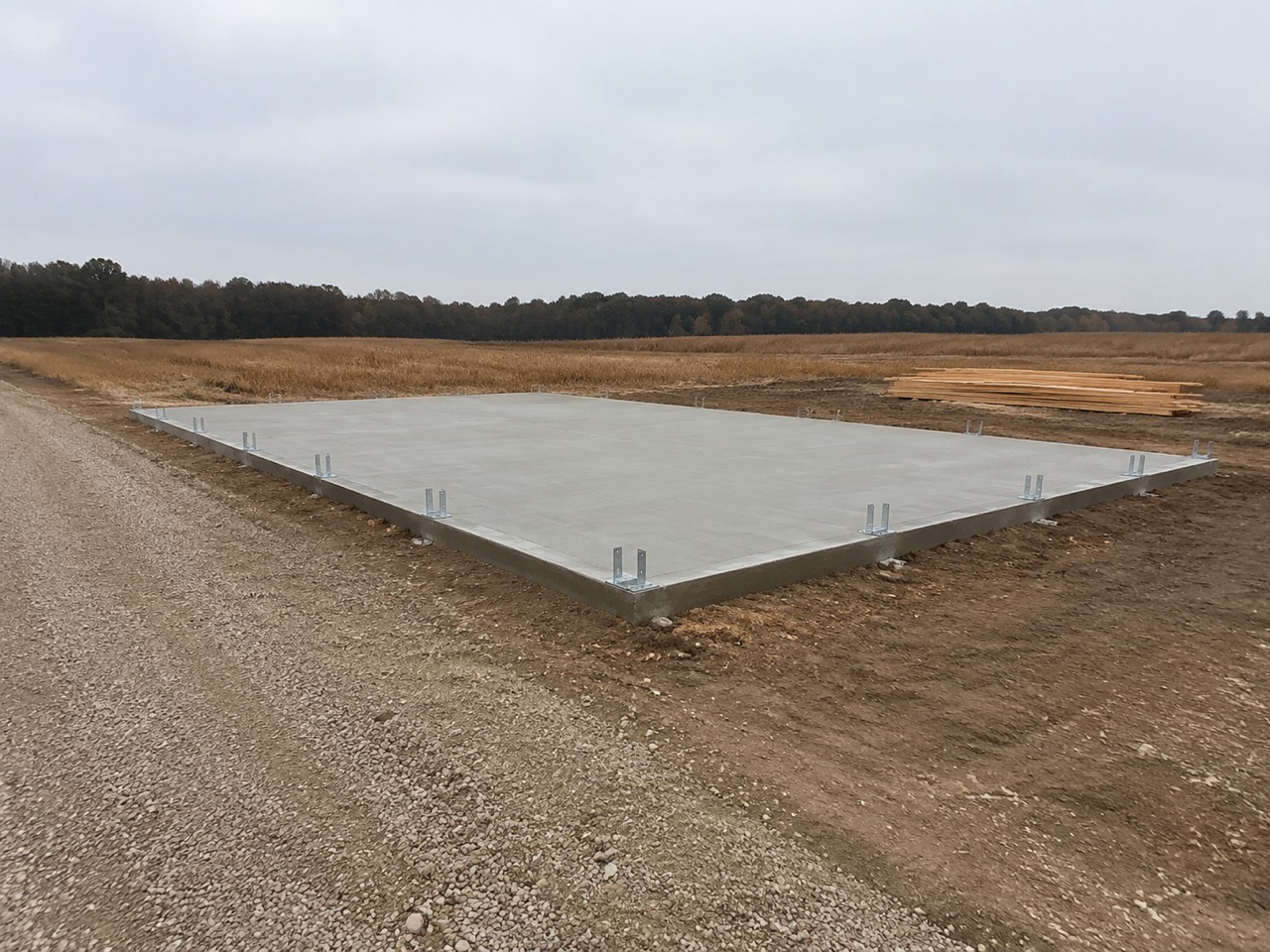
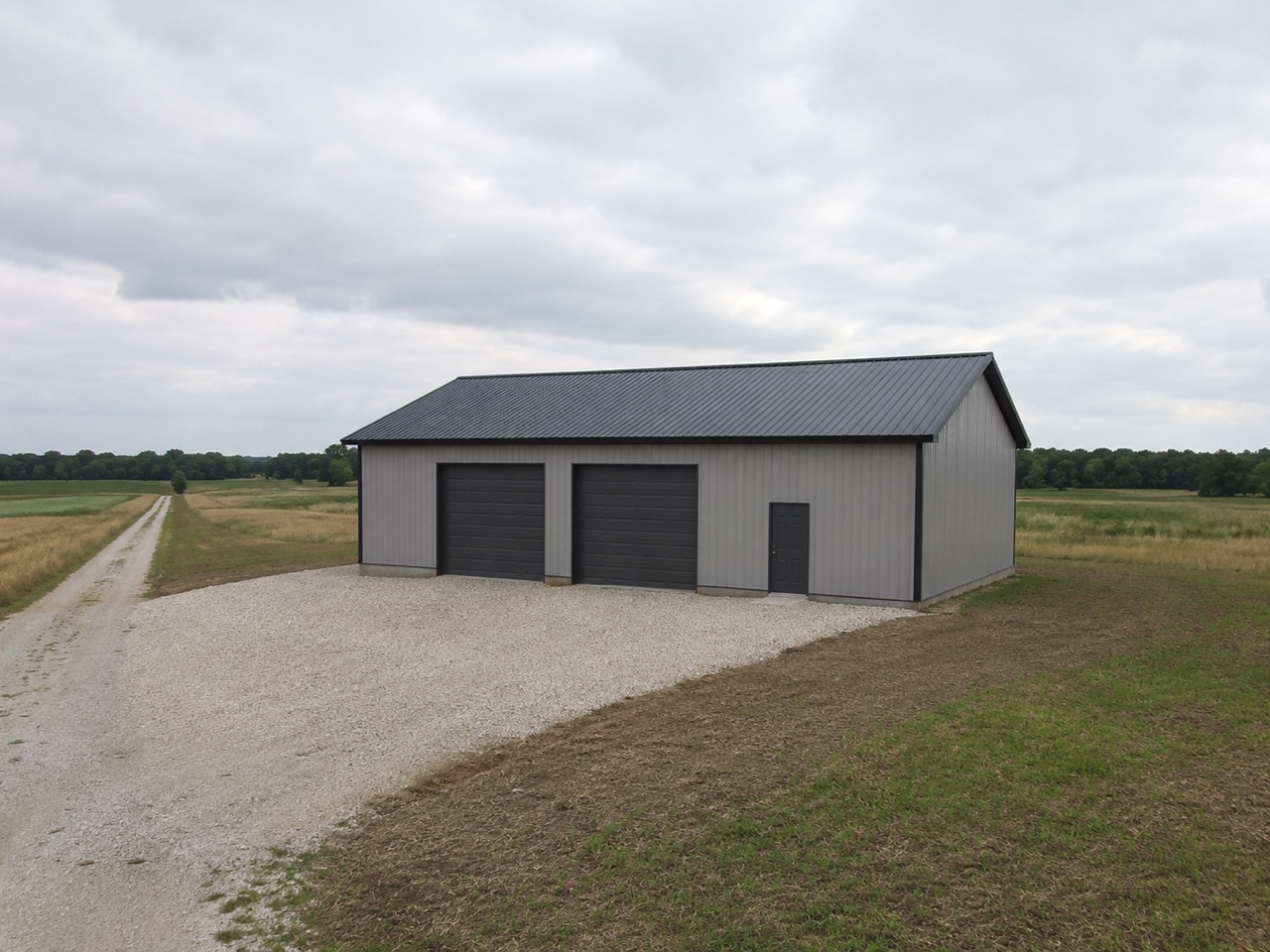
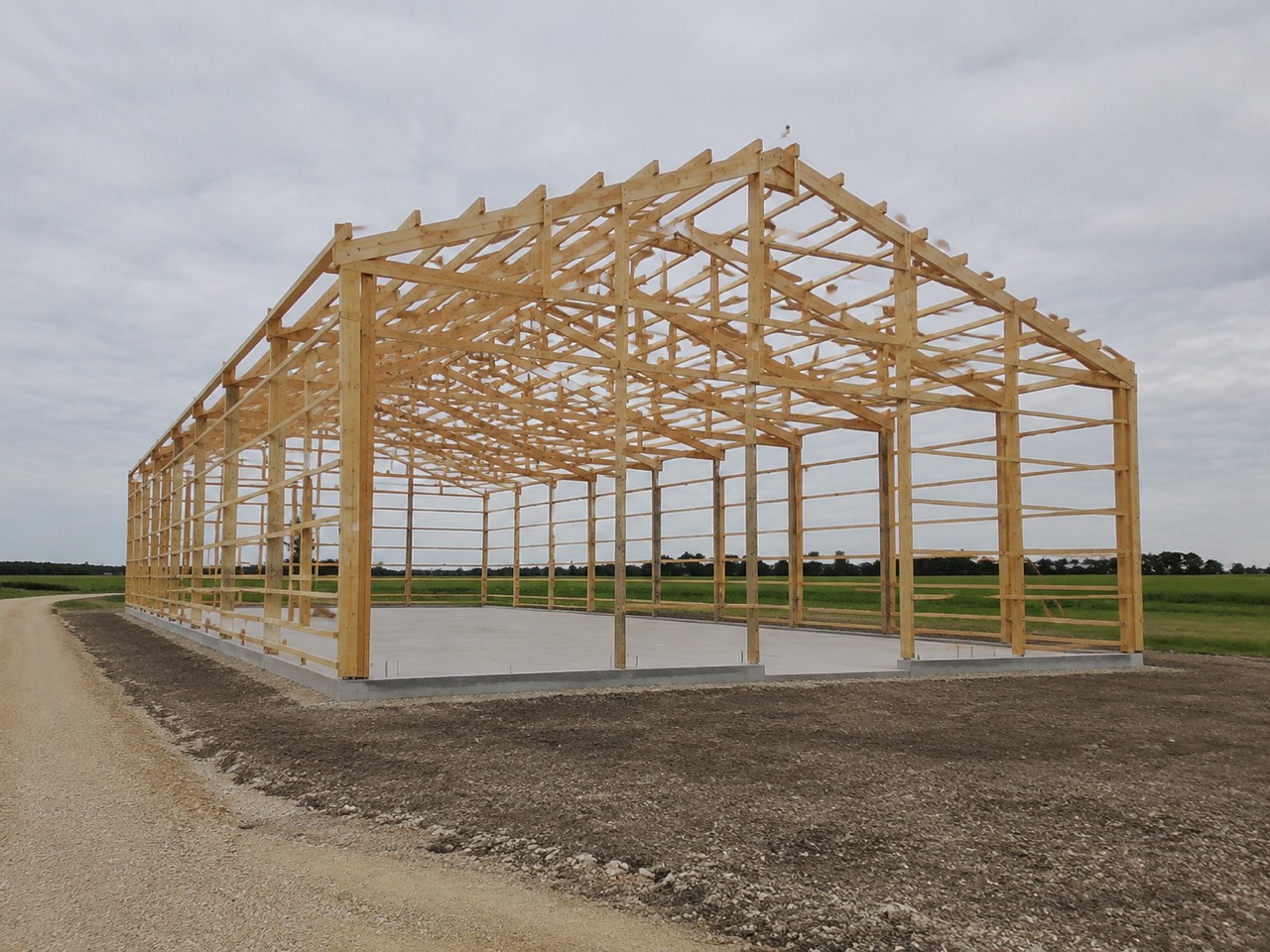
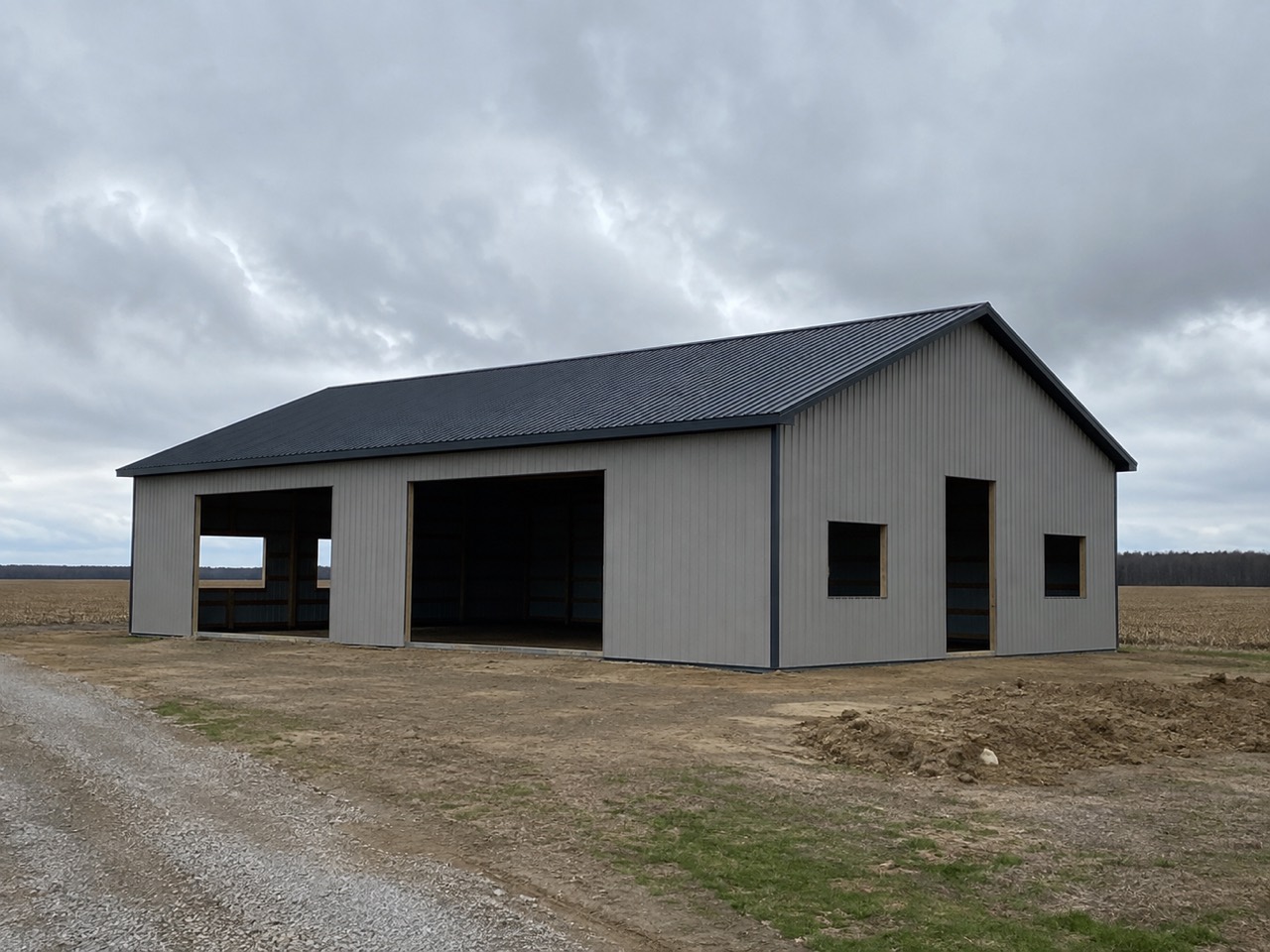
By Friday afternoon somebody is scrolling two hundred shots deciding which ones the customer is allowed to see, and nobody can remember any more which pour those forms belong to.
A customer reads every photo as news about their build, and a crew only shoots freely when they know nobody outside will see the mess. The two piles do different jobs — one is a story you are telling, the other is evidence you may need — so they are kept apart end to end, and internal is the default: nothing reaches the customer that was not put there on purpose.
The buttons look nothing alike
Try itSave to job and send to customer are deliberately dissimilar — different shape, different weight, different words. This is the one tap where a slip is public and permanent, so it is made hard to make. What those two taps look like in a pair of gloves, out at the site, is the crew's side of it.
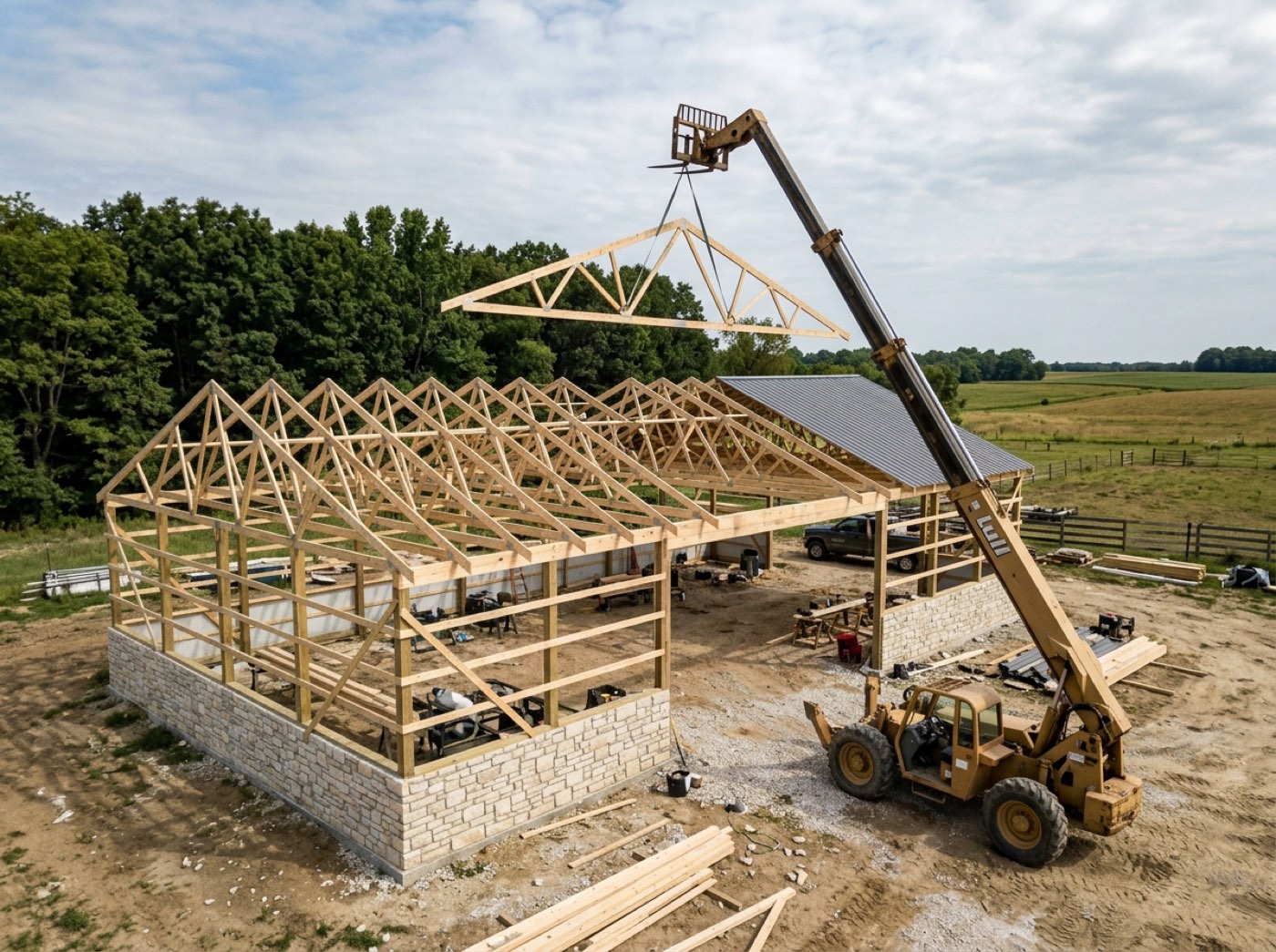
A gloved thumb in full sun sends the six-a.m. mud shot to the customer, and the reassurance call happens before the pour is even finished.
A crew lead needs to shoot without worrying he'll embarrass the company. Colour, weight and wording all differ, and both targets are sized for a work glove rather than a desk mouse. Two buttons rather than one toggle, because a toggle has a state you can misread in sunlight and two labelled buttons have no state at all — and the upload route refuses any photo whose destination is not literally one of the two, so a missing field can never quietly mean customer.
It already knows which stage you're on
Open the stage, shoot. The job, the stage and the checkpoint are attached with no typing — because a filing step the crew has to remember is a filing step that does not happen.
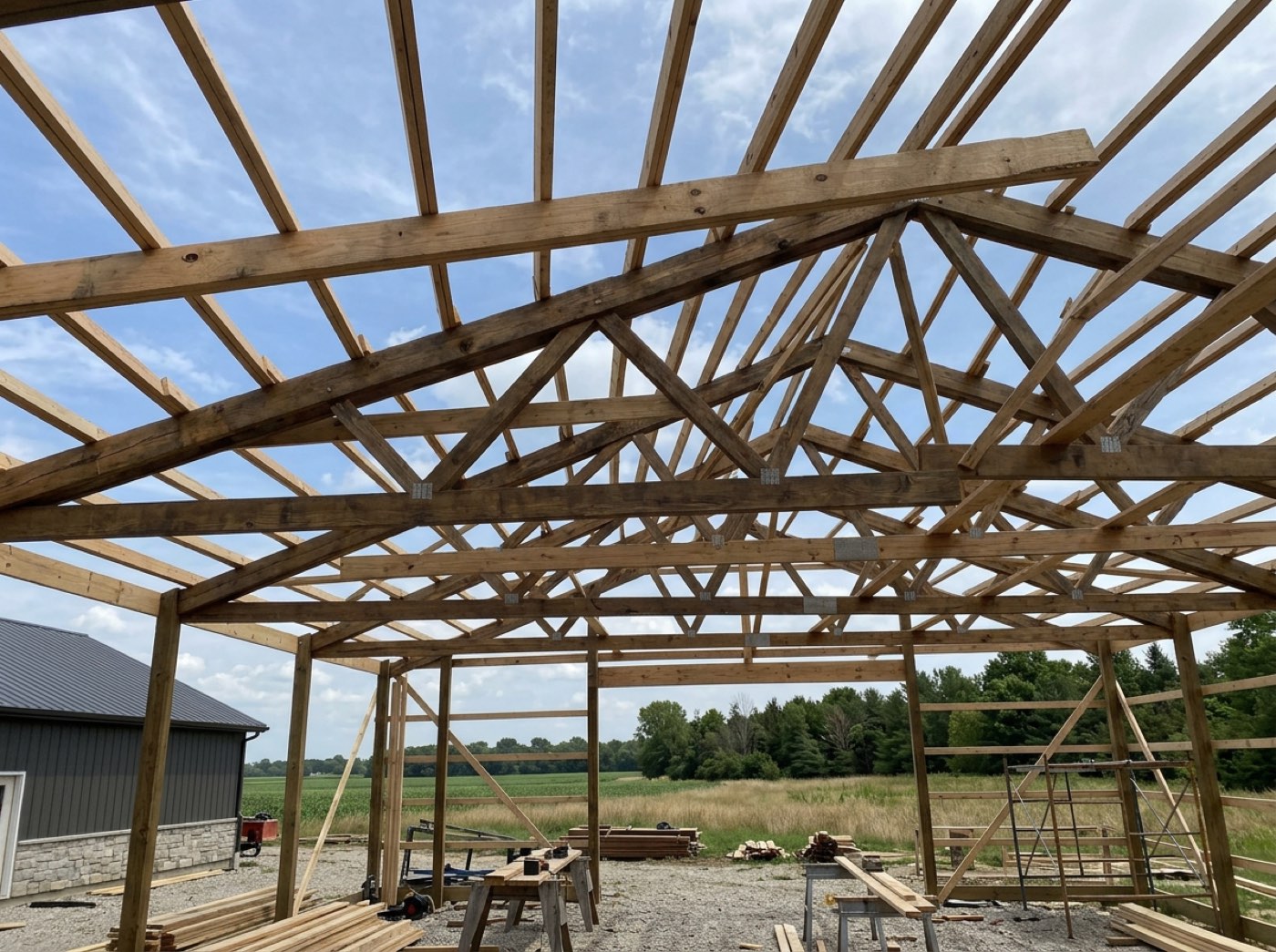
Three hundred pictures in a camera roll and no way to say which of the four jobs on the go this footing belongs to.
Nobody on a ladder wants a filing job, and a photo that files itself is one that actually gets taken. The confirmation names the checkpoint and shows the shots riding along with it, so the last look happens before the tick is committed rather than a week later — and one more photo can go on right there, which is exactly when the missing one gets noticed. On the crew's phone the job and the stage come from the shift he is clocked into; if he is on two jobs with no shift open the upload is refused with "clock in first", because a refusal is a better answer than a guess about which site he is standing on.
Ten in a row, without leaving the camera
Documenting a pour means twenty shots, not one. Shoot, look at it, retake it, take another — up to ten without ever going back to the screen — and they land together as a strip on the checkpoint you were standing at.
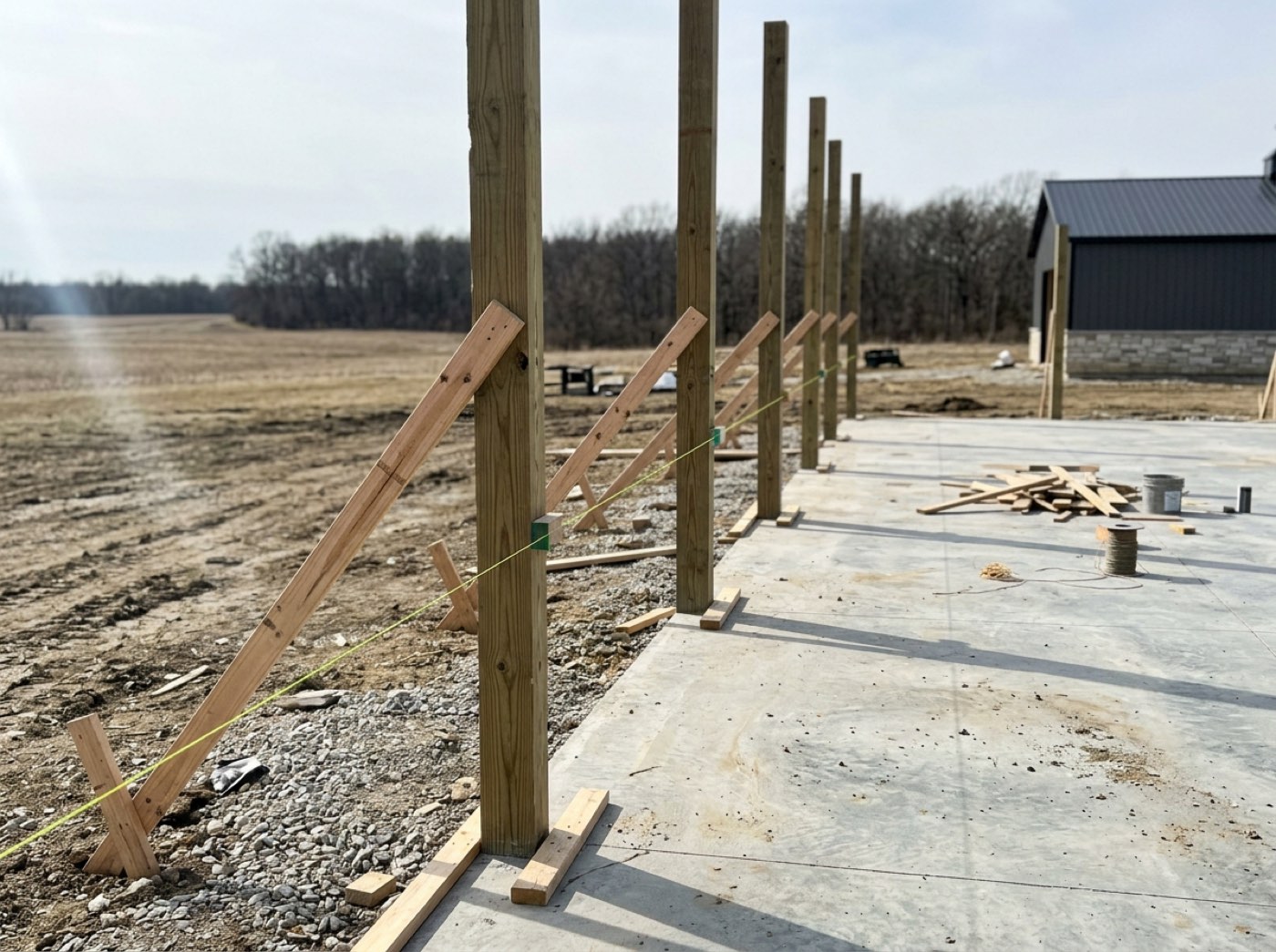
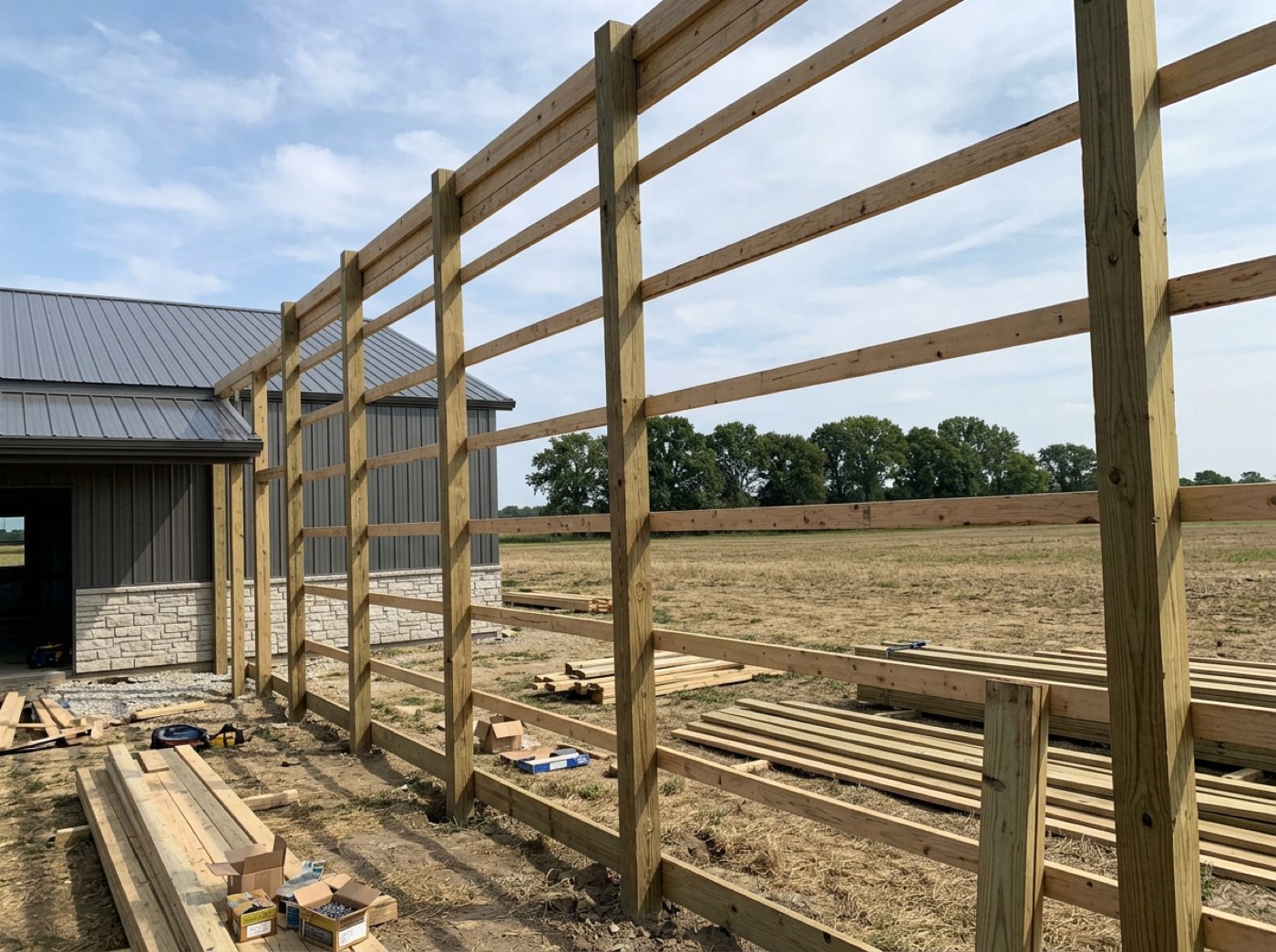
Documenting a pour takes twenty shots and the crew quits at four, because every frame throws them back to a screen before they can take the next one.
A crew that can document a pour without breaking stride will actually do it. Review and retake happen inside the camera, so one more shot costs one more tap instead of a round trip through a form. They land on the checkpoint row rather than in a job-wide album, which means a burst dropped on the wrong row is visibly on the wrong row — and every tile carries its own delete, so fixing it is one tap too.
Circle the problem before the photo is sent
Try itBefore a walk-round leaves the phone, the crew lead can draw on any shot — a ring round the brace, a numbered arrow at post 4, a note typed or spoken. The photo stays untouched; the marks ride beside it. Everything that editor does is marking up a photo.
The out-of-plumb post gets mentioned on a call at six, and by Monday nobody remembers which post.
The man who saw the problem is the best person to point at it, and the best moment is while he is still standing in front of it. When he can say it on the photo, the office understands the first time and he feels his judgement counted — fewer callbacks, fewer wrong fixes.
One bar of signal, and it says so when there isn't
The shot is made ready on the phone before anything is sent — over four megabytes it is scaled and re-encoded, under it goes byte for byte. A walk-round from the camera waits on the phone and sends itself when there's a bar, with the count on screen — 4 photos saved on this phone, waiting to send. A single photo that can't go gets the sentence, not a spinner: no signal, the photo wasn't saved, try again when you have a bar. How a man with no app and no password reaches that camera at all is the crew field portal, and what the upload costs him in data is the crew's side of it.
The back line of that property has no bars, the upload dies without saying so, and the shots that would have proved the pad was right sit on a phone nobody thinks to check.
A crew trusts a tool that tells the truth about what happened to their work. So nothing fails quietly: a walk-round waits on the phone with its count showing until the signal comes back, and a single shot that can't go says so in plain words. A queue you can see is honest; one you can't is how a crew believes a photo is filed when it isn't. When a file does have to shrink, resolution is cut before quality — a barn photo is mostly sky and concrete, which is exactly where compression shows.
Found again in seconds, months later
Try itEvery shot lands in the photo gallery: a cover per job, opened into its build stages in the order they were photographed, each closed until you need it — with one search across every photo on the account.
The photo that would settle the dispute exists, but it's one of thirty thousand and nobody can say which job it's under.
A photo you can't find might as well not exist, and people stop taking photos they never see again. Filing by job and stage — the way a builder already thinks — means the office actually goes back to the record, and the crew sees their photos being used.
What the customer actually sees
Try itOnly the shots you sent. Nothing else on that job reaches them, ever — which is why you can send one without thinking twice about it, and why the wall of photographs on their own page reads as a story you chose rather than somebody's camera roll.
The customer's whole sense of how their build is going comes from what they could see from the road and what a neighbour guessed.
Customers relax when what they see is chosen and clean — it reads as a builder in control. The customer's page asks for photos on this job marked customer, and that is the whole of the rule — no second filter, no hidden flag, no per-photo permission list to keep in step. One column decides it, so the guarantee still holds in a year when somebody builds a screen nobody has thought of yet.
Progress they can follow
Try itPhotos file against the stage, not the date, so a released set arrives in build order on its own — pad, posts, trusses, steel. Tapping Framing shows framing, at eleven at night, without ringing anybody. What sits beside them on the live project page — the milestones, their building in 3D — is that page's job, not the photo's.
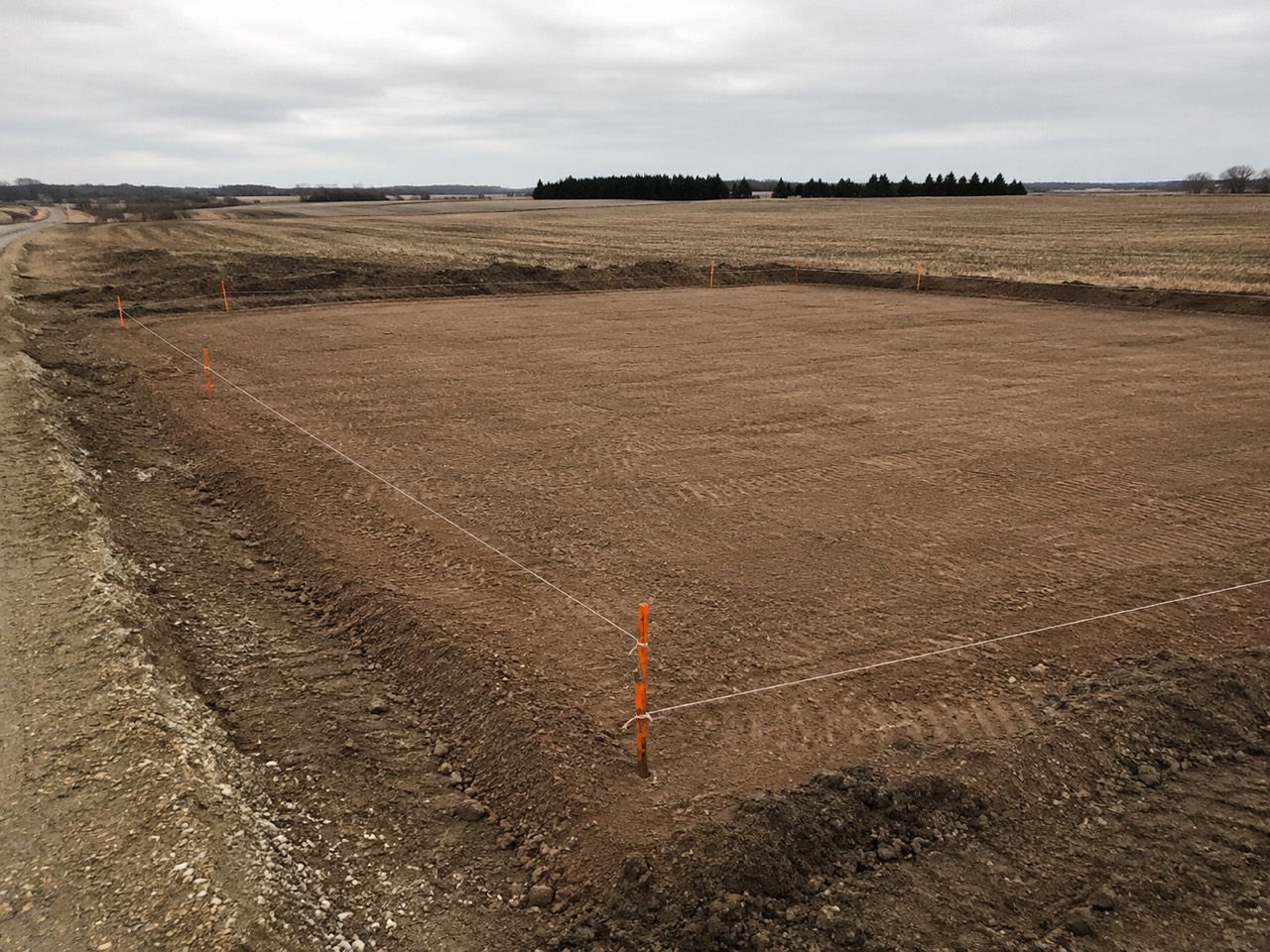
Every Friday brings the same call asking whether anything actually moved this week, and answering it properly costs half an hour you were going to spend quoting.
A customer who can watch the building go up stops worrying, and a customer who stops worrying stops calling. Ordering by stage rather than by upload time is the decision, and it costs something: a shot sent up two days late from a phone that had no signal lands where the work was instead of at the top of the feed, so nothing announces itself as new. In exchange a stage nobody photographed is visibly empty — which is the honest answer, and usually the useful one.
Photos that close a checkpoint
Ticking a checkpoint stops and asks for the shot before it commits — take one, or pick one off the phone. The proof and the progress are the same action, so the record is complete without anybody doing paperwork.
Six months on, somebody asks what the rebar looked like before the pour and all you have is your word for it.
Proof that costs no extra effort is proof that actually gets taken. The ask sits on the tick rather than on the photo, because the tick is the only moment the thing is still visible — afterwards the rebar is under six inches of concrete. The shot stays on the internal side with the time it was taken sitting on it, so the record accumulates as a by-product of the work instead of being one somebody has to sit down and produce.
Proof when a delay isn't your fault
Rain on the pad, a washed-out approach, a late delivery. Attach the photo to the delay and the record of why the schedule moved is dated and unarguable — which is the difference between a conversation and a dispute.
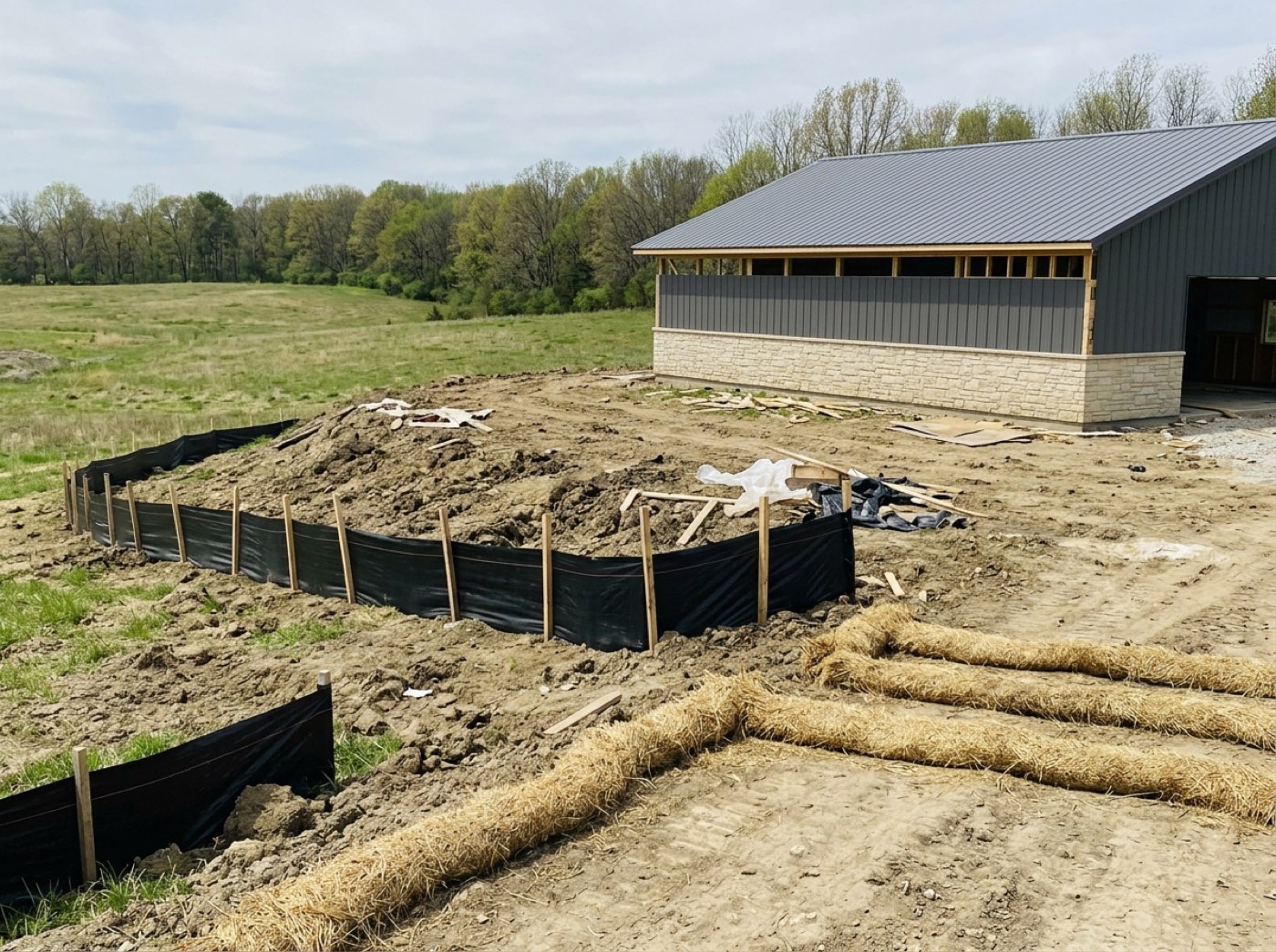
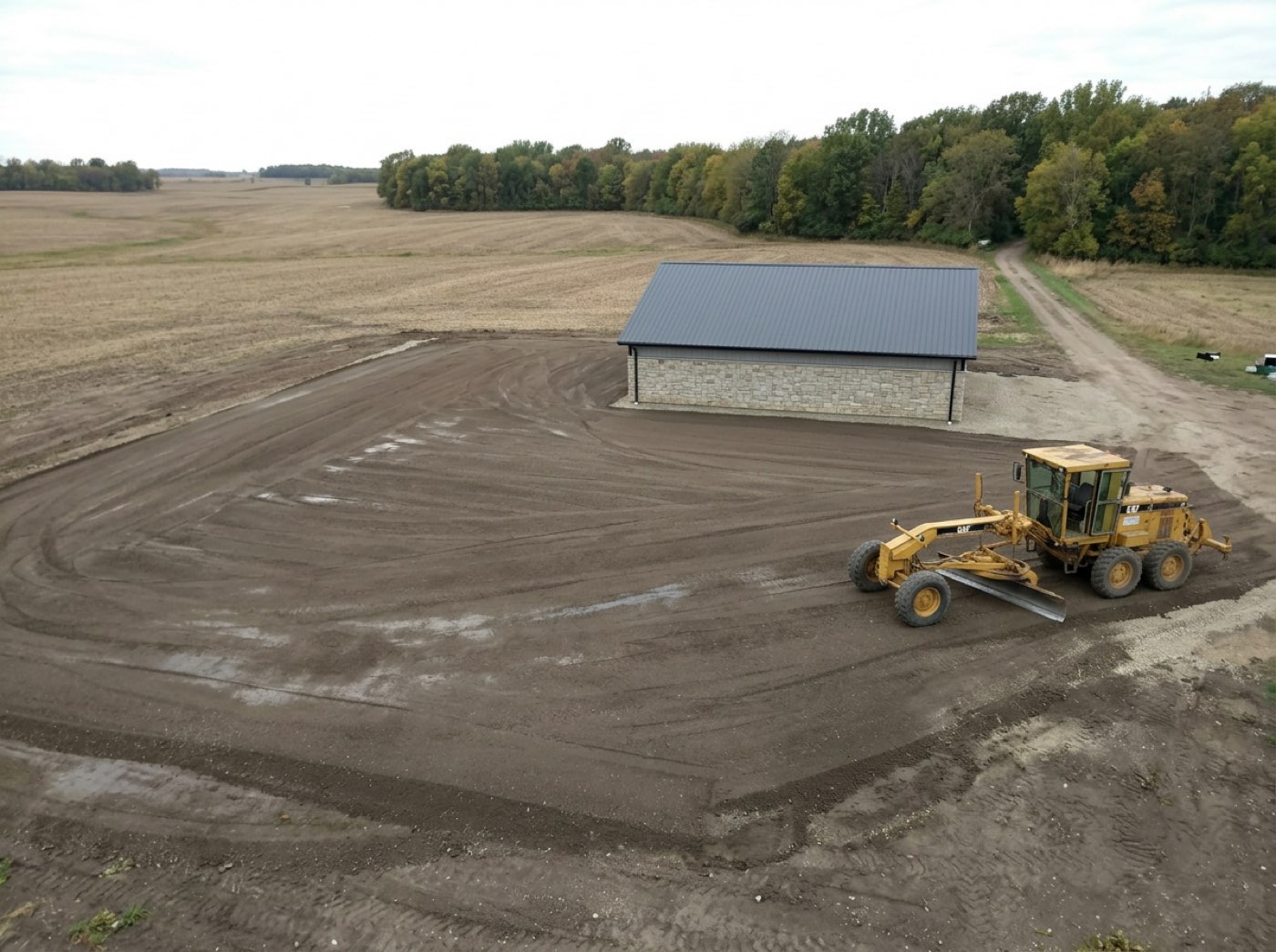
Three weeks after the wet spell the customer wants to know why their build slipped, and all you have is your memory of how bad the approach was that morning.
People accept a delay they can see the reason for; they resent one they only hear about. A delay with no evidence beside it is only your side of the story, so the photo hangs off the delay record itself and the first promised date is kept next to the new one. The customer sees the reason and the date move together instead of hearing about the slip on its own.
Send one later, if you want
Try itThe stage keeps its own Share with customer button open long after the pour — shoot a new one, or pick one off the phone — and anything already on their page can be taken off it from the same screen. The decision is reversible in the safe direction.
The one clean shot of the finished gable sits in the job file where the customer will never see it, while Tuesday's mud is in the gallery where they will.
Being able to change a sharing decision later takes the pressure off getting it perfect on site. Everything added in this section is customer-visible by construction, and internal proof shots live on the checkpoint rows instead — so there is no per-photo switch to misread and no way for a shot to change sides after the fact. Taking one back deletes the file rather than hiding it: a photo you decided the customer should not have has no business surviving as a link somebody could still open, and the price of that is that removal is permanent.
The customer can send you one too
Try itThey photograph the thing they are asking about instead of describing it down the phone, and it arrives against the job rather than in your texts. That same photo also sits in their thread, beside every message and call they have ever sent you.
The walkthrough video and the plan set the customer keeps asking about are stuck in your outbox, too big to send, so the answer to their question turns into another phone call.
Customers feel listened to when they can show you rather than describe it. What a customer sends goes straight to storage on a signed upload rather than through the app, which is the only reason a fifty-megabyte walkthrough survives the trip at all — the old path through the server died at about four and a half. Over the ceiling the refusal names the ceiling in megabytes, and it comes before the upload starts rather than at the end of it, so nobody watches a bar crawl to ninety for nothing.
Six fields, and nobody typed one of them
The job, the stage, who took it, the moment the shutter fired, roughly where he was standing, and which stream it went to. All six are attached by the system — the man holding the phone typed none of them.
Six months on, two men each swear they photographed that footing, and the file holds one picture with nothing on it but a date.
Crews want the credit for good work, and owners want to know who to ask. Who took it is stamped from the authenticated caller on the way in and only on the way in, so a photo pushed to the customer's side a month later is never re-credited to whoever pushed it — attribution is set once, at capture, or it is not attribution. His name is kept next to his id because crews churn and a credit that resolves to nobody is worse than no credit, and the location is recorded against the row rather than left buried in a file the customer might download.
The bundle that came off the truck creased
Try itShort counts and damage go on the order line where they happened, with the photograph attached — so the credit conversation starts from a record instead of from two memories. Counting what arrived is the materials check; the photograph is this.
You ring the yard in October about six panels that never came off the July truck, and the whole call is your word against the driver's.
A yard settles faster when the evidence is in front of them and nobody has to argue. The photographs ride inside the claim itself rather than as numbered links — nobody at a lumber yard clicks "1 2 3" in an email — and only the lines that went wrong travel with them, because a four-hundred-row order with ten bad lines buried in it is an order that gets ignored. The evidence is stored on the claim, not just sent in the mail, so it is still under that order and that supplier's name a year later; the cost is a cap of six images inline, because a mail a yard's server bounces proves nothing at all.
The stages nobody photographs
Every stage type carries two counts — how many photos exist on it, and how many of those the customer was shown. Permitting with twelve and none shown is exactly right; framing with four is a hole in your record, and you find it now rather than the week you need it.
The dispute lands on the one stage that ran three weeks long, and that is also the one stage with two photographs on it.
An owner sleeps better knowing where the record is thin before it matters. The count sits in stage analytics beside how long that stage ran and how many days it lost, because those turn out to be the same question asked twice — a stage nobody documented is usually a stage nobody was watching. Counting is all it does: no target, no nag, because a number that scolds a crew gets fed pictures of the sky.
- 1The crew opens the stage they are working on and shoots
- 2The photo is filed against that job and that checkpoint — nobody types anything
- 3Two visibly different buttons: save to job, or save and send to the customer
- 4Customer-facing shots appear in their gallery on the project page
- 5Everything else stays in the office record, attached to the checkpoint that proves it
- 6Ten shots in a row without leaving the camera when a stage needs documenting
- 7Poor signal queues the upload rather than losing the photo
- 8Everything lands in the photo gallery — by job, by build stage, by day — with one search across every photo, and any shot can be marked up with numbered arrows and notes
- 9Everything lands in the photo gallery — by job, by build stage, by day — with one search across every photo, and any shot can be marked up with numbered arrows and notes
- 10Everything lands in the photo gallery — by job, by build stage, by day — with one search across every photo, and any shot can be marked up with numbered arrows and notes
- 11Everything lands in the photo gallery — by job, by build stage, by day — with one search across every photo, and any shot can be marked up with numbered arrows and notes
- 12Everything lands in the photo gallery — by job, by build stage, by day — with one search across every photo, and any shot can be marked up with numbered arrows and notes
Jobsite photos on a normal job live in five different phones, in a group text, sorted by nothing. When a customer disputes what was there before the pour, the photo exists — and finding it takes an hour of scrolling somebody's camera roll. The second problem is worse than the first. Once the crew's photos and the customer's photos are the same pile, every photo is a decision nobody is making. The muddy pad at six in the morning, the mistake that got fixed before lunch — a customer seeing those reads them as trouble. So the split is built into the act of taking the photo, and the buttons are deliberately dissimilar so a tired thumb cannot get it wrong.
- Evidence that exists but cannot be found
- One undifferentiated pile of photos serving two different audiences
- Photos with no job, stage or location attached
- Uploads lost to bad reception
Photos record where and when they were taken
Location and time are captured with the picture — the position, how accurate it is, and the shutter time. Location is best effort: a phone that refuses the prompt never blocks the photo. Older photos simply don't carry it.