The Gallery in Project Mgmt holds every photo on the account — the ones the crew shoots against a checkpoint, the office's uploads, all of it. Look at it three ways: All, one endless grid; Projects, a cover per job that opens into a section per build stage — Dirt Work, Concrete, Framing, Siding & Roofing on a typical post-frame job; or Timeline, photos under the day they were taken. The same photos sit in every project window and in Storage, so a photo is filed once and found from wherever you are. It is part of the operating system built only for post-frame and barndominium builders, so the stages and checkpoints it files by are already yours.
Also called: photo library · job photo gallery · jobsite photo archive · project photos · construction photo management · photo storage · find a job photo
Every photo on the account, one endless grid
Project Mgmt › Gallery opens on every photo the account holds, newest first, each tagged with its checkpoint — and whether the customer can see it or somebody has marked it up. Scroll and it keeps going: the next rows are asked for while they are still a couple of screens away, so a walk through four hundred photos never stops for a page button.
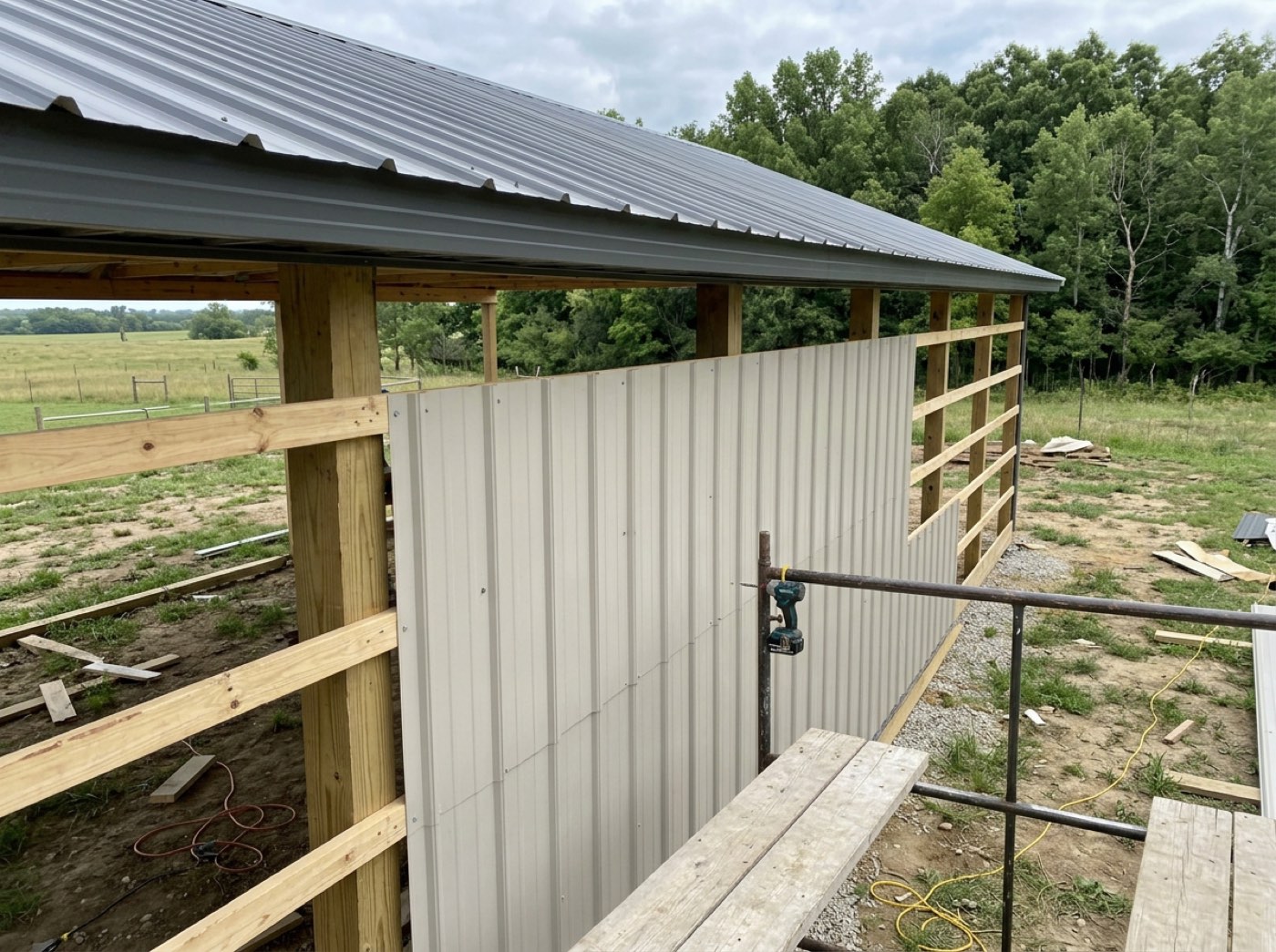
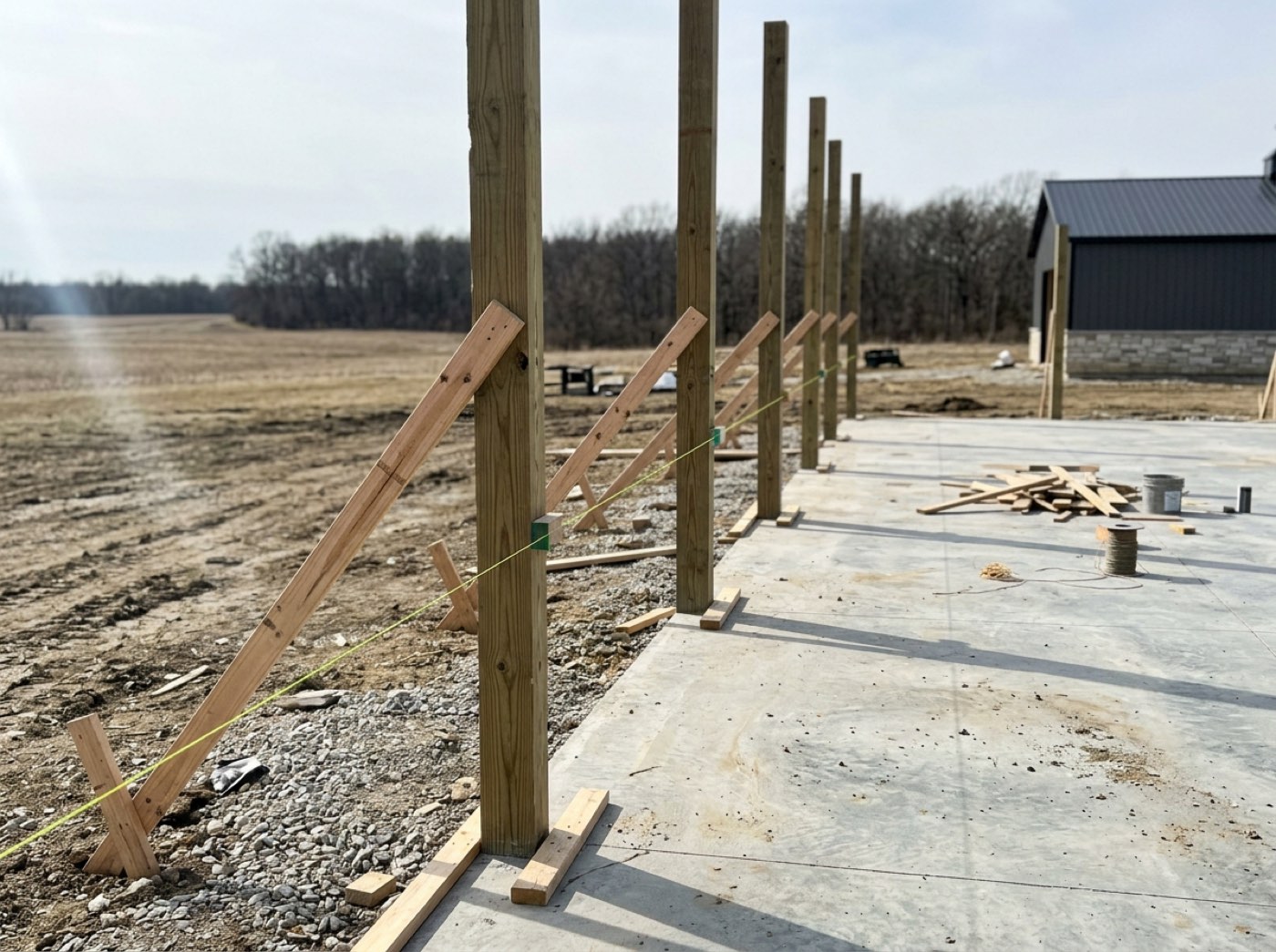
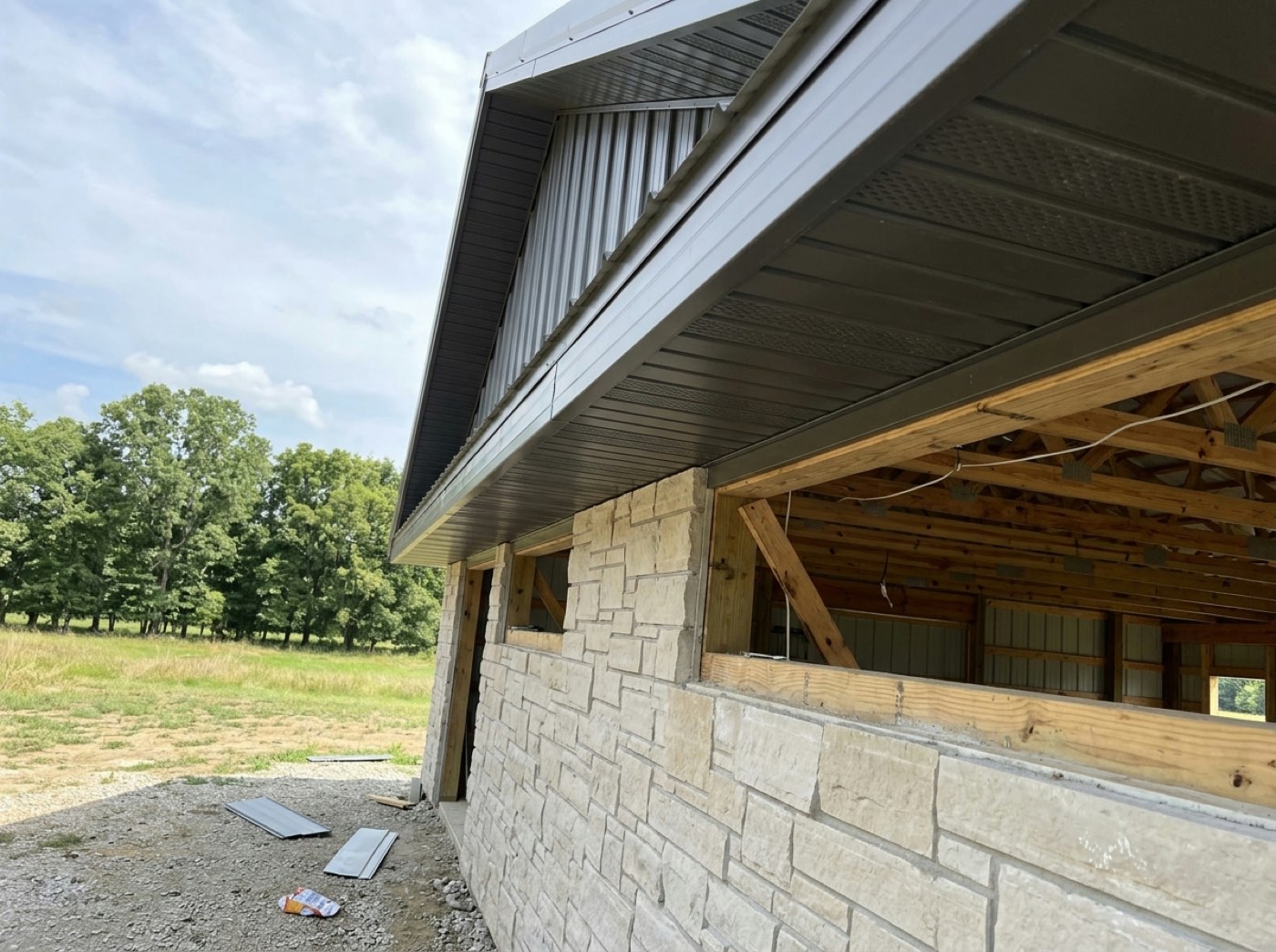
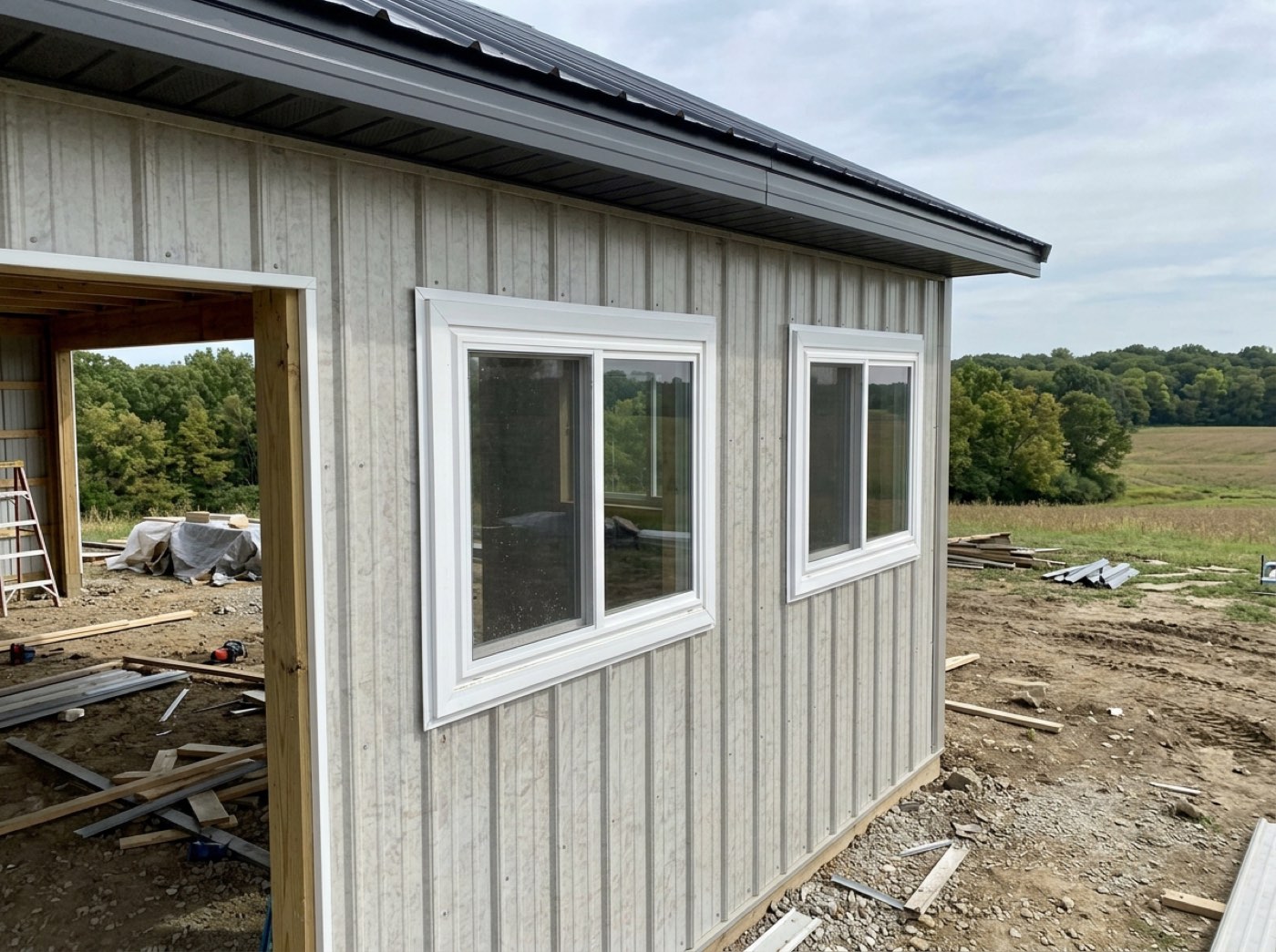
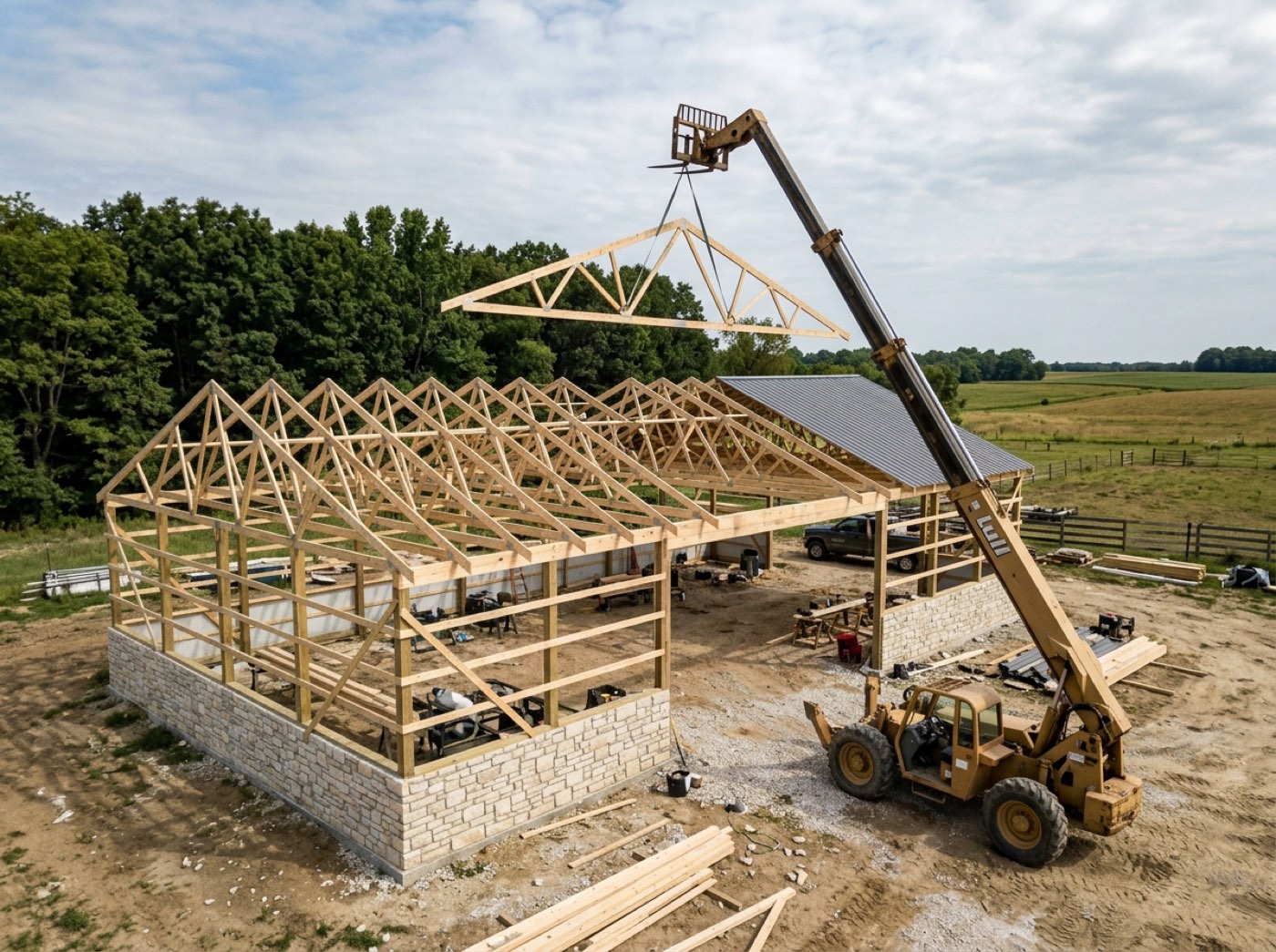
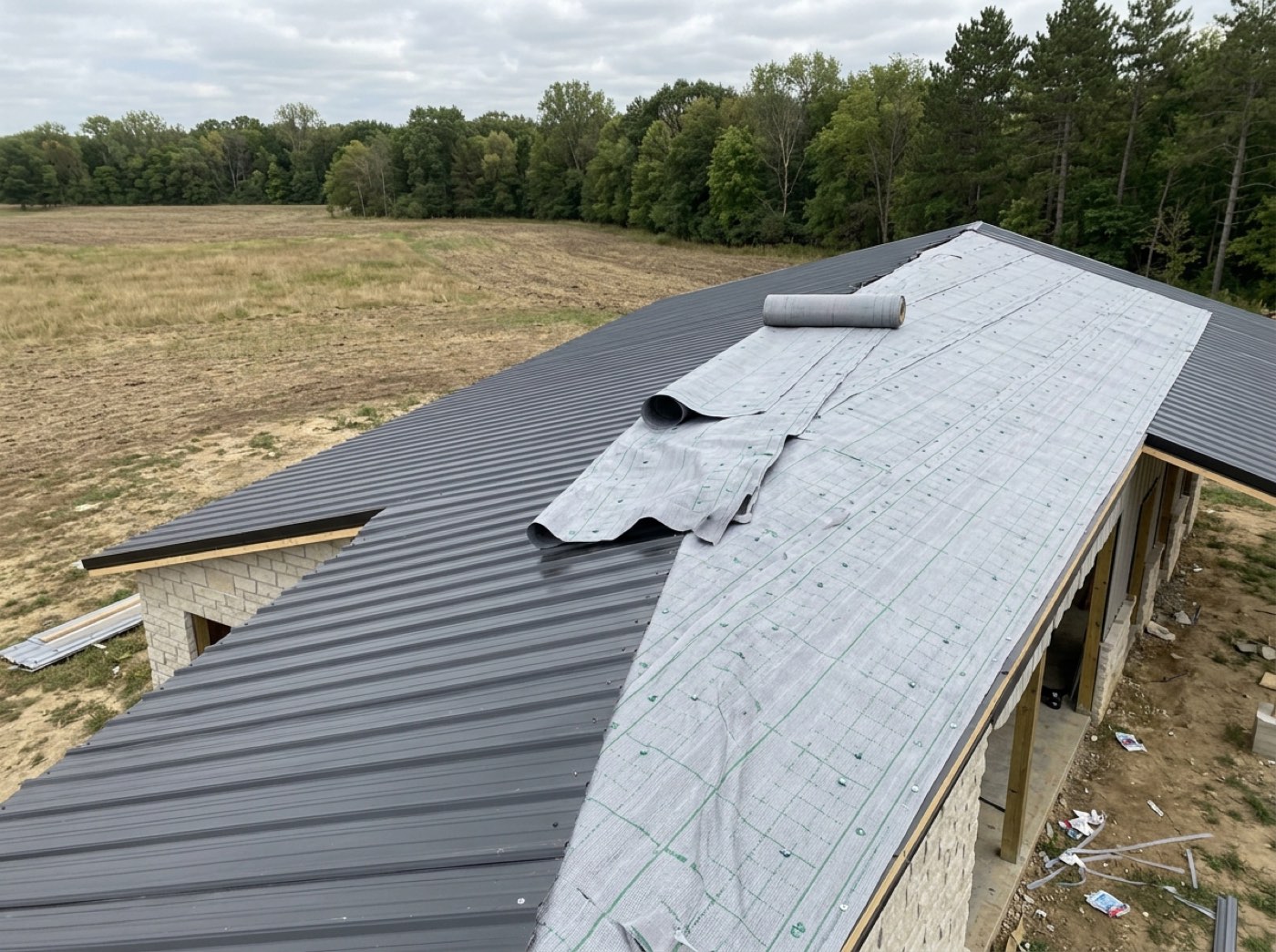
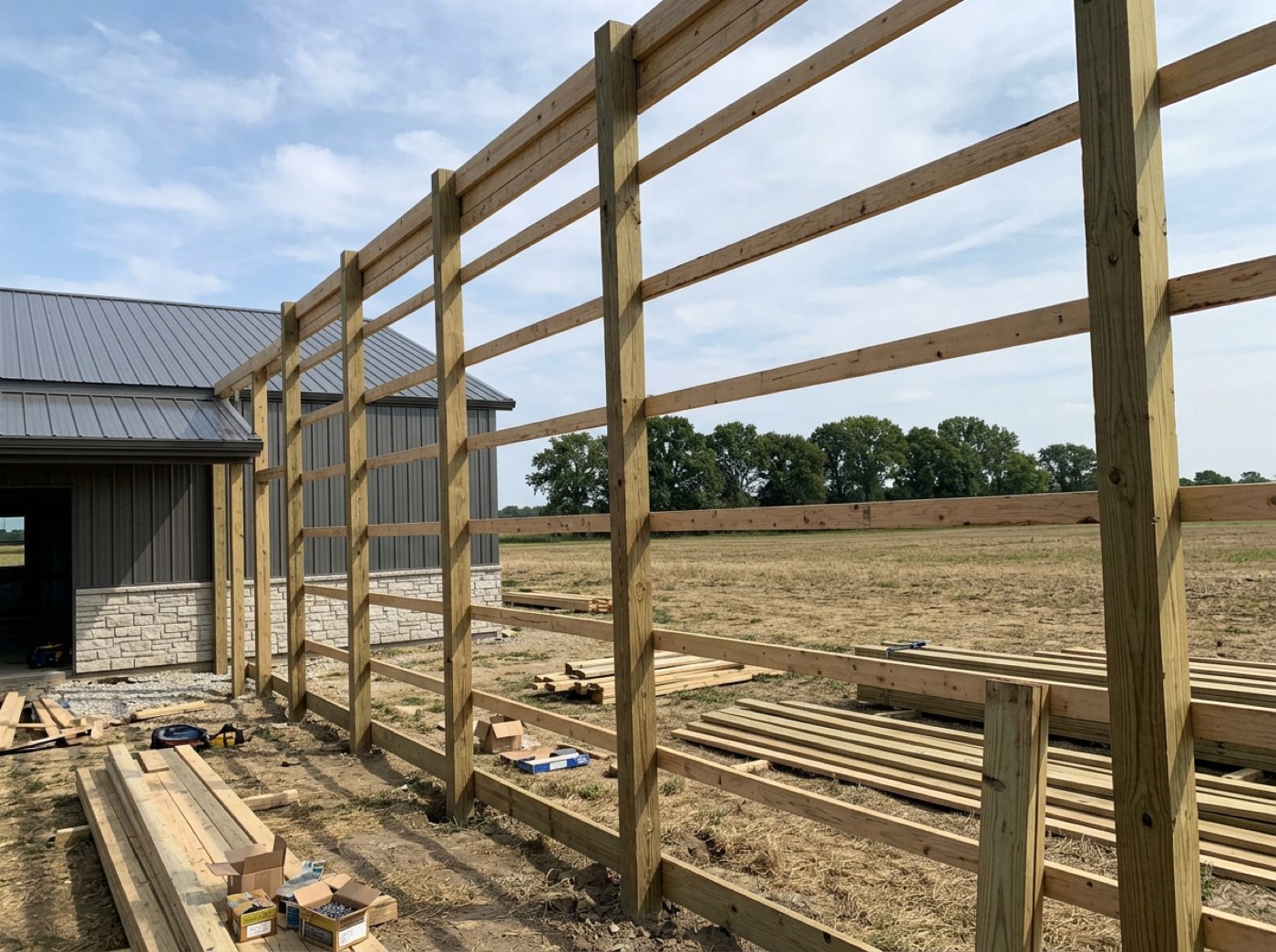
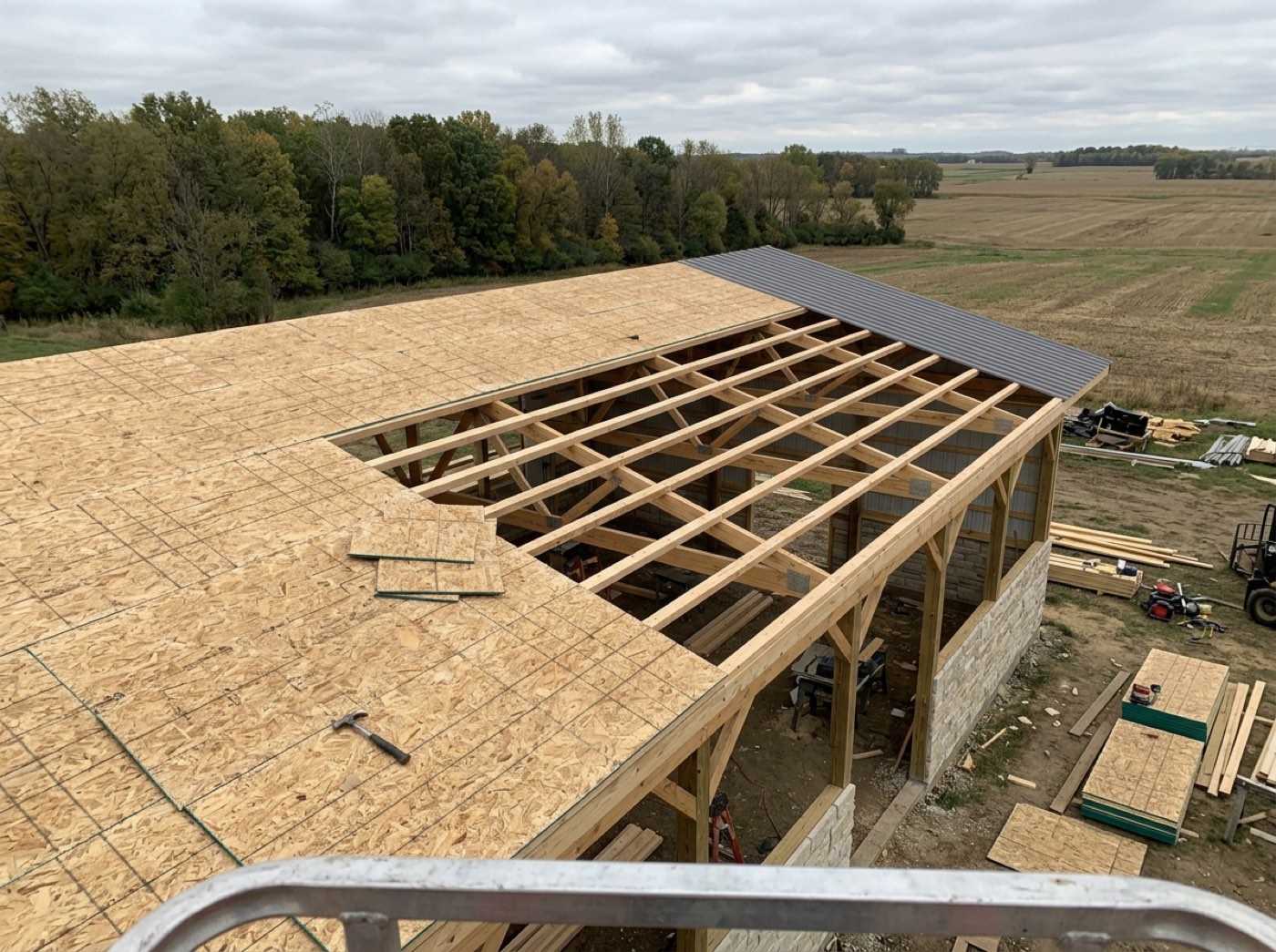
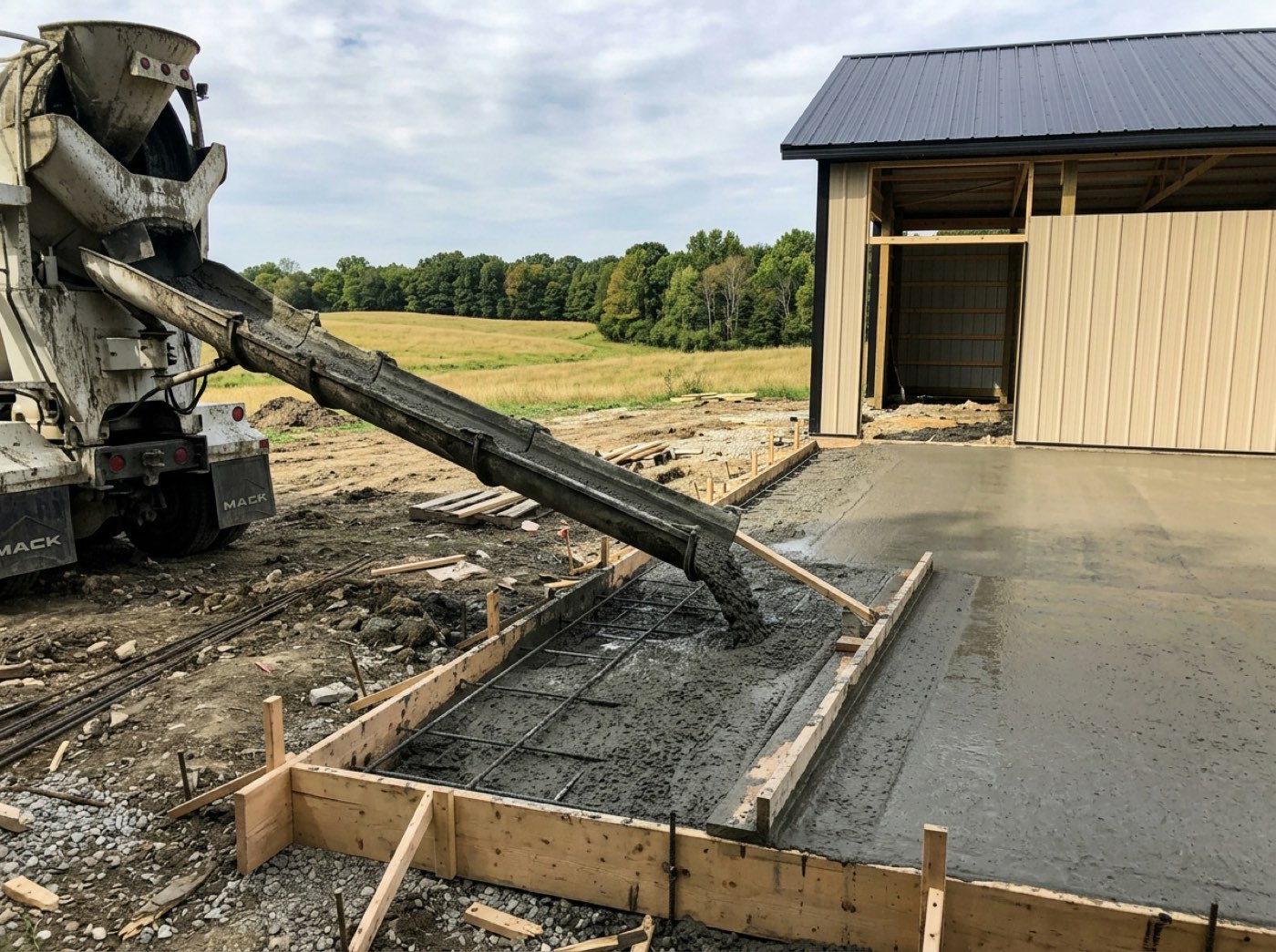
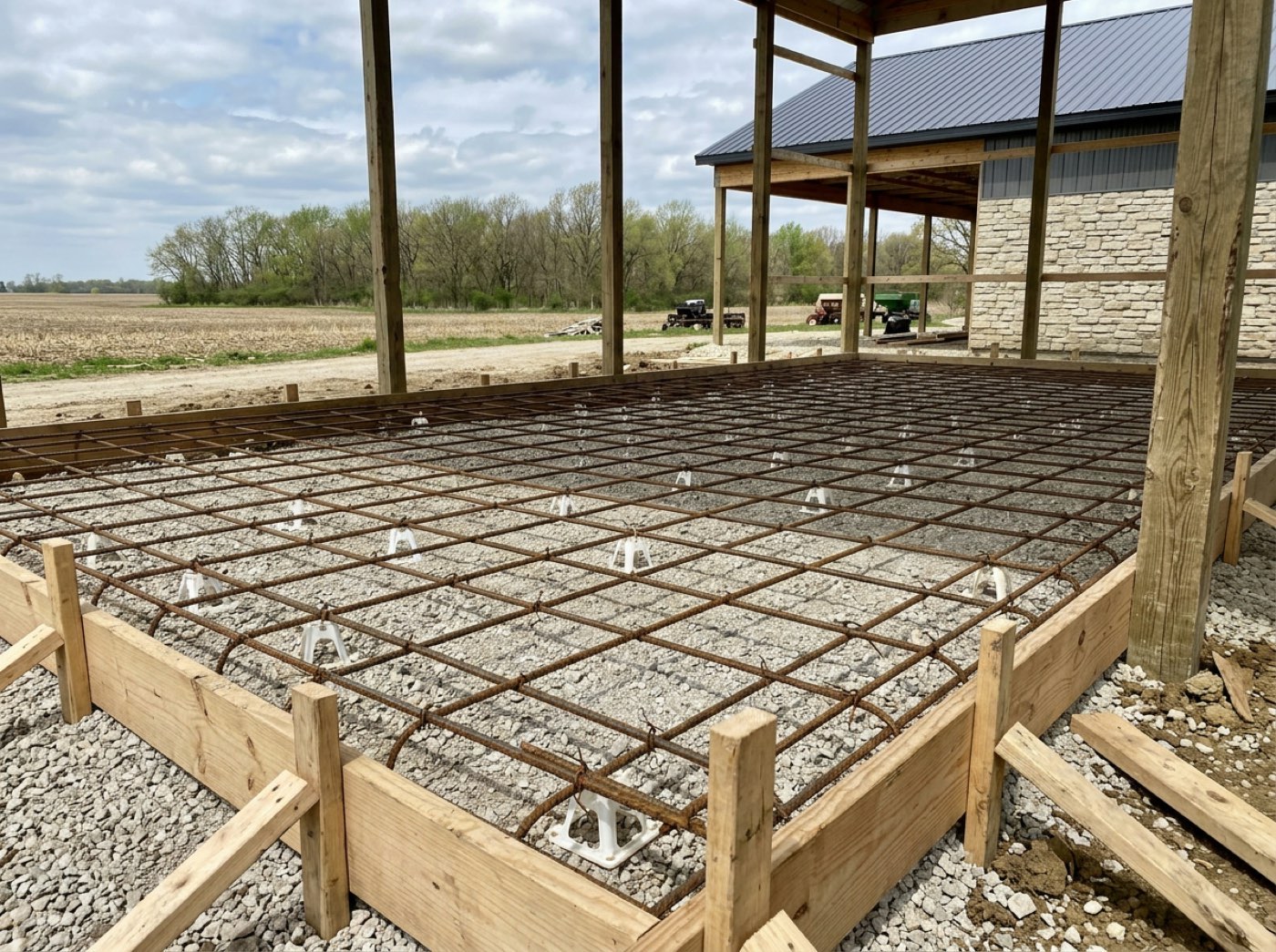
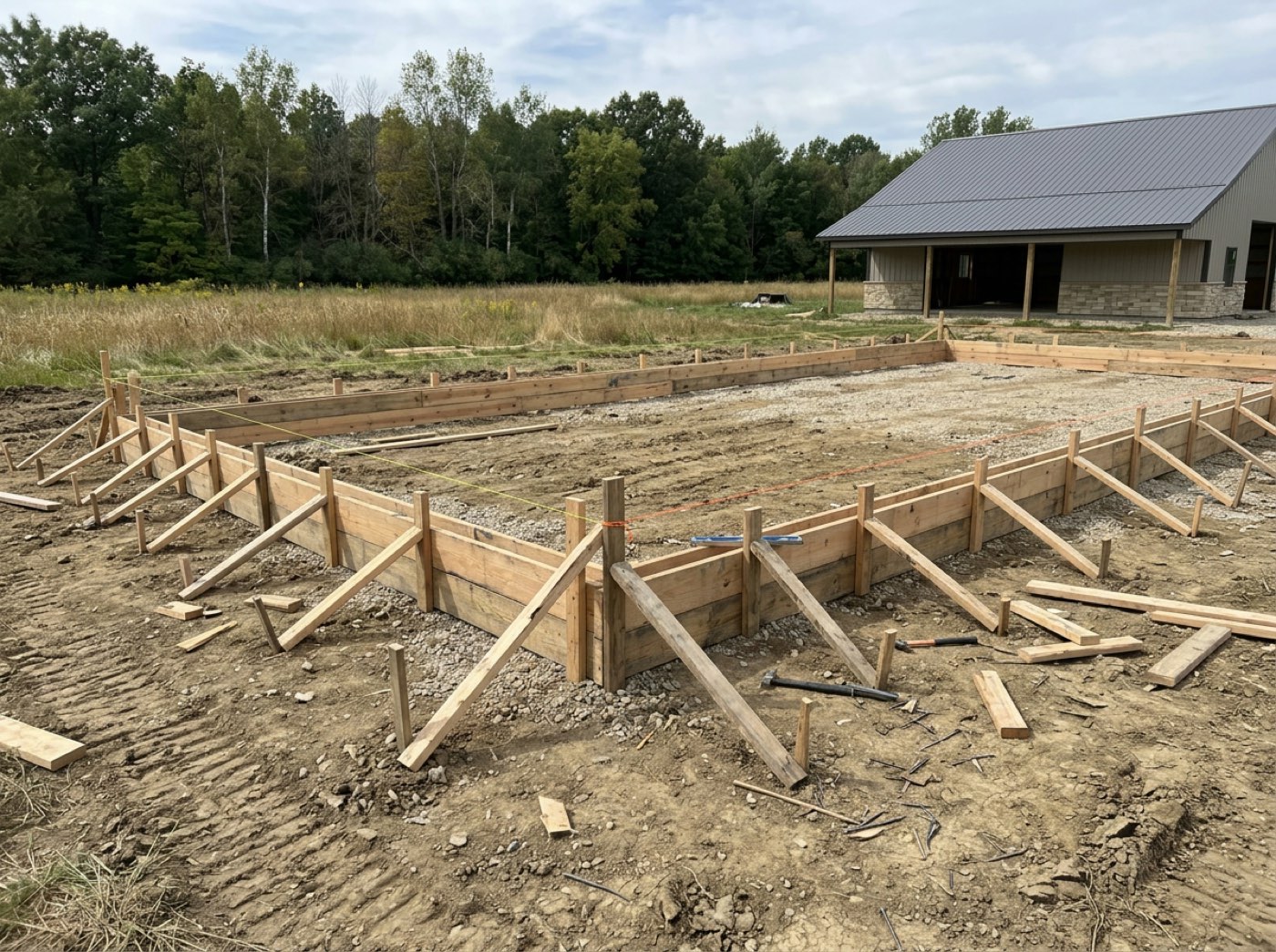
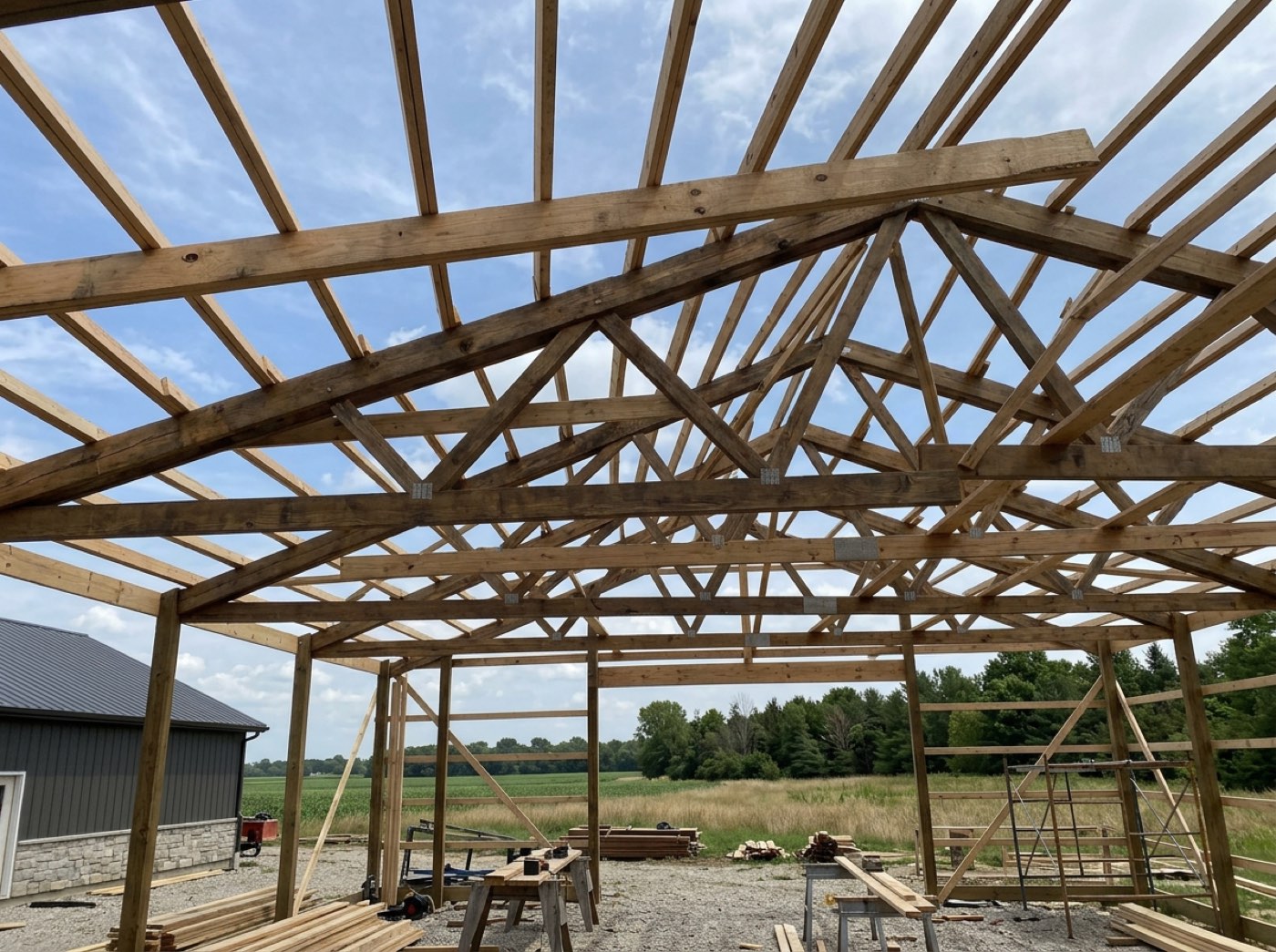
Auditing wall panels across fifty jobs means scrolling past thousands of photos, and a gallery that pages twelve at a time — or loads every photo full size — turns that into an afternoon.
People look for a photo the way they remember it — it was recent, it was the roof — not by page number. A grid that never stops to load matches that, so the office goes looking instead of ringing the crew. It loads thumbnails only, a few kilobytes each, and fetches the full photo when you open one; come back later, or reload, and the last view paints straight from the device. For the business that is evidence found in a minute instead of an afternoon.
A cover for every job — then its photos, a stage at a time
Try itProjects shows a card per job: a cover photo, how many photos it has, and the first and last day anyone shot it. Find one by the job's name or the customer's, or narrow to Active or Completed. Open a card and its photos are waiting in sections.
A customer asks to see a barn like theirs you built last year, and the only way to find it is scrolling back through a year of everybody's photos.
Builders think in jobs, and customers ask in jobs: show me one like mine. A cover per job lets a rep pull up last summer's barn while the prospect is still on the phone — proof he built it, which is what sells the next one. The cover is the latest photo of the finished building when there is one, and Completed jobs stay one tap away instead of mixed into this month's work.
Inside a job: a section per build stage, closed until you open it
Try itA job opens as its build stages, in the order the work was photographed — Dirt Work, Concrete, Framing, Siding & Roofing — then Other and Unsorted for anything shot without a stage. Every section starts closed, with its photo count and its dates on the header. Open the one you want, or press Open every stage and scroll the lot.
The question is never show me the photos; it is what did the forms look like before the pour — and a job's photos in one undivided pile make you hunt for it.
Six closed lines you can read beats four hundred thumbnails you have to scroll: a person takes in the whole job at a glance and goes straight to the stage in question. That calm is the difference between somebody checking the record and somebody giving up on it. Sections run in the order the stages were photographed, so they read the way the building went up, and a section loads nothing until it is near the screen.
The day it was taken, across every job
Timeline breaks the same grid into days. Each day's header says how many photos were taken and on which jobs — Tuesday, Sep 29: six photos, Hutchins four, Okafor two — so you see what moved on a given day across every site at once.
The customer says nobody was on site last Tuesday, and proving otherwise means opening four jobs one at a time.
Disputes come with a date attached: nobody was there Tuesday, the inspector came Thursday. Seeing one day across every job — with the jobs and the counts on its header — lets the owner answer with facts before the conversation gets heated. That protects the customer relationship and the schedule at the same time.
In the project window, without leaving the job
Try itOpen a job from the schedule and its Photos card sits with everything else about it in the project window. Closed, it still tells you something: how many photos the job has and how many of its checkpoints are photographed. Open, it is the same gallery fixed to this job — By stage or All photos, with this job's own stages in the filter.
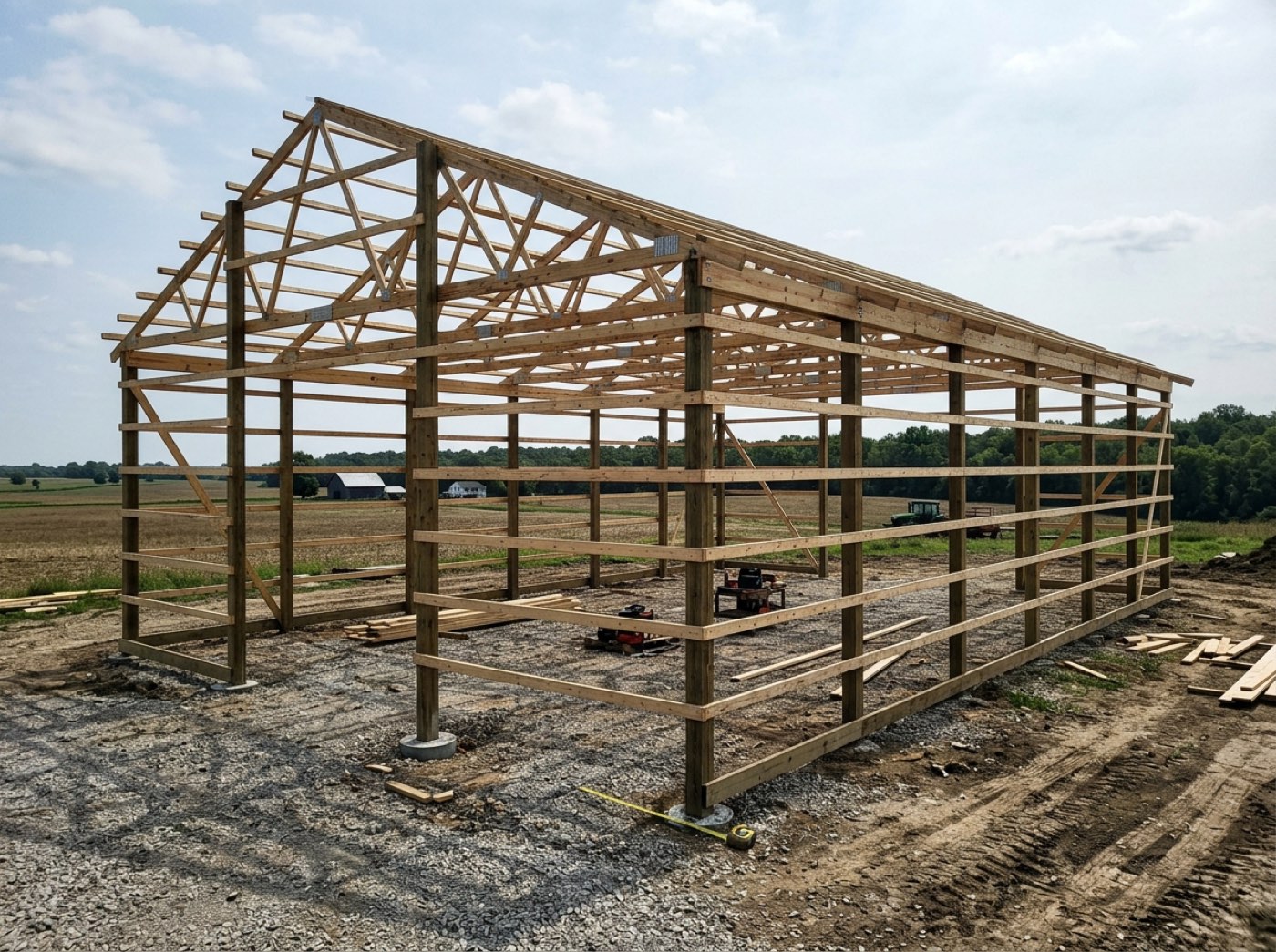
Checking whether the crew photographed the footings means leaving the job, opening the gallery, finding the job and filtering — so nobody checks until the week it matters.
Nobody wants to leave what they're doing to check one thing. With the photos in the job's own window the project manager actually looks — and the closed card's 31 of 38 checkpoints photographed shows where the hole is before he opens it. A hole found now is cheap; one found in a dispute is not. The card starts closed because it is the heaviest thing in the window.
Search that reaches every photo — and stays with you
Try itType a stage, a checkpoint, a label, a job, a file name or the name of whoever took it — framing hutchins — and the gallery asks the whole account, not just the photos on screen. Every word has to match somewhere. The bar stays pinned while you scroll, and a back-to-top button brings you home. Change the words and watch it answer.
You type trusses and the search finds the three trusses photos on screen, not the four hundred further down.
When a search comes back empty, people decide the photo doesn't exist and stop trusting the system. Asking the whole account means the search finds what is really there, so the office keeps using it instead of texting the crew at supper. The pinned bar matters for the same reason: changing one word should never mean scrolling all the way back up.
Every Trusses Set on every job — the QA audit
Try itThe checkpoint filter lists every stage with its checkpoints underneath, each with a photo count, and takes as many as you like. Tick Trusses Set and Bracing, leave the job on All projects, and the grid is every trusses-and-bracing photo the company has taken. Tick a stage's header to take all its checkpoints; search the list when it is long.
You want to see how every crew sets trusses before you rewrite the standard, and the photos are scattered across forty jobs.
An owner who can put every crew's truss photos side by side can coach from evidence instead of opinion — and crews take here's what good looks like far better than a lecture. That is how a standard rises without a fight. Picking a stage picks its checkpoints, several at once, because a photo is filed against a checkpoint; empty checkpoints show blank rather than a column of zeros.
The viewer: arrows, quality, marks and labels
Try itOpen a photo and walk the set with the arrows on either side — they hide on the first and last photo. Choose Fast for the quick copy or Full quality for the untouched original, switch the marks on or off, add labels like trusses-up or needs-rework, and Share with customer from the same strip. Tap a label to see every photo carrying it.
The photo that settles the argument is the one zoomed in on the strap — and on a blurry copy you can't tell whether the strap is there.
A blurry photo starts an argument; a sharp one ends it. Full quality is laid over the quick copy the moment it has loaded, so nobody stares at a blank screen, and the choice is remembered on the device. Labels are your own words — needs-rework becomes a training set, passed becomes proof — so the photos start working for the business instead of just piling up.
Select a handful — or a hundred — and act once
Try itTick photos and the bar turns into actions: Share to customer, Unshare, Delete, or File under a job for photos that came off a phone with no job on them. Shift-click takes everything between two photos, Cmd- or Ctrl-click adds one more, and pressing a tick box and sweeping across the grid takes a run of them. Clear — or Esc — lets them all go.
Twenty photos from Saturday came off a phone with no job on them, and filing them one at a time is how they stay unfiled.
Every file browser already taught your office shift-click and Cmd-click, so there is nothing new to learn — and a job that feels easy gets done. Unshare says plainly that nothing was deleted, because the fear of losing a photo is what stops people tidying the customer's page. A tidy customer page is one the customer trusts.
Storage: the whole library, four ways to look
Try itStorage holds every file on the account — photos, plans, permits, anything emailed in — with the space used across the top. Look at it as a Table, a Gallery, a List or Folders, remembered for you; narrow it with a handful of dropdowns — job, building type, stage, checkpoint, year, month, photos or files, shown to the customer or not — or search a name or a tag. It says how many match and loads the next page as you scroll.
The permit PDF, the plan set and the photo of the pad all live somewhere different, and finding one means remembering which app it went into.
Nobody remembers which folder somebody else used. Every file is tagged from what it already knows — the job, the stage, the month, the phone, who shot it — so anyone finds it the way they think of it, and a handful of dropdowns feels manageable where a wall of tag buttons feels like homework. For the owner, that is one place for every file instead of five apps and a shoebox.
The same photo wherever you open it — and who took it
A photo opened from Storage shows its facts beside it: the job, stage and checkpoint, when it was taken and uploaded, the phone, who shot it, its size, and whether the customer can see it. It is the same photo the Gallery and the project window show — filed once, so its labels and sharing match in all three places.
Two men each say they photographed that footing, and the file holds one picture with nothing on it but a date.
Crews are proud of good work and want the credit; owners need to know who to ask. Who took a photo is set when it comes in, from the person signed in — never from whoever shares it later — so the credit stays with the photographer. Photos that arrive carrying only a name, taken before that person had a login, attach to him by themselves the day he is added to a crew or the team, matched by phone, then email, then exact name. His history is his from day one.
Delete tells you where the photo was sent
Try itBefore photos are deleted, the warning checks where they went. If any were sent in a chat or arrived in an email, it lists those conversations and the people in them — Hutchins 60×80 shop (chat): Tess Hollis, Marco Ruiz — says they'll see a missing file, and the buttons become Keep them and Delete anyway. Confirm and the photos leave the grid at once while a bar counts them into the Trash, with Undo when it's done.
You tidy a job's photos, and three of them were the ones the crew had been talking over in the job chat — now that thread is full of holes.
Deleting feels harmless until somebody goes looking for the picture in a conversation and finds a hole. Naming the conversations and the people at the moment of decision gives one honest pause — Tess and Marco were talking about this one — when it can still change a mind. Then the work happens in the background, so a big tidy-up never means watching a spinner, and Undo is right there.
Thirty days to change your mind
Try itDeleted files go to Storage › Trash and wait thirty days, with the days left in large type on each row — amber in the last week, red in the last three days. Put back one, tick several, or Put back all; Delete for good when you're sure, or Empty trash to free the space.
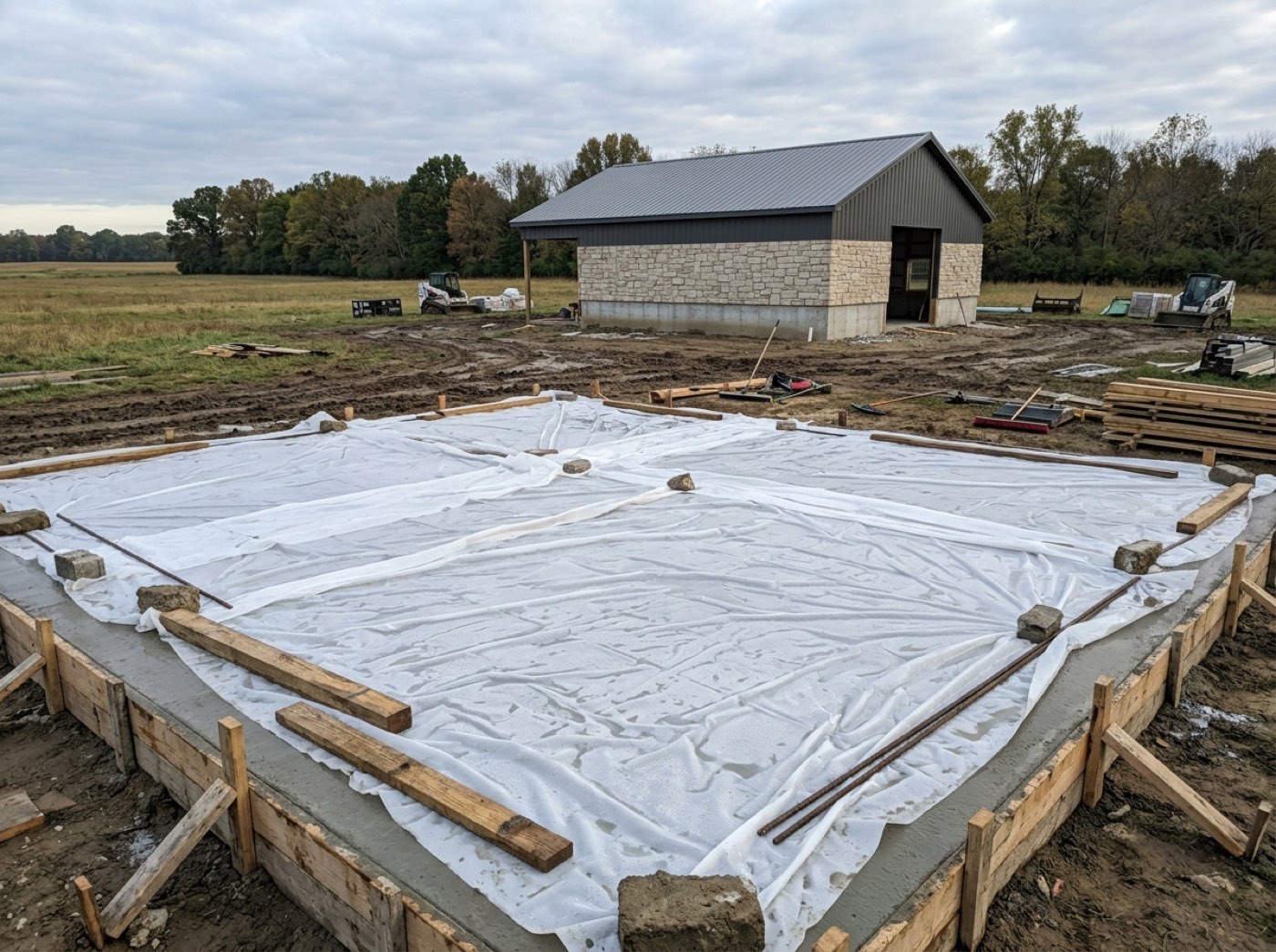
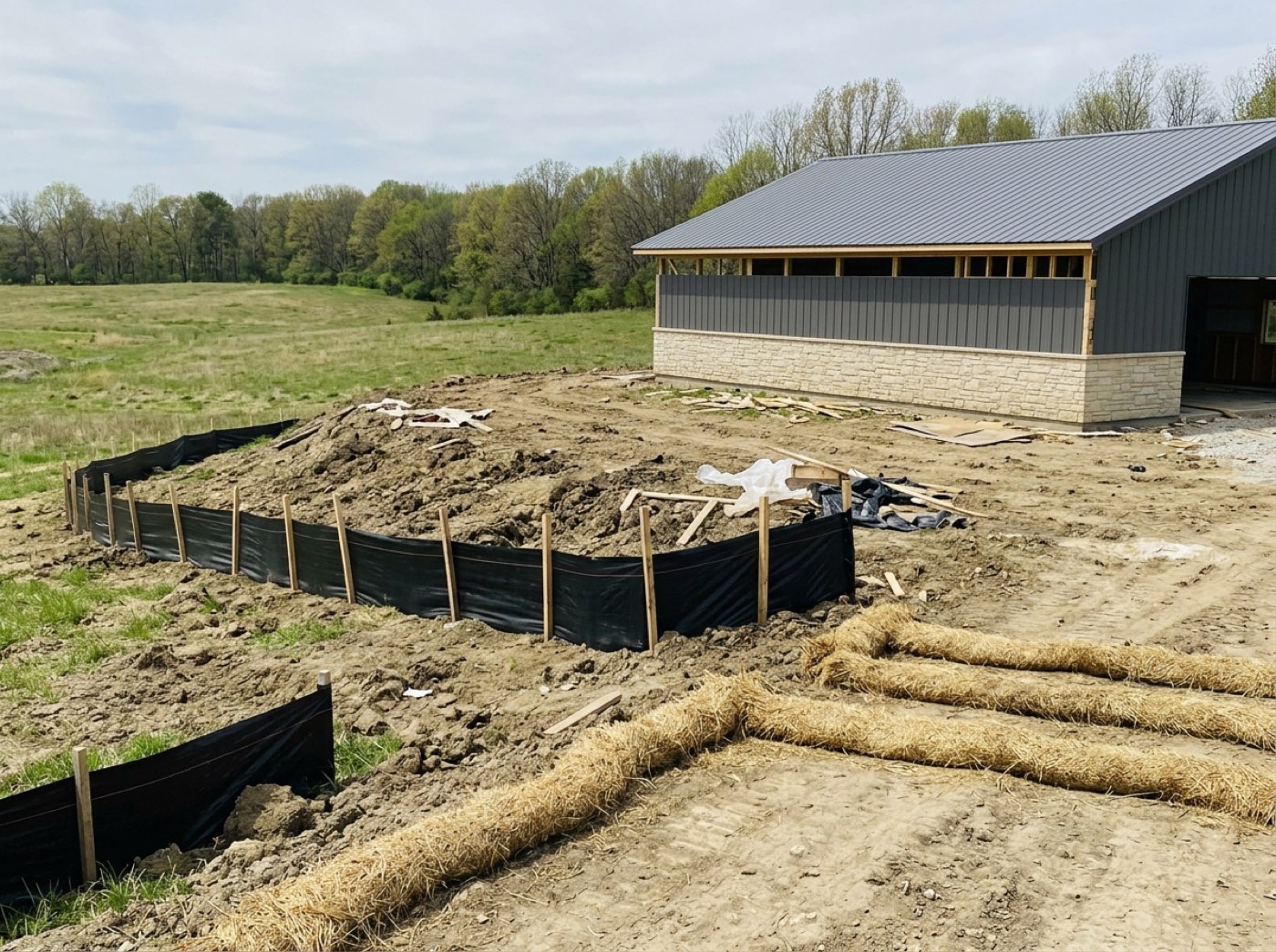
A Friday tidy-up took the only photo of the corner footing with it, and on Monday the customer asks for it.
People only tidy when they aren't afraid of losing something. Thirty days to change your mind takes that fear away, so the library stays clean. The days left are the biggest thing on the row because when does this disappear is the only question anyone opening the Trash has. Trashed files still count against your storage until the Trash is emptied, and the window says so.
- 1Open Project Mgmt › Gallery. The grid loads thumbnails and keeps going as you scroll — no page buttons.
- 2Switch between All, Projects and Timeline; the gallery remembers which one you use on that device.
- 3In Projects, find a job by its name or the customer's, narrow to Active or Completed, and open it: its photos wait in a section per build stage, all closed until you open one — or press Open every stage.
- 4Search asks every photo on the account — a file name, who took it, the stage, the checkpoint, a label or the job's name. The bar stays pinned while you scroll, with a back-to-top button for the trip home.
- 5Open a photo for the viewer: side arrows, Fast or Full quality, marks on or off, labels, and Share with customer.
- 6Inside a job's project window the same photos sit in a Photos card — By stage or All photos — and the closed card says how many photos the job has and how many of its checkpoints are photographed.
- 7Storage holds every file on the account in four views with a handful of filters, and opens a photo with who took it, when, on what phone, and whether the customer sees it.
- 8Delete moves files to a 30-day Trash — and first, the warning names every conversation and person the file was sent to.
A builder a few years in has tens of thousands of photographs, and the one he needs is always the one he can't find: the rebar before the Hutchins pour, the corner the customer swears was never braced. Show them as one long camera roll and he scrolls. File them in folders and he has to remember where somebody else put them. So the gallery looks at the same photos three ways, because there are three questions. Show me what's recent is the endless grid. Show me that job is a cover per job, opened into its build stages in the order the work was photographed — each stage closed until you want it, so a job with four hundred photos opens as six lines instead of four hundred thumbnails. What happened on Tuesday is the timeline. And search asks the whole account, not just the photos already on screen, because a search that only looks at what you've scrolled past finds almost nothing. Because Leads 2 Build serves only post-frame and barndominium builders, it can file by what those jobs share — the build stages and the checkpoints inside them — instead of asking anyone to invent folders. Deleting got the same care. A photo you sent in the crew chat or a customer's email is still in that conversation; delete it and the people there are left with a hole. So the warning names those conversations and people before you confirm, and nothing is gone for thirty days.
- Evidence that exists but can't be found among thousands of photos
- Photos sorted only by date or only by folder when the question is about a job or a stage
- Deletes that quietly leave holes in the conversations a photo was sent in
- Galleries that load full-size images and crawl on a big job