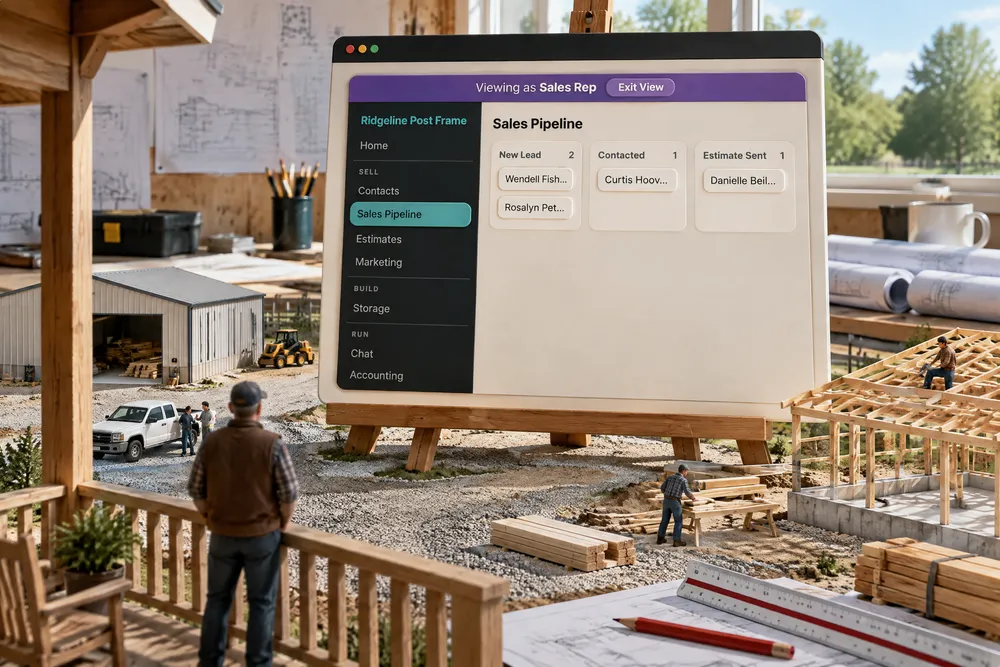
How can a post frame builder see the software the way the team sees it?
Open View As… and pick a role or a named person. To see post frame software as your team sees it, an office role redraws the dashboard under a banner with Exit View, while a crew leader or worker opens as their live field app inside a phone, with their own preset and exceptions. Press Exit View or close the tab and you're back to yourself.
- The person who knows more can't easily imagine knowing less. Better-informed people in Camerer's experiments failed to set aside what they knew when predicting what less-informed people would do. An owner with full access can't picture a crew leader's screen without looking at it. Camerer, Loewenstein & Weber, 1989 ↗
- The field-office gap is a known pain: 33% of contractors listed communication between field and office among their biggest technology challenges. A five-second look replaces a 7 AM phone call you can't reproduce from your own login. AGC & Sage, 2024 ↗
An admin's sidebar carries View As…: pick a role (each crew's leader listed by crew), or a named person — from your crews, or anyone else who signs in. Pick an office role and the dashboard redraws with that role's screens under a violet banner with Exit View. Pick a crew leader or worker and you get their field app inside a phone, live — because crews never see the office side at all. No plumbers, no remodelers — exclusively post-frame and barndominium builders — so the crew view you open is the actual app your framers carry. Close the tab and it ends.
Also called: see what my crew sees · view as a user · preview a role · test permissions
Open the app as a role, a crew's leader, or one named man
Try itView As… sits at the foot of an admin's sidebar. By Role lists Admin, Sales Manager, Sales Rep, Project Manager, each crew's leader by crew, and Worker; By Person lists the people on your crews by name, and Team everyone else who signs in. Pick one and the app redraws as theirs — their access, not the role's defaults: the role as your company set it, any preset you gave them, their own exceptions; Change View swaps to somebody else and Stop Viewing As brings you home. Access problems fail quietly — this turns 'what is he looking at?' into a five-second look.
A crew leader rings at seven saying the job isn't on his phone, and from your login everything looks fine, so the two of you argue about a screen only one of you can see.
The owner answers 'I can't find it' in the time it takes to ask, instead of driving out or talking a man through a screen he can't describe — and the crew gets their answer while they're still on site. Roles and named people are both offered because 'what does a rep get' and 'what is Caleb seeing' are different questions.
A crew member's view is his phone, live, and every button works
Crew leaders and workers never see the office dashboard — they get the field app. So View As one of them opens that app inside a phone, sized to your window: The field app — Caleb Yoder, 'Exactly what your crew sees on their phone. Everything here is live.' Pick a role instead of a person and somebody real in that role, on one of your crews, is picked for you — so you see a working day, not an empty account.
You train the crew from the office dashboard, they open a completely different app on their phones, and nobody can follow what you showed them.
The owner sees the three big buttons his framers actually press, so he can explain the app in their words and spot what confuses them — which is what gets a crew using it instead of texting the office. Showing the real field app, not a dashboard a framer never opens, is the only honest version of 'as he sees it'.
Viewing as one crew member opens his real week — and what you press is real
Viewing as a specific crew member opens his own field app, against his real work — his jobs, his clock, his hours — and the frame says so: Everything here is live. It is a look at his day, not a sandbox, so a button pressed there is pressed on his record. That is the point: the hours you are reading are the hours he is reading.
Caleb rings to say his Tuesday hours are missing, and from the office you are reading a summary he never sees — so the two of you argue past each other about two different screens.
The owner and the framer look at the same week, so a pay question gets settled in one call — Caleb says Tuesday is missing, and you are both looking at the same 8 hours waiting for approval. Opening his own app rather than a lookalike is what makes it show his real week in the first place.
Looking around as a rep does not count as the rep
While you view the dashboard as an office role, usage tracking is off, so ten minutes in a rep's screens is not counted as him being on the app. Your own getting-set-up checklist and Leads 2 Build's messages to you stay out of his view as well — what you see is his screen, not yours with his name on it.
You check what a rep sees and your own setup checklist and a support message pop up over his screen, so you can't tell what is his and what is yours.
The owner sees the rep's screen the way the rep has it, with nothing meant for the owner on top, and the activity figures stay a fair picture of who really works in the app. Switching those off for the length of the view keeps your actions and his apart.
- 1Open View As… at the foot of the sidebar (admins only).
- 2Pick a role — Admin, Sales Manager, Sales Rep, Project Manager, a crew's leader, Worker — or a named person under By Person (crews) or Team (everyone else who signs in).
- 3An office role redraws the dashboard with that role's screens as your company set it; a named person gets their own access — their preset and their own exceptions too — under a banner that says Viewing as the whole time.
- 4A crew leader or worker opens the field app inside a phone — a named person's own, or somebody real picked for the role.
- 5Press Exit View, Stop Viewing As, or close the tab, and you are back to your own.
Access problems fail quietly. You find out a crew leader cannot see the job when he calls from a site at seven in the morning, and you cannot reproduce a thing from your own login. And a crew role never sees the office dashboard at all — so showing an owner the dashboard 'as' a framer would show him a screen the framer has never seen. This turns 'what is he looking at?' into a five-second look. It is tied to the tab on purpose: an owner who wanders off still looking through somebody else's eyes, and files something from there, is a mess you find months later.
- An owner could not see what a rep or a crew member was looking at without borrowing their phone.
- Support conversations about missing screens were guesswork.
- Crew members work in a field app the office never saw.
Open a customer's account as one of their people
The Open control has a chevron listing everybody in that company. Pick one and the account opens already in his view. The instruction is then stripped out of the address, so a refresh or a forwarded link does not quietly carry it forward.