You keep one list of trades, each with a colour, in Settings. Any material section, service line or labor line on an estimate can carry a trade, and it wears that trade's colour down its left edge with the trade's name under it. Show one trade narrows the estimate to that trade's lines and its scope before markup, and Print scope sheet or Download CSV hands that scope to the sub — amounts only if you switch them on. A tag never changes a price: every total is worked out from the same lines either way. We don't build software for plumbers or remodelers — only for post-frame and barndominium builders, so the trade list starts as the subs on that kind of job: site work, concrete, framing, roofing, doors and windows, insulation, electrical, plumbing, HVAC, drywall, paint, flooring, cabinets, trim.
Also called: trade tags · scope by trade · subcontractor scope sheet · cabinet scope · colour-coded estimate · color coded estimate · sub scope of work · trade breakdown
Every line wears its trade's colour
On the Cost breakdown of Ridgeline 40×60 Shouse, a tagged line carries its trade's colour down the left edge and the trade's name under the line — Framing in orange, Roofing on the sheathing, Concrete on the foundation and the 4″ slab, Site work on the dumpster. Sections named like a trade start tagged: Framing as Framing, Trim as Trim, Doors & Windows as Doors & windows, Foundation as Concrete. Anything that isn't obvious — Fasteners here — stays untagged rather than guessed.
Six subs work off one estimate and nobody can see at a glance which line belongs to whom.
A builder scanning an estimate wants to see who does what before he reads a number. Colour reads faster than a column of labels, and an edge never covers a figure. Leaving the unobvious lines untagged means a sub filtering their scope never finds a line the builder didn't put there.
Show one trade: the cabinet sub's part, and nothing else
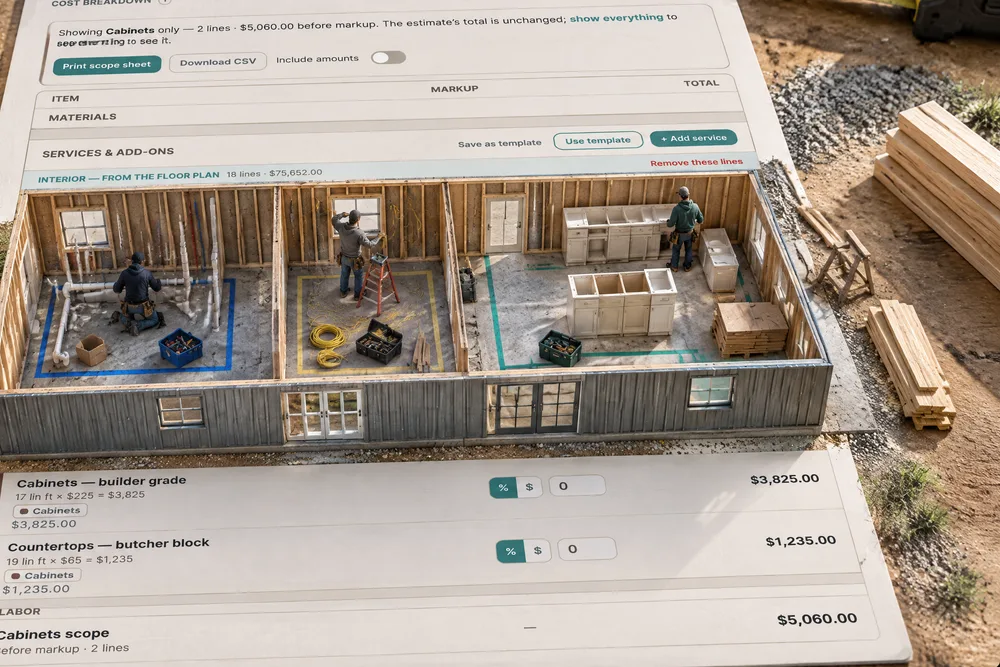
Try itPick Cabinets where it says All trades and the estimate narrows to the cabinet lines — Cabinets — builder grade, 17 lin ft × $225 and Countertops — butcher block, 19 lin ft × $65 — and a Cabinets scope line: $5,060.00 before markup, 2 lines. The banner says it plainly: the estimate's total is unchanged. Show everything and it is all back, totals and all. The tag is a label; nothing about the price is read or written.
The cabinet man gets the whole estimate with every price on it, or a retyped list that's already missing a line.
The cabinet sub needs his part of the job, not the whole job and its margins. Because Show one trade filters the estimate instead of copying it, the scope is always exactly what is on the estimate — no retyped list drifting out of date. For the customer, the quote they read never moves.
See which trades are on the job before you pick
Open Show one trade and every trade on your list is there, with a count beside each one that has lines on this estimate — Plumbing 5, Trim 4, Concrete 3, Cabinets 2. A trade with no count has nothing tagged yet. It is the quickest way to see which subs a job needs to call.
You can't tell which trades a job even needs until you have read the estimate line by line.
The counts tell an estimator which subs to phone before he opens a single scope. A trade with no count on a barndo is a question worth asking — did we forget the HVAC, or is the customer doing it?
Print the scope sheet — with or without the money
Try itWith one trade showing, Print scope sheet makes a plain page of just that trade's lines: Cabinets — Ridgeline 40×60 Shouse beside a bar in the trade's colour, each line under its section with its detail, and a footer saying it holds only the lines tagged Cabinets on this estimate. Include amounts decides whether the prices and a total print. It prints straight from the estimate — no window to save, no file to rename.
A sub's scope gets retyped into an email, a line goes missing, and the bid comes back short.
The builder decides what a sub sees — the scope to bid against, or the scope and the number he is carrying for it. For the sub, a clean page with only their work is easier to price and harder to get wrong.
Or hand the sub a CSV
Download CSV writes the same scope as a file — a title line, then Section, Item, Detail for every line, and Amount only when amounts are on. The plumbing scope on the 40×60 is five lines: the tub and shower inserts, two full baths, the kitchen, the laundry and the water heater.
The plumber asks for the scope "in Excel" and somebody copies it out of the estimate by hand.
Some subs want a file they can open and price from, not a printout. A CSV drops into their spreadsheet or estimating program without anybody retyping it — one less phone call, one less transcription.
Tag a line in one pick
Try itSwitch on Tag trades and every material section, service line and labor line gets a trade picker under its name — the colour swatch, then the trade. Pick one and the edge colour follows. Labor is taggable too: Erect shell as Framing, the door and window labour as Doors & windows. Switch Tag trades off and the pickers fold back into the coloured names.
Tagging every line on every estimate sounds like a job nobody in the office will actually do.
Tagging only gets done if it's quicker than not doing it. Defaults cover the sections named like a trade, so the estimator only touches the handful of lines that aren't obvious — and the next time that sub needs a scope, it's a click instead of an hour.
Your trades, in your words and colours
Try itSettings, Estimating, Trades holds the list: rename a trade, give it a colour, move it up or down, add your own with + Add a trade, and Save trades. Removing a trade retires it instead of deleting it, so lines already tagged keep their colour. Only an admin changes the list; everyone who works on estimates uses it.
A fixed trade list never matches the subs you actually use, so the tags end up meaning nothing.
A builder's trade list is his list of subs, and nobody else's words fit it. Letting him rename and add trades — and never breaking a tagged line when he does — is what makes the colours mean something on his jobs.
Sixteen colours picked to stay apart
Try itThe colour picker offers sixteen colours chosen to read on the light screen and the dark one. A small dot marks a colour another trade already uses — allowed, but harder to tell apart on the estimate.
Free-pick colours end up as four shades of blue and the edges stop meaning anything.
Two trades in nearly the same colour are no better than no colour at all. A fixed set that stays distinct keeps the edges telling trades apart at a glance, on any screen the office works on.
Retire a trade without breaking an old estimate
Take Paint off the list and every line already tagged Paint keeps its colour and reads "Paint (retired)". New lines can't pick it, but the picker on an old line still shows it, so opening the menu never silently drops a tag.
Delete a trade from the list and every estimate that used it is left with lines tagged with nothing.
Trade lists change — a builder brings painting in-house, or splits drywall from paint. Old estimates have to stay readable when that happens, or the office stops trusting the tags. Retiring instead of deleting is the difference.
SmartBuild estimates get the same picker
Try itOn an estimate synced from SmartBuild, every service line carries the same trade picker, and Show one trade sits above the lines with the same scope sheet and CSV. On Dawson Hoover — Commercial Shop, Electrical rough-in & service is tagged Electrical, the 6″ slab Concrete and the gutters Roofing.
A builder on SmartBuild estimates has no way to split the services out by sub without retyping them.
A builder who estimates in SmartBuild still hands the same lines to the same subs. One trade list across both kinds of estimate means the office learns one way of working, whichever engine the building was priced in.
The barndo interior arrives already tagged
When the interior of a barndominium is added from its floor plan, every line comes in tagged — drywall as Drywall, the baths and water heater as Plumbing, cabinets and tops as Cabinets — so the plumbing scope is ready the moment the interior is priced. How the interior gets priced is on priced interior assemblies.
The interior goes onto the estimate as one long list, and somebody spends an hour sorting it by sub.
The finish-out is where most of the subs are, and it's the part of a barndo quote nobody wants to split by hand. Pricing it and splitting it by trade in the same press saves the estimator a second pass.
- 1Set your trades and their colours in Settings, Estimating, Trades — rename, reorder, add your own; removing one retires it
- 2On an estimate's Cost breakdown, switch on Tag trades: every material section, service and labor line gets a trade picker
- 3Material sections named like a trade start tagged — Framing as Framing, Trim as Trim, Foundation as Concrete — and anything else waits for you
- 4Pick a trade where it says All trades: only its lines stay, with that trade's scope before markup, and the estimate's own total does not change
- 5Print scope sheet or Download CSV for the sub; tick Include amounts only if they should see prices
- 6On a SmartBuild estimate, each service line has the same trade picker, with Show one trade above the lines
A builder hands the same estimate to six subs, and each of them only needs their own part of it. Today that means retyping the cabinet lines into an email, or sending the cabinet man the whole job with every price on it. Retyping is how a line gets missed, and sending everything is how a sub learns your margins. Tagging the line once means the cabinet sub's scope is always exactly what is on the estimate — and because a tag is only a label, the quote the customer saw never moves.
- Sending a sub the whole estimate, prices and all, when they need one trade
- Scopes retyped by hand and drifting from the estimate
- No way to see at a glance which lines belong to which sub
- A trade list that never matches the subs a builder actually uses