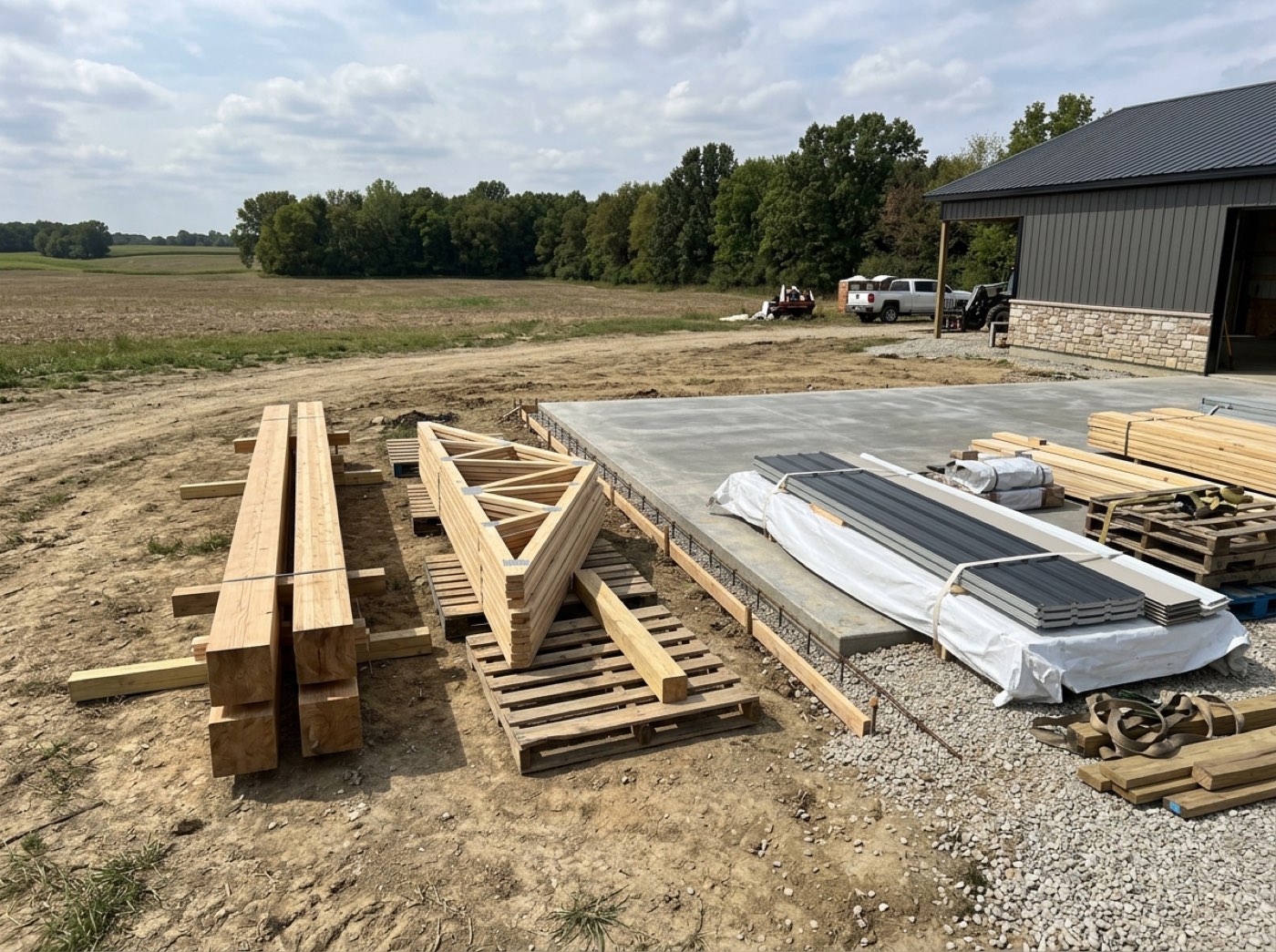
One template per building type: Post frame, Barndominium and Non-niche to start with, and you can add your own. Each stage carries a name, a colour, a default length and its checkpoints. Starting a job copies that template onto it, so a barndominium starts from a barndominium plan instead of a generic one. We don't build software for plumbers or remodelers — only for builders like you, so the stages are a pole barn's stages: permitting, dirt work, concrete, material delivery, post set, siding and roofing.
Also called: stage presets · post frame stages · barndominium stages · set up my build stages · customise stages
Post Set, not Framing — the stages are named the way you build
Each building type carries its own stage list, colours, default lengths and checkpoints. The post-frame template renames Framing to Post Set; the barndominium template also renames Concrete to Slab / Foundation. Rename, reorder, add or remove stages, so a shed stops carrying a barndominium's stage list and the board reads in the words your crews already use.
The board says Framing, the crew says Post Set, and the new hire spends his first week translating between them.
Crews talk about post set, not framing, and a board in their own words is one they actually read. Each building type carries its own list, so a shed stops dragging a barndominium's stages behind it and a new hire learns the job in the words the crew already uses.
The default order is the order you actually build in
You grade, fill and compact the pad, then you form and pour on it. The factory templates were corrected to say so; the earlier order put concrete first, which is backwards on every real site. It matters because the template is what every new job is copied from, and a wrong default gets copied by whoever starts a job in a hurry.
A new job copies a plan with the slab poured before the pad is graded, and the one nobody catches goes out to the crew that way.
Whoever starts a job in a hurry takes the default as it comes, so the default has to be right. Grading before pouring is how every real site runs, and getting the template right once means no job goes out to a crew backwards.
Renaming a stage doesn't silently break what's attached to it
Every stage keeps its own lasting identity behind the display name, so a notification rule or an email template stays attached through a rename. Before that existed, a renamed stage kept its old name underneath and a newly added stage had no identity at all — so it could never carry a rule in the first place.
Renaming Framing to Post Set quietly cuts off the framing-finished email, and nobody notices until a customer asks why the updates stopped.
An owner who renames a stage should not silently lose the customer email that hangs off it. Every stage keeps a lasting identity behind its name, so notification rules and templates follow it through a rename — and a stage you add yourself can carry them from day one.
Write down what "ready for inspection" means once
Stages and checkpoints carry written explanations any crew member can read from the item itself, so the standard travels with the checkbox instead of living in the explanation you gave a new hire in the truck. Correct the wording and it reaches jobs already running, the same day. New men can answer their own question without calling the office.
Every new hire learns a different version of "done" from whoever trained him in the truck.
New men don't want to call the office to ask what "ready for inspection" means. Writing the standard on the checkpoint itself answers it on site, the same way for every crew — and a correction reaches jobs already running the same day.
Twelve stage colours chosen so two bars are never confusable
Stage colour is data, not decoration — it is how you read the board from the far side of the office. Colours come from a fixed set, and a stage you added yourself keeps its own colour instead of falling back to grey. Where two same-status stages run back to back, the board shades them slightly apart so they don't merge into one block.
Two stages in near-identical blues merge into one block, and the office misreads which jobs are pouring this week.
The owner reads the board from the far side of the office, so colour has to carry meaning. A fixed set chosen so no two stages are confusable — and a stage you add keeping its own colour instead of grey — means one look says where every job is.
- 1Open Settings → Project Stages and pick a building type.
- 2Rename, reorder, add or remove stages so they read the way you build.
- 3Give each stage a colour and a default length.
- 4Add the checkpoints that belong inside it.
- 5Starting a job copies that list onto the job.
The default stage order put concrete before dirt work, which is backwards on every real site — you cannot pour a slab and then grade the pad underneath it. Every new job started from a plan the builder had to reorder by hand, and the ones nobody caught went out to crews wrong. Underneath it was worse: a renamed stage kept its old name and a newly added stage had no identity at all, so it could never carry a notification rule or an email template.
- One rigid stage list for every kind of building
- Stage names that don't match how a crew talks
- Renamed stages silently losing their notification rules
Stage colours you can read across a room
Twelve named colours — Amber, Slate Blue, Brown, Blue, Orange, Purple, Green, Teal, Red, Pink, Indigo, Charcoal. Stage colour is data, not decoration: it is how you read the board from the far side of the office. A stage you added yourself keeps its own colour instead of falling back to grey.
What this stage, and this checkbox, actually means
Write down what dirtwork actually includes, or what "ready for inspection" means, in your own words. It shows as a tip beside the stage title and beside each checkpoint. Unlike the labels, a correction reaches jobs already in progress the same day.